Administration server basics
 his chapter describes the concepts behind the administration server and its Server Manager forms you use to configure your Netscape SuiteSpot servers. This chapter also gives you an overview of some new features and tells you how to start and stop the server. For online directions on using specific forms in the Server Manager, click the Help button at the bottom of the form.
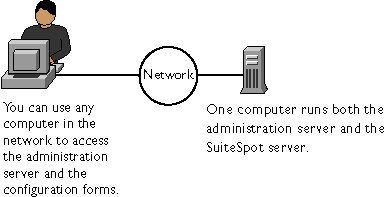
Because every Netscape SuiteSpot server is configured using an administration server and the Server Manager forms, you can easily configure your servers remotely, using any computer in your network.
You can configure your SuiteSpot servers from any computer in the network.
his chapter describes the concepts behind the administration server and its Server Manager forms you use to configure your Netscape SuiteSpot servers. This chapter also gives you an overview of some new features and tells you how to start and stop the server. For online directions on using specific forms in the Server Manager, click the Help button at the bottom of the form.
Because every Netscape SuiteSpot server is configured using an administration server and the Server Manager forms, you can easily configure your servers remotely, using any computer in your network.
You can configure your SuiteSpot servers from any computer in the network.
There are multiple versions of the administration server (2.x and 3.x), and various SuiteSpot servers are configured using different versions. Because of the different versions, this chapter lists suggestions to follow before installing two servers that use different versions of the administration server. For a list of the servers that use the different versions of the administration server, see the printed Quick Start card that comes with SuiteSpot. If you have an individual server, check its documentation for the administration server version it uses.
Using the administration server
The administration server is a web-based server that contains the Java and JavaScript forms you use to configure your Netscape SuiteSpot servers. Because the forms for each SuiteSpot server have a consistent look and feel, you can quickly learn to configure and manage another server. The administration server is installed when you install your first SuiteSpot server. The directory where you install the servers is called the server root directory. If you install a second SuiteSpot server and you want to configure it using the same administration server as the first SuiteSpot server, you install the second one in the same server root directory as the first. After installing a SuiteSpot server and administration server, you use your browser to navigate to the administration server and use its forms to configure your SuiteSpot servers. When you submit the forms, the administration server modifies the configuration for the SuiteSpot server you were administering. The URL you use to navigate to the administration server depends on the computer host name and the port number you choose when you install any SuiteSpot server. For example, if you installed the administration server on port 12345, the URL would look like this:http://myserver.mozilla.com:12345
Before you can get to any forms, the administration server prompts you to authenticate yourself. This means you need to type a user name and password. You set up the "superuser" user name and password when you install the first SuiteSpot server and administration server on your computer. After installation, you can use distributed administration to give multiple people access to different forms in the administration server.
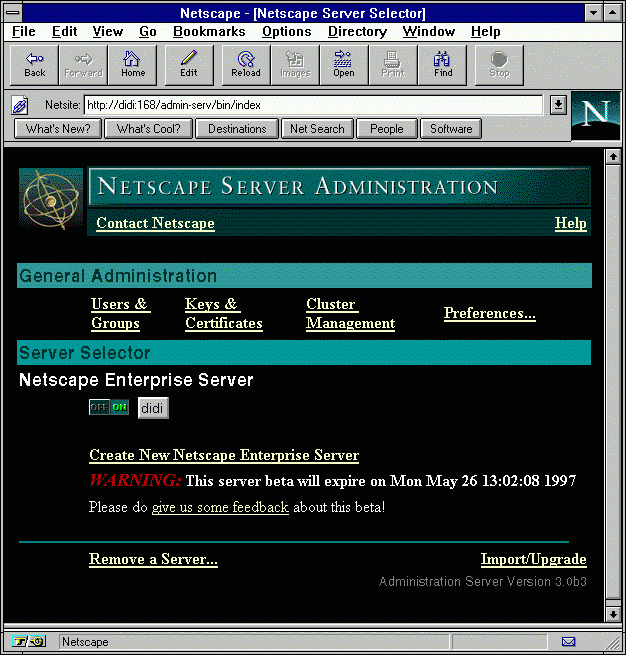
The first page you see when you access the administration server is called the Server Administration page (Figure 1.2). The Server Administration page has three or four sections, depending on the servers you have installed. Figure 1.2 shows all four sections, which are described here:
- "General Administration" contains buttons for configuring the administration server.
- "Servers Supporting General Administration" contains all of the SuiteSpot 3.x servers installed on the computer (in the same server root directory).
- The third section isn't named, but it contains two links: one for migrating a configuration from a 2.x server, and one for removing a server from your computer.
- "Other Servers" appears only if your computer contains both 2.x and 3.x versions of the administration servers. This might occur, for example, if you install Netscape Directory Server 1.02, which uses the 2.x administration server, and Netscape Enterprise Server 3.0, which uses the 3.x administration server. If you have a 2.x server you want to configure from a 3.x administration server, see the section Installing 2.x and 3.x servers together later in this chapter.
The Server Administration page lets you manage your Netscape servers.
Using the Server Manager forms
As stated earlier, the collection of forms used to configure a single server is called the Server Manager. The administration server contains a Server Manager for each Netscape server installed on the computer, including one for the administration server itself.
The Server Administration page, shown in Figure 1.2, contains links to each Server Manager.
- To get to the Server Manager forms for the administration server, click any of the category buttons on the Server Administration page.

- To get to the Server Manager forms for a particular server, click the button in the General Administration section that has the server's name on it. For directions on configuring a particular server, see that server's documentation or click Help in any online form.
 After clicking on a button, you'll see the Server Manager--a three-frame page with buttons in the top frame and links in the left frame (see Figure 1.3).
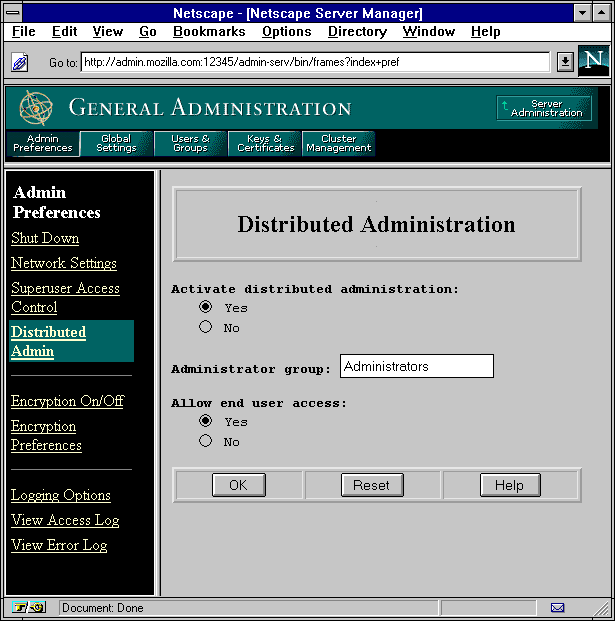
To use the Server Manager, you click a category button in the top frame (for example, Admin Preferences), and then you click a link in the left frame (for example, Distributed Admin). A form appears in the remaining frame where you select options and specify values that configure the server. To submit your changes in the form, click the OK button. Click the Help button in any form to get specific directions on using that form.
 To return to the Server Administration page (Figure 1.2), click the Server Administration button in the top frame of the Server Manager.
Features new to the 3.x administration server
The new 3.x features refer to the version of the administration server, not necessarily to the version of the Netscape server products. As of this writing, the SuiteSpot servers using the 3.x administration server are:- Netscape Enterprise Server 3.0
- Netscape Messaging Server 3.0
- Netscape Collabra Server 3.0 Check your product documentation or the SuiteSpot Quick Start card for the administration version a particular server uses. See the next section for information on installing multiple versions of servers on the same computer.
The following items are some of the new features in the 3.x version of Netscape servers:
- Cluster management lets you administer multiple remote servers from a single administration server. Multiple servers of the same type (for example, multiple web servers) can be configured identically, provided that server type supports this feature. The collection of servers that are configured from a single administration server is called a cluster. Not all 3.x servers support cluster management, so check with your product documentation.
- Distributed administration lets you delegate administrative tasks without giving administrators full access to every server. When you connect to the administration server, it uses the name and password to determine what you can configure. For example, you can set up the administration server to allow three people full control over the administration server and any servers it contains. You could then allow several others access to a limited set of features, such as adding users to the database that is used for access control.
- Directory-enabled access control lets you use either a local database or an LDAP server, such as Netscape Directory Server, for your list of users and groups.
- Keys and certificates are stored and managed in the administration server, which allows multiple Netscape servers to share encryption keys certificate.
- Client certificates let servers check client encryption certificates. Some servers use client certificates for authentication--that is, as a proof of the client's identity. Some servers can compare the certificate with one stored in an LDAP database. This is one way of checking for a revoked certificate.
Before you install or configure your servers
This section describes the issues you need to resolve before you install your Netscape SuiteSpot servers. You should also read the Administrator's Guide for each server before installation, because they might include other special considerations specific to that server type.Setting up the SuiteSpot user and group
If you plan on installing multiple SuiteSpot servers on a single computer, create a SuiteSpot system group that includes the system user account you plan to use for each server installed on the computer. (During installation, you specify the user account you want the SuiteSpot server to use.) This gives any servers installed on the computer read and execute permissions to the files or directories owned by other servers (for example, the local directory of users and groups used in access control). For example, if you're installing Netscape Messaging Server and Netscape Enterprise Server on the same computer, you might create a group calledsuitespot with system users mail and web.
Creating the user and group is more important on Unix systems, but you can also do this on Windows NT systems. When you create these accounts, you should create them so that no other system users or groups have write access to the files owned by the servers. In particular, you'll want to write-protect the administration server's password file located at
<server_root>/admin-serv/config/admpw. And you should consider protecting any encryption key-pair files and certificates (in the directory <server_root>/alias), and the local database (in the directory <server_root>/userdb).
Installing 2.x and 3.x servers together
There are times when you'll want to install both 2.x and 3.x servers and their administration servers on the same computer. For example,- You might do this as part of the upgrade process; that is, you install the latest software, test it, and then put it into production before you remove the older version.
- You might also purchase a version of Netscape SuiteSpot that includes server products that use different versions of the administration server. Because the 2.x version of the administration server can't use the forms of a version 3.x administration server, you need to take some precautions before installing both versions on a single computer:
- If you know you'll be installing two servers belonging to different versions, install the 2.x version first and then install the 3.x server in a different server root directory. The 2.x and 3.x servers install to different default directories. Most 3.x servers have a migrate feature that lets you copy the 2.x configuration to the newer 3.x server, which makes it easier to upgrade a single server later on.
- In 3.x servers, the users and groups database is maintained from the administration server. The database can be either a local file or an LDAP directory, such as Netscape Directory Server. If you plan on using Netscape Directory Server, you should install and configure it first because 3.x servers prompt you for LDAP information during installation (you can configure this after installation, too). You can convert a 2.x user database to a local file and then import the users into a Netscape Directory server.
- If you install a 3.x server and then a 2.x server, you need to install the 2.x server in a separate server root directory. If you try to install the 2.x server into a 3.x server root directory, the installation will fail.
<server_root>/admin-serv/config/sr2x to link to the 2.x server root directory. If you installed the 2.x server in the default directory, the 3.x administration server should automatically provide the link. If it doesn't, you can edit or create the file or specify the 2.x server root directory during the installation process. The sr2x file is a simple text file that contains the absolute path to the 2.x server root directory. For example, on NT the directory might be C:\Netscape\Servers, and on UNIX, /usr/ns-home.
Logging in to the administration server
When you first connect to the administration server, you must provide a user name and a password. If the administration server uses distributed administration, the forms that you see and the administrative privileges that you have depend on the user name you use when logging in. Distributed administration lets multiple people log in to the administration server. Access control rules determine what forms each person can use. There are three general levels of users:- superuser is the user listed in the file
<server_root>/admin-serv/config/admpw. This is the user name (and password) you specified during installation. This user has full access to all features in the administration server and sees all forms in the administration server except the Users & Groups forms, which depend on the superuser having a valid account in an LDAP server such as Netscape Directory Server. If you use the local database, superuser will always have access to the Users & Groups forms. - administrators bypass the Server Administration page and go directly to the Server Manager forms for a specific server, including the administration server. The forms they see depend on the access control rules set up for them (usually done by the superuser). Administrators can perform limited administrative tasks and can make changes that affect other users, such as adding users or changing access control.
- end users see a limited set of forms that allow them to change information specific to themselves, such as their password and any other information about themselves that is stored in the user database. The following table helps illustrate what access different users get and what affects how they access the administration server.
When distributed administration is off
When distributed administration is turned off, you can only log in to the administration server using its superuser name and password. You configure this user name and password when you first install your administration server. For information on how to change this user name and password after your administration server is installed, see Changing the superuser settings.
Logging in as the superuser gives you full access to all the forms and servers running under the administration server. The exception to this is the Users & Groups area of the administration server. Although you have full access to the Users & Groups forms, you might not have the appropriate permissions set in the directory that allow you to manage users. This is an issue only if you are using a directory server to manage users and groups--if you are using the local directory, you automatically have full access to directory management because the local directory does not support access control lists.
If you are using a directory server to manage users and groups, then make sure
to create a user entry in your directory that corresponds to your administration
server superuser, and grant that entry full read, write, search, and compare
permissions for the directory. Netscape Directory Server version 1.02 or later
has the ability to automatically create the minimum required superuser user
name and access-control information. For more information, see the online
documentation that is available with your Netscape Directory Server.
For information on disabling distributed administrations, see Configuring distributed administration.
When distributed administration is on
If you enabled distributed administration, then you can log in as the superuser, an administrator, or an end user. The administration server identifies what type of a user you are by using the following process:
- When you login, you enter your login user ID. This must correspond to the unique user ID attribute value set for your entry in the directory server. The format of your user ID will depend on the policies in use at your site, but by default the administration server Users & Groups form suggests a user ID by appending the user's last name to the first initial of their first name. For example, someone named Barbara Jensen would by default be given a user ID of bjensen.
- If you use the superuser user name and password when logging in to the administration server, then you are granted full access to all the servers and forms under the administration server. The exception to this is that you might not have full directory access if you are using the directory server.
- If you do not use the superuser user name and password when logging in, then the administration server searches for your user ID in the directory. How this search is performed is determined by whether you are using a directory server or a Netscape local directory:
- Once a matching entry has been found, the administration server attempts to log into (bind to) the directory using that entry's distinguished name. The administration server uses the password that you provided to the login prompt. If the log in fails, then either you entered a user ID that is unknown to the directory, or you entered an incorrect password. Either way, you are offered a chance to try the log in procedure again.
- If you log in as a user who is a member of the administrators group for distributed administration, you are given administration-level access to the administration server, depending on how access control is configured. If you log in as a user who is not a member of the administrators group, then you will be given end-user access if it is enabled for your administration server; if end-user access isn't enabled, you'll get an access denied message.
User IDs are not case sensitive in the directory server. Therefore, a user ID of bjensen is the same as BJENSEN.
Note
For information on distinguished names, directory services and how to use them with your administration server, and how to configure your administration server to use directory services, see the chapter User and group management.
Stopping the administration server
If you enable end-user access to the administration server, you should keep the administration server running as often as possible. If you don't enable end-user access, consider shutting down the administration server when you aren't using it. This minimizes chances of a break in, which could happen if someone learns any of your superuser or administrator passwords.
To shut down the administration server from the Server Manager:
- Go to the Server Manager and choose Admin Preferences|Shut Down.
- Click Shut down the administration server.
You can also stop and restart the administration server service or daemon, depending on the computer operating system you use:
UnixTo stop the administration server, go to your server root directory and type
./stop-admin. To start the server, type ./start-admin. If the server is already running, you can type ./restart-admin.
NTTo stop the administration server, go to Control Panel|Services. Select the "Netscape Administration Server 3.0" service and click Stop. To restart it, click Start.
What to do next
Before you read the rest of this book, you need to install at least one of your SuiteSpot servers. The following steps offer installation guidelines to follow.
- Create a system user and group that your servers will use. This is more important for Unix systems than Windows NT.
- Install Netscape Directory Server 1.02 and create one "superuser" account, and then create and add users to an "administrators" group. These accounts are crucial if you want to administer users and groups from the administration server.
- Install other SuiteSpot servers that use the 2.x administration server. See the Quick Start card that comes in the SuiteSpot package for a list of servers using the 2.x administration server. When installing, you should use the default server-root directory. For more information, consult the documentation for those servers.
- Install SuiteSpot servers that use the 3.x administration server. Make sure you install the 3.x servers to a different server-root directory. If you installed 2.x into non-default directory, specify the directory to the 2.x administration server during the 3.x installation. For more information, consult the documentation for those servers.
- Install any servers you need to run on other computers. If you want to sue cluster management, make sure they all use the same superuser account or create at least one common administrator account.
- Set up any clusters you need.