Managing clusters
 his chapter describes clusters of Netscape
servers and explains how you can use them to share configurations among
the various types of servers.
his chapter describes clusters of Netscape
servers and explains how you can use them to share configurations among
the various types of servers.
The administration server stores the information about clusters and provides the interface for managing the servers in the clusters. Because this feature is new to 3.x servers, not all Netscape servers fully support it; however, Netscape Enterprise Server version 3.0 supports all of the cluster-management features.
You can use clusters to do the following:
- Share one or more configuration files between servers of the same type. The servers must use the 3.x version of the administration server.
- Create a central place for administering many different Netscape servers. Some Netscape SuiteSpot 3.0 servers support this feature, but check your server documentation.
What are clusters?
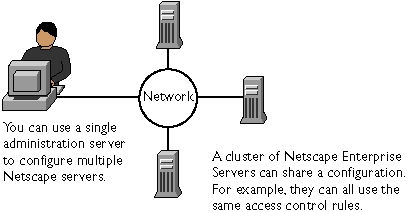
Clusters are groups of Netscape servers that can be administered from a single Netscape administration server. All servers in a cluster must be of the same type (web, proxy, mail, directory, and so on), and the administration server can store a cluster for each type of Netscape server. This enables you to have a central administration server for administering all of your Netscape servers. The servers can be installed on any computer in a network, but the administration server containing the clusters must have access to the administration servers for each of the servers in the cluster, as shown in the following figure.Netscape servers in a cluster can share all or part of their configurations.
Before using clusters
When you configure a cluster, the administration server containing the cluster (the master administration server) communicates with the administration servers for each of the servers in the cluster. Because of this, each administration server in the cluster must have an administrative user and password that the master administration server can use to authenticate itself. When you log in to your administration server and you supply a username and password, that information is sent to any remote administration servers in a cluster, as shown in Figure 3.2.You use one password to log into the administration servers
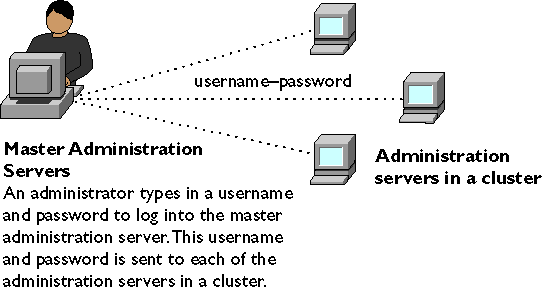
Before you can create a cluster, you must first install all of the servers you want to include in the cluster. For example, if you want one administration server where you can configure two Netscape Enterprise Servers, a Netscape Messaging Server, and a Netscape Collabra Server, you would first need to install all of the servers (and their respective administration servers) on the computers where they'll run, and then you would configure one of the administration servers as the master for the clusters. In this example, you'd have one administration server with a cluster containing two Netscape Enterprise Servers, another cluster containing only the Netscape Messaging Server, and another containing the Netscape Collabra Server. It doesn't matter which administration server you choose as the master.
The following list offers some guidelines to follow when configuring a cluster:
- Install the Netscape servers and their respective 3.x administration servers on the computers where you want them to run. Clusters won't work with 2.x administration servers.
- Make sure each administration server has a username and password that matches one used in the master administration server. If you are using an LDAP directory, such as a Netscape Directory Server, you must set up the "administrators" group first, making sure there is at least one user in the directory that will be used for cluster administration. You can use the distributed administration feature to set up multiple administrators on each administration server.
- Make sure all administration servers are version 3.x and use the same protocol (HTTP or HTTPS). You'll get an error if you try to add a 2.x administration server to a cluster, and if you add a 3.x administration server that has 2.x servers, the 2.x servers are not added to the clusters. If you change the protocol of one administration server in a cluster, you must change the protocols for all administration servers, and then you need to update the cluster information by modifying the servers in the cluster.
Setting up a cluster
To set up a cluster:
- Install the SuiteSpot servers on the computers you want to include in the cluster. Make sure the administration servers for each of the servers have a username and password that the master administration server will use for authentication. You can do this either by using the default username and password or by setting up distributed administration.
- Install the server product that will contain the master administration server, making sure the username and password matches the one set in Step 1.
- Add a server to the cluster list.
You can administer a remote server by accessing its Server Manager forms from the cluster form or by copying a configuration file from one server in the cluster to another, provided the server type (web, mail, and so on) supports this feature.Servers in a cluster appear on the form with links to their respective Server Manager forms.
After changing the configuration for a remote server, restart the remote server.
Adding a server to the server list
When you add a server to a cluster, you specify its administration server and port number. If that administration server contains more than one server, all of its servers are added to the cluster. (You can remove the individual servers later.) For example, if a remote administration server has a Netscape Collabra Server and a Netscape Enterprise Server, then both servers are added to the cluster in the master administration server.If the remote administration server contains a cluster, the servers in the remote cluster are not added. The master administration server adds only those servers that are physically installed on the remote administration server computer; it doesn't add servers that might be installed in a cluster on the remote administration server.To add a remote server to the list:
- Access the Server Administration page and click Cluster Management.
- Choose Cluster Mgmt|Add Server. The Add Remote Servers to Cluster Database form appears.
- Choose the protocol that the remote administration server uses. This is the protocol used when contacting the remote administration server. Choose http for normal administration servers. Choose https if the remote administration server is secure.
- Type the hostname for the remote administration server. If your DNS can resolve host names, you don't need to type the fully qualified domain name; otherwise type the full host and domain name. For example, type www.mozilla.com.
- Type the port number that the remote administration server uses.
- Click OK. The master administration server attempts to contact the remote server. When it succeeds, the server identifiers appear on the form for every server installed on the remote administration server, as shown in Figure 3.3. If you have two or more servers on different computers that use the same identifier, the form shows the server identifier and the hostname for the computer. If both server identifier and hostnames are the same, the form shows the port number. If you don't want all of the servers in the cluster, you can remove individual servers.
Modifying cluster information
If you change an administration server's host name, port number, or protocol used (HTTP or HTTPS), you also need to modify the information about that administration server that is stored in the cluster.To modify information about a server in a cluster:
- Go to the Server Administration page for the master administration server and click Cluster Management. Choose the Modify Server link.
- Using the Product Selector drop-down list, select the type of server you want to change. All servers of that type appear listed by their unique server identifier.
- Check the servers you want to modify. You can change the information for all servers in the cluster by clicking Select All. Click Reset Selection to unselect any servers you have chosen in the form.
- Choose the administration server protocol that the remote administration server uses, if it has changed.
- If applicable, type the new hostname for the remote administration server.
- If applicable, type the new port number that the remote administration server uses.
- Click OK. The information is updated.
Removing servers from a cluster
To remove a server from the cluster:
- Go to the Server Administration page for the master administration server and click Cluster Management. Click the Remove Server link.
- Using the Product Selector drop-down list, select the type of server you want to remove.
- Check the server you want to remove. You can remove all servers of that type by clicking Select All. Click Reset Selection to unselect all servers.
- Click OK. The form displays a status saying the servers are removed from the cluster database and are no longer available for cluster control. You can still access the removed servers using their administration server; you just can't access them from the cluster.
Administering a cluster of servers
To manage a cluster of servers:
- Go to the Server Manager forms for the master administration server, and then choose Cluster Management|Cluster Control.
- Using the Product Selector drop-down list, select the type of server cluster you want to configure. For example, if you select Netscape Enterprise Server, a list of all the Enterprise servers appears in the form. The cluster form changes to display fields that apply to that server type.
- Check the server or servers you want to change. You can select all of the servers in the cluster by clicking Select All. Click Reset Selection to unselect any servers you have chosen in the form.
- Configure the servers using the form elements specific to the type of server you selected. Most Netscape servers let you start, stop, or restart the server by clicking the corresponding buttons on the form. Because the form elements vary depending on the type of server product you are configuring, you should consult the documentation specific to your server product for more detailed information, or click the Help button on the form.
The following list describes some of the tasks you can do with clusters.
- You can start and stop the servers.
- You can view the access and error logs for the servers you selected.
- You can transfer configuration files from one server to another.
- You can check the On/Off status of the servers you selected.