User and group management
 he Netscape administration server lets you manage the users and groups that access the services provided by your Netscape servers. Because you manage users and groups from the administration server, you use the same interface for user and group management regardless of the type of servers, or the number of servers, that you are running at your site. This common management scheme provides simplified server administration by letting you maintain a single directory of users for all your Netscape servers.
This chapter contains basic information about the differences between using a local database and a director service such as Netscape Directory Server. The online help contains directions for creating and managing users and groups from the administration server forms.
he Netscape administration server lets you manage the users and groups that access the services provided by your Netscape servers. Because you manage users and groups from the administration server, you use the same interface for user and group management regardless of the type of servers, or the number of servers, that you are running at your site. This common management scheme provides simplified server administration by letting you maintain a single directory of users for all your Netscape servers.
This chapter contains basic information about the differences between using a local database and a director service such as Netscape Directory Server. The online help contains directions for creating and managing users and groups from the administration server forms.
The directory service
The Users & Groups area of the administration server is actually an interface to a directory service. Directory services are a type of software that allows you to maintain information, such as contact information or identification information for the people in your organization. You use a directory service in the administration server to store user information, such as user IDs, email addresses, certificates and so forth. This information is typically used when controlling access to a server. You have a choice of the type of directory service you can use with your administration server: You can use a Netscape Directory Serverm or you can use the local database.Netscape Directory Server
Based on an open-systems server protocol called the Lightweight Directory Access Protocol (LDAP), Netscape Directory Server is a robust, scalable server designed to manage an enterprise-wide directory of users and resources. Using the directory server, you can manage all of your user information from a single source. You can also configure the directory server to allow your users to retrieve directory information from multiple, easily accessible network locations. The use of a directory server to manage your servers' users and groups is recommended for large organizations consisting of up to a million users. Directory server is also ideal for organizations spread across physically different locations, and for organizations where balancing the access load to their directory is important. Finally, the directory server is recommended for those organizations interested in enhancing directory availability by placing their directory services on multiple servers. For more information about the directory server, or about directory services in general, see the Netscape Directory Server Administrator's Guide, which comes with Netscape Directory Server.The local directory
The Netscape local directory is bundled with every administration server, and it provides many of the core directory functions available from the directory server. The local directory is intended for sites running a stand-alone Netscape server (such as a enterprise or messaging server). The local directory has the following limitations when compared to the Netscape Directory Server:- The local directory cannot communicate across the network (it does not use the LDAP protocol). This means your users cannot use an LDAP client to perform directory access. They can, however, access the information through the administration server.
- The local directory supports no more than 1,000 entries.
- The local directory is slower on lookups than the directory server because the local directory does not cache entries.
- The local directory does not perform schema checking. This means that the directory will not stop you from using object classes and attributes that are unknown to it.
- The local directory does not perform any kind of access-control checking; however, you can configure access to the directory using the administration server.
- The local directory cannot be replicated.
- You can use only two of the directory server's command-line utilities with the local directory: ldapsearch, which allows you to search the directory, and ldapmodify, which allows you to add, delete, and modify directory entries.
Directory service clients
You must use a directory service client to obtain information from and to put information into a directory service. If you are using the Netscape Directory Server, then any directory client that can use the LDAP protocol can use your directory. This is one of the primary differences between a true directory service and the local database bundled with the administration server: The database can communicate only with the local administration server, whereas the directory server can communicate with any LDAP-capable client.Gateways
The administration server is actually a type of directory service client known as a gateway. That is, the administration server acts as a gateway between the communication protocol used by your web browser (HTML) and the protocol used by the directory server (LDAP). Of course, if you are using the local database then the gateway skips the LDAP protocol and accesses the local database directly. When you first install your administration server, you must configure your server to communicate either with the local directory or with the directory server. If you use a directory server, you need to make sure it has at least one user account that the administration server can use to access it. This is usually the administration server superuser account. Beyond that, you'll experience no difference when using the Users & Groups forms. For more information on how to use the Users & Groups forms, see the online documentation that is available with your administration server.
Command-line clients
Both the directory server and the Netscape local directory offer command-line tools that allow you to search the directory and perform directory modifications from the command line. This allows you to create custom shell scripts or batch files to perform routine, automated tasks on your directory.
Netscape Directory Server provides many command-line tools to help you administer and maintain your directory. The local directory, however, provides two tools for your use: ldapmodify and ldapsearch. These are actually identical to the ldapmodify and ldapsearch command-line tools shipped with the directory server, except that the -C option has been added so that they can work with the local directory.
For more information on the ldapmodify and ldapsearch command-line tools bundled with your administration server, see the online documentation. For more information on the command-line tools bundled with the directory server, see the Netscape Directory Server Administrator's Guide.
Authenticating users to directory services
Any time you perform an operation on a directory service, you must identify yourself to the service. This identification process is known as authentication. You can also think of this process as logging into the directory service.
Authentication allows a directory service to know if you have sufficient permissions to perform operations in the directory. Examples of directory operations are:
- searching the directory
- adding entries (such as users and groups) to the directory
- deleting entries from the directory
- modifying entries in the directory Usually authentication is not required if all you want to do is search the directory. When you access a directory without providing authentication credentials, you are performing anonymous access. When you log in to the administration server, the username and password that you provide are automatically used by the Users & Groups forms when they are communicating with a directory server.
If you need to change your superuser password, make sure you change it in the directory server before you change it in the administration server.For information on allowing anonymous access to the directory server, see the Netscape Directory Server's Administrator's Guide.
Distinguished names
A distinguished name (DN) is the string representation for the name of an entry in a directory server or in a local directory. You use DNs when naming entries using the LDAP Data Interchange Format (LDIF), when using the LDAP command-line clients, when configuring the directory server, and so forth.Traditionally, a DN consists of the following items in this order:
- A common name or a user ID
- A list of regional or organizational attributes
- A country designation This string of identifying attributes uniquely locates the entry within your directory. If you choose, you can also use this naming structure to uniquely identify your entries within the global directory tree as defined in the X.500 standard.
Distinguished name syntax
The traditional syntax for a DN string representation is as follows:cn=common name, [street=address, l=locality, st = state or province, ou=organizational unit, o=organization], c=country nameA DN can consist of virtually any attributes you want to use. However, if you are using the Netscape Directory Server and schema checking is turned on, then the attributes must be recognized by the directory server, and the attribute must be allowed by the entry's object classes.
(For more information on object classes and attributes, and your directory server's schema, see Appendix A of the online documentation.)
Generally, however, a DN begins with a specific common name and gives increasingly broader areas of identification, ending with the country name. Note, however, that the DN attributes you use, and the order in which you organize them, is up to you. The only requirement is that DN attributes must be separated by a comma and can optionally use a space following the separator.
Using uid-based distinguished names
One common variation on the traditional distinguished name identified here is to use a user ID (uid) in the place of a common name (cn). Because user IDs are typically unique values across an enterprise, basing your distinguished name on user IDs allows you to avoid cn collision problems caused by people who share the same name. By default, the administration server uses cn-based distinguished names, but you can change this behavior so that it creates uid-based distinguished names instead. You do this by editing the file:
<server_root>/admin-serv/config/dsgw-orgperson.conf
and setting the useUidForDN variable to true.
Distinguished name usage
Once you have organized your directory structure, you must always specify the DN attributes in the same order because a DN represents a path through the directory tree. For example, the following DNs do not represent the same entry:
cn=Ralph Swenson, ou=Accounting, o=Ace Industry, c=US
Also, distinguished names representing branch points in the directory do not typically begin with a common name value. Rather, they usually begin with some subelement in the directory path. For example, if your directory contained entries of the form:
cn=Ralph Swenson, o=Ace Industry, ou=Accounting, c=US
cn=name, ou=Marketing, o=Ace Industry, c=US
then your directory would also contain the entries:
o=Ace Industry, c=US
These two entries must appear in the directory before the entries represented by a common name can appear.
For more information on your directory's organization, see "Planning your directory structure."
ou=Marketing, o=Ace Industry, c=US
Distinguished name examples
The following are some examples of distinguished names:
cn=Wally Henderson,ou=Product Development,o=Bait and Tackle Inc,
st=Minnesota,c=US
cn=Retch Sweeny, ou=Product Test, o=Bait and Tackle Inc, st=Michigan,
c=US
cn=printer3b, l=room 308, o=Acme Programming Ltd, c=US
Distinguished name attributes
The various standard attributes that comprise a DN are as follows:
Using commas in distinguished names
If a distinguished name contains a comma, then the part of the name that uses the comma must also be enclosed in double-quotation marks. For example, to include the string Ace Industry, Corp in your distinguished name, you would quote it as follows:
o="Ace Industry, Corp", c=US
Planning your directory structure
Directories are usually organized in a tree-like structure. The top of the tree is known as the root. For example:
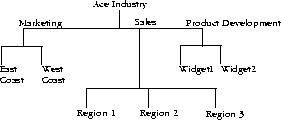 Notice that there are several branch points in the tree below the root. These branch points usually represent major organizational units within the larger organization. For example, if you work at a corporation, then your company is probably subdivided into organizations such as Marketing, Sales, Product Development, and so forth. Each of these organizations may themselves contain further subdivisions, such as Product Development for Widget 1, Product Development for Widget 2, and so forth. An organizational unit, then, is a large, relatively static division or unit within your organization.
For information on how to create branch points in your directory, see "Creating organizational units" in the administration server online documentation. The following sections discuss the pros and cons to creating subdivisions within your directory.
Notice that there are several branch points in the tree below the root. These branch points usually represent major organizational units within the larger organization. For example, if you work at a corporation, then your company is probably subdivided into organizations such as Marketing, Sales, Product Development, and so forth. Each of these organizations may themselves contain further subdivisions, such as Product Development for Widget 1, Product Development for Widget 2, and so forth. An organizational unit, then, is a large, relatively static division or unit within your organization.
For information on how to create branch points in your directory, see "Creating organizational units" in the administration server online documentation. The following sections discuss the pros and cons to creating subdivisions within your directory.
Disadvantages of organizational units
Be aware that the flatter the structure of a directory, the easier your directory is to manage. The following are some of the reasons for this:
- Moving directory entries from one organizational unit to another involves deleting the entry from the original organizational unit and recreating it under the new organizational unit.
- To delete or rename organizational units, you must delete every entry from beneath the organizational unit, rename or delete the unit, and then recreate all of the deleted entries in another part of the directory tree. Because this task is tedious, you should be careful about creating organizational units in your directory tree if your company tends to frequently reorganize. If you are using Netscape Directory Server, then you can create tools to perform these tasks, either by using shell scripts or batch files to call the appropriate command-line utilities, or by writing programs that make use of the Netscape Directory Server client SDK.
Advantages of organizational units
A directory tree with many subdivisions has many advantages. An obvious one is that you can easily search for everyone who works for a specific organization. If you are using a directory server, there are several other benefits to a subdivided directory, including:- If you are using replication, then you can manage subtrees on servers local to the organizations that they represent. This allows for local control of organizational information.
- You can also replicate specific subtrees to other directory servers. If you have certain entries that you want other organizations to view, and other entries that you want to remain private, then you can easily provide access to the public entries by replicating them to a public directory server. This strategy is especially useful if you want to make some information available outside of a firewall, while making other information available only inside the firewall.
- Even if replication is not in use, you can easily restrict or allow access to entries representative of an organization if they are logically organized together in the directory tree. For information on replication and directory access control, see the Netscape Directory Server Administrator's Guide.
Recommendations for using organizational units
A flat directory structure is the easiest to administer but not necessarily the easiest to use. You should therefore consider the following when planning your directory:- Use a directory structure that is subdivided along the lines of the major functional activities in your organization. These subdivisions can represent actual division names, but refrain from using these names if your organization tends to frequently reorganize.
- If you work for an organization that frequently reorganizes, or if your organization is young and still growing, then use generic names to represent major activities. For example, if your company has the following organizations:
- Product Marketing for Widget 1
- Product Marketing for Widget 2
- Product Development and Documentation for Widget 1
- Product Development and Documentation for Widget 2
- Product Sales, East Coast
- Product Sales, West Coast
- Product Sales, Europe
- Product Sales, Pacific Rim
- Consider geographic divisions as an alternative to organizational divisions, especially if your organization has major geographic points of activity. For example, if you have business offices in several cities, consider branch points based on the city names. Just because the gateway labels branch points as "organizational units" does not mean that your branch points must correspond to organizational units.
- Try not to divide your directory down to the smallest business unit or department name. This extreme level of division creates maintenance difficulties. For the same reason, try to avoid branching your directory more than two or three levels deep.
Doing so will make it easier to manage your directory as new products are announced and as people transfer from one area to another (for example, from Product Sales, East Coast to Product Sales, West Coast).
Configuring directory services
You can choose to use either the local database to organize your users and groups, or you can use Netscape Directory Server. When you first install your administration server, you configure the server to use either the local directory, or a directory server. You can also change this configuration after the administration server is installed. The following sections describe how to configure your administration server to use these two directory services.Using the local database
To configure a local database (also called local directory):- From the administration Server Manager, choose Global Settings | Configure Directory Service.
- Click the Local Database radio button.
- A dialog box appears to warn you that you will lose your directory service configuration information. Click Yes to continue.
- You can optionally enter a base DN. The distinguished name you enter here is used as a suffix for your local directory and also as for the point from which directory lookups will occur by default.
- Click the Save Changes button.
An example of a suffix that you could enter here is:
o=your company name, c=US.
If you do not enter a value in this field, then your suffix will be a null string, and all searches will begin from the top or root point of the directory.
Using a directory server
If you want to configure a Netscape Directory Server:
- From the administration Server Manager, go to Global Settings | Configure Directory Service.
- Click the LDAP Directory Server radion button.
- A dialog box appears to confirm that you want to use a Directory Server. Click Yes to continue.
- Enter the host name where the directory server is running. You must enter a host name even if the directory server is running on the local machine.
- The default port number of 389 is automatically filled in for you. If your directory server is using a different port number, enter that port number here. Note that if you are going to use SSL communications with a directory server, then you should enter the port number that the directory server is using for SSL communications. By default, this is port number 636.
- Click Yes if you want to use SSL for communications with the directory server. If you click Yes here, then you must also configure your administration server to use SSL communications. For information on how to set this up, see Chapter 5.
- Enter a base DN. The distinguished name you enter here is the point from which directory lookups will occur by default, and is the location where all the administration server's entries will be placed in your directory tree.
- Optionally enter the Bind DN that the administration server will use to initially bind (or log in) to the directory server. This bind DN only requires read and search access to the directory. Because this DN and associated password (if any) is easily compromised, it is best to simply leave this field blank and then setup your directory server to allow anonymous search access. If you do not want to allow anonymous search access to your directory, then specify a bind DN entry here that only has read and search access to your directory. Do not specify your directory server's unrestricted user (Root DN) in this field.
- If you have entered a bind DN in the previous field, then enter the password for the Bind DN entry.
- Click the Save Changes button. The changes take effect immediately.
For information on SSL, see the Netscape Directory Server Administrator's Guide.
An example of a base DN that you could enter here is:
o=your company name, c=US.
Note
This bind DN is used only to initially search for the User Name you entered
to the administration server authentication dialog box. Once the entry
corresponding to this user name is located, the administration server
rebinds to the directory server using the retrieved entry. Therefore, if the
user name you supplied when you first logged into the administration
server does not have access to the directory server, you will not have any
access to the directory server, regardless of the bind DN information
provided in this field.
If you change directory service from a local file to a directory server and vice-versa, you need to restart all SuiteSpot servers, including the administration server.
Converting a database
All 3.x administration servers use either a local database or an LDAP directory to store user and group information. You can upgrade a 2.0 user database by using one of two procedures:- You can convert them individually using a form in the administration server.
- You can convert them all automatically when you migrate a 2.x server. When you migrate a 2.x server, all entries in all of the databases under the 2.x directory <server_root>/authdb are migrated to the default LDAP directory. When a database is upgraded, the entries in the old database are added to the default 3.x LDAP directory, which is either the LDAP directory server (such as Netscape Directory Server) or a local database file. During the upgrade, several .ldif files are created in the 3.x directory
UserDel.ldifandGroupDel.ldifcontain all of the new user and group entries created in the LDAP directory. You can use this file with the LDIF command-line tools to delete the entries that were created during the upgrade.User.ldifandGroup.ldifcontain the same entries as theUserDel.ldifandGroupDel.ldiffiles, but the format is one that you can use to recreate the user entries. You might need to use this file if you have specific entries you need to edit before adding them to the directory. For example, you could delete the entries that were automatically added to the directory, and then edit theUser.ldifandGroup.ldiffiles. After you edit the files, you would use them to add the new entries to your directory.UserDup.ldifandGroupDup.ldifcontain any entries that couldn't be added to the directory for some reason. The entries could be duplicates of ones already in the LDAP directory.GroupMod.ldifcontains group membership information for user entries that weren't created. You can use this file along with theUserDup.ldiffile to make sure all the correct users and groups were added to the directory.importdbis an LDIF script that you can use to import one of the generated .ldif files to the LDAP directory. You need to edit this script to include the .ldif file name. You might also have to add the directory administrators password.
<server_root>/authdb/<dbname, where <dbname> is the name of the 2.x database. The following LDIF files are created:
Converting individual databases
To convert a database from the administration server:- In the Server Administration page, choose Users & Groups|Convert 2.0 Database.
- Type the absolute path to your 2.x server root directory. For example, type
/usr/ns-home. - Choose the name of the database file using the drop-down list. If you have only one 2.x database file, choose
default. - In the Import at field, enter the DN for the branch point in the LDAP directory where you want to start adding entries. If this is blank, the entries are added starting at the top of the LDAP tree. For example, if you want the entries to be added under the organizational unit branch for sales, you would enter something like this:
ou=sales,o=mozilla, c=us. Click OK.
The Base DN specified in the "Configure Directory Service" form is appended to your Import entry. So if you specified a Base DN
o=mozilla, c=us, then you would only need to enter ou=sales in the
Import field.
The administration server runs a program that creates the various LDIF files and adds them to your default LDAP directory (this is the directory specified in the "Configure Directory Service" form).
Migrating a server configuration
If you have both 2.x and 3.x servers running on a single computer, you can migrate the configuration from an older (2.x) server to the newer (3.x) server. When you migrate a server, all entries in the databases on the 2.x server are converted and added to your 3.x LDAP directory. If you use the local database, the entries are added starting from the top of the tree. If you're using an LDAP directory, the entries are added starting at the Base DN you specified when you configured the directory service. If you want the entries to start at a different branch, temporarily change the default Base DN while you do the migration.
- In the Server Administration page, click the link called "Migrate from a previous version" located at the bottom of the page.
- In the form that appears, enter the absolute path to the 2.x server root directory. Click Find Servers.
- Check the 2.x server whose configuration you want to migrate. For example, you can upgrade the configuration from the 2.x administration server by checking Import admin.
- A form appears with information about the server you want to migrate. Enter information in the fields. For more directions on these forms, see the documentation for the specific server type you are migrating.
- Click Import. The administrations server runs a process to convert the old configuration to the new server. You should restart your servers after this process.