Learning BeOS Basics
2
This chapter shows you the basics of working with the BeOS: starting it up and shutting it down, working with the mouse and keyboard, and mastering the fundamentals of the user interface. Chapter 3, "Learning Be Application Basics," picks up where this one leaves off, showing you the basic techniques you use with Be applications. Subsequent chapters show you how to use the applications that come with the BeOS. This chapter discusses the following topics:
Starting the BeOS
Once you've set up your computer and installed the BeOS, you can start using it.
- Make sure that no floppy disk or CD-ROM that contains Be system software is inserted in a drive connected to your computer. When you start up the BeOS, it tries to find system software on removable disks before it looking on a hard disk.
- Turn on any peripheral devices, such as the monitor or external disk drives.
- Turn on the computer. The BeBox On/Off toggle switch is on the top of the back panel. Pushing the toggle up turns on the BeBox; pushing it down turns it off. If you're running the BeOS on a Power Macintosh, see your owner's guide if you're not sure how to turn it on.
- If you're running the BeOS on a Power Macintosh, double-click the BeOS Launcher application or choose BeOS when the dialog appears during startup. This is in the BeOS Mac Tools folder on the Macintosh hard disk, which you copied from the BeOS CD-ROM as described in "Installing the BeOS Preview Release."
When a BeBox is on, two columns of light-emitting diodes (LEDs) become active on its front. The green LEDs at the bottoms of the columns act as power indicators: They glow whenever the BeBox is turned on. The upper LEDs show the relative load on the BeBox's two PowerPC processors; the more LEDs are lit, the harder the PowerPCs are working. The Pulse application provides a similar display. The amber LED at the bottom of the right column is a disk activity light; whenever the BeOS uses an IDE or SCSI disk, the amber LED glows.
Selecting a Boot Disk
When you boot the BeOS, it looks in a fixed order for a boot disk from which to start. First, it looks for system software on a floppy disk. If it doesn't find a floppy with system software, it looks for any other kind of removable disk, such as a CD-ROM. If it doesn't find one, it checks the "boot preference" to determine the disk you prefer to boot from. It then tries to boot from that disk. If for some reason that disk isn't available or doesn't contain system software, the BeOS tries to boot from any other available disk with system software on it.When you install the BeOS on a disk, the Installer asks if you want to change the boot preference to that disk.
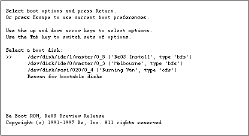
Regardless of the boot preference and what disks are inserted or attached, you can select a boot disk in the boot selection screen. You can boot from DR8.x disks in addition to Preview Release disks. Open the boot selection screen by pressing and holding down the left shift key after you start the BeOS -- as soon as you see the Be logo start to appear. On a Power Macintosh, open the boot selection screen by holding down the left Shift key immediately after you double-click BeOS Launcher.
Each bootable disk is listed by its device name and by the name it has in the Tracker (formerly called the Browser). Disks formatted using the Preview Release appear as type "bfs"; disks formatted using DR8.x appear as type "ofs." Disks with no Be system software on them aren't included in the list.
In the below example, the BeOS CD in an IDE CD-ROM drive is selected, with the option to boot off of a Preview Release-formatted IDE disk named "Melbourne" and a DR8-formatted SCSI disk named "Burning Van."
For more information about SCSI IDs and IDE disks, see your computer's owner's guide.
Shutting Down the BeOS
Before you turn off the computer, you must first shut down the BeOS. Shutting down ensures that open files -- including system files -- are saved to disk correctly. If you turn off the computer without first shutting down, you risk losing information.
- Save your open files and quit any running applications. (Saving files and quitting applications are described in Chapter 3, "Learning Be Application Basics.")
- Choose Shut Down from the Be menu by clicking on the Be logo in the Deskbar.
- When a dialog tells you it's safe to turn off the computer, turn it off. You can also click the Restart button in the dialog (or press the Enter key) to restart the BeOS right away, without turning it off.
- After you've shut down the BeOS and turned off the computer, turn off peripheral devices that have their own power switches, such as the monitor or external disk drives.
If you are copying or moving files or emptying the trash when you choose Shut Down or Restart, a dialog asks you to confirm that you want to shut down or restart the BeOS when these tasks are complete.
Resetting the BeOS
If the BeOS crashes, or if the Shut Down and Restart commands don't work, you can restart the BeOS (without turning the computer off and on) by resetting the BeOS.There are two ways to reset the BeOS. The nostalgic way is to press "Control-Alt-Delete." In other words, press the following three keys at the same time:
- On a PC keyboard, the key labeled "Ctrl" at the bottom left of the keyboard (not the one next to the arrow keys); either one of the two keys labeled "Alt" on either side of the space bar; and either the key labeled "Del" on the numeric keypad or the key labeled "Delete" above the arrow keys.
- On a Macintosh, the Control key, the Command key, and key labeled "Del" above the arrow keys.
- On a BeBox, press the Reset and Interrupt buttons at the same time. The Reset and Interrupt buttons are built into the BeBox front bezel, on the horizontal surface below the floppy disk drive.
- On a Macintosh, press the Reset switch (see the computer's owner's guide for information on the location of its Reset switch).
Caution: If you reset the computer without choosing Restart or Shut Down first, you risk losing data. In particular, you'll lose the changes you've made to open files since you last saved them.
Interrupting the BeOS
WARNING: Do not use the Interrupt button in the Preview Release of the BeOS, because the interaction between the Interrupt button and the Debugger is broken.
Getting to Know the BeOS Workspace
When you start the BeOS, the Tracker (formerly called the Browser) starts up and the Deskbar appears in the upper-right corner of the screen. The background of the workspace is called the desktop -- initially a solid blue area where windows open and you do your work.
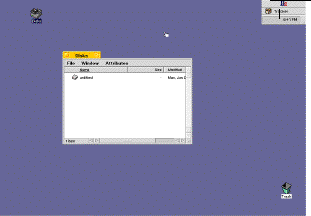
Take a moment to identify the following features of the Be workspace:
- The cursor is the hand-shaped icon that moves when you move the mouse.
- The Deskbar contains menu items in the Be folder, and is where you'll find the Tracker and clock.
- The application list shows all running applications; you can use it to switch among them.
- The Be menu contains Find, the system commands (such as shut down and restart), and items contained in the Be folder located on the boot disk.
- Windows are where you view and work with files, text, pictures, and other information.
- The Disks window shows your boot disks and any other hard disks you may have.
Using the Mouse
The mouse controls items on the screen. When you move the mouse, a small icon called the cursor moves across the screen. The cursor changes shape depending on what you're doing. It appears as a hand for selecting items and choosing from menus, an I-beam for selecting text, and so on.
You can adjust how the BeOS interprets multiple clicks and how rapidly the cursor moves across the screen when you move the mouse.
Using the Keyboard
Most of the keyboard keys should be familiar to you from typing class. However, the BeOS uses some of the keys on a PC keyboard in ways you might not guess:
Keyboard Shortcuts
Many keyboard shortcuts in the BeOS are common in other operating systems. The table below lists frequently used keyboard shortcuts that you'll find helpful while working with the BeOS.
Working With Windows
The BeOS displays information in windows, areas on the screen with some of the following features: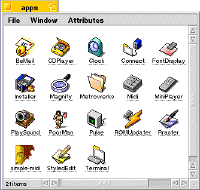
Moving a Window
To move a window drag it by its tab or border. The border includes the tab and the gray area on extreme edges of the windows where there is no scroll bar. For most Tracker windows, this means you can drag the window by its borders including the tab. Resizing a Window
You can change the size and dimensions of a window by dragging its resize knob. The resize knob is located on the bottom right of the window and is identified by the triangular dotted area.
Scrolling the Items in a Window
Sometimes a window contains more icons, more text, or a bigger picture than can fit. You can move the contents of the window within the window to see the items or parts of the document that aren't visible by scrolling. When a window contains more than you can see in it, its scroll bars become active to show that you can scroll to see more. Initially, windows in the BeOS have proportional scroll bars, so called because their scroll knobs change size to give you a rough idea of what proportion of the contents of a window is visible. When you can see almost everything the window contains, the scroll knob is almost as long as the scroll bar; when you can only see a tiny part of what the window contains, the scroll knob becomes small in relation to the whole scroll bar. 
| Do This | To |
| Press Page Up. | Scroll up a windowful. |
| Press Page Down. | Scroll down a windowful. |
| Press Home. | Scroll all the way to the top. |
| Press End. | Scroll all the way to the bottom. |
The content of a window also scrolls when you select an item that's not in view; for example, when you use the arrow keys to select items in a window.
Zooming a Window
You can quickly increase the size of a window by clicking its zoom button. This has the same effect as choosing the Resize to Fit command from a window's Window menu. The window becomes as large as necessary to display everything in it. Click the zoom button again to return the window to its previous size and location. Some applications use the zoom button slightly differently. For example, when you click the zoom button in the Workspaces application's window, it moves the window to the lower-right corner of the screen. Hiding a Window
If you begin to have more windows open than is convenient, you can hide one or more windows. To hide a window, double-click its tab (but be careful not to double-click the close or zoom button). 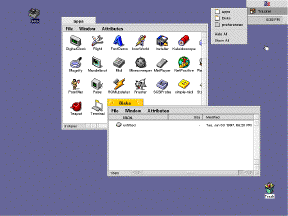
Selecting Items
To work with an item in a window, you first select it. Selected items usually change color to show that they're selected. For example, when you click an icon in a Tracker window, it becomes darker (or highlighted).
Changing Views
Initially, the items in windows are displayed as large icons with their names beneath them. If you prefer, you can view the items in the window as small icons with their names to the right. Or, you can view the items in an ordered list view, which shows you additional information about the items. List views are also used in query windows, as well as some panels, such as the Open and Save panels.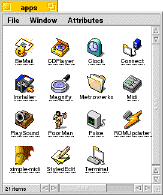
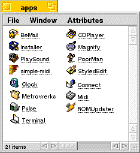
Working in List View
When you're working in List view, you can change how the items are ordered in the list. Initially, items are sorted alphabetically by name, and the Name field title is underlined at the top of the list. If you click on another field title, the items in the list are sorted in a way that's appropriate for that field, and the field title you clicked becomes underlined. If you click a second time on a field title (or hold down the Shift key while you click on a field title the first time), the items are sorted in reverse order. Closing a Window
When you finish working with the contents of a window, you can close it to make more room for other windows on the desktop. To close a window, click its close button on the left side of the window tab. In many applications you can also choose the Close command, which is usually in a window's Window or File menu. Working With Menus
Be menus contain commands, lists of applications, settings, and other items.
- In the Deskbar.
- In windows.
- In panels and dialogs.
Note: This section describes how menus behave when you first install the BeOS, but you can change the appearance of fonts and how they work with the Menu preferences application, described in "Setting Menu Preferences" on page 163.
Navigating Menus by Dragging
You can press a menu title, drag to the menu item you want, and release the mouse button to choose that menu item. If you release the mouse button without choosing a menu item, the menu closes.
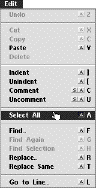
 icon represents the Command key (either of the keys labeled "Alt" on either side of the spacebar on most PC keyboards). The
  icon represents the Shift key. Choosing menu items from the keyboard is described in "Navigating Menus From the Keyboard" on page 42.
Navigating Context-Sensitive Menus
In some applications, such as the Tracker, you can open a menu by selecting an item or positioning the cursor over it and then pressing a mouse button. Context-sensitive menus are also available in the Open and Save panels. You can drag to a menu item you want and release the mouse button to choose it. If you don't want to choose one of the items in the menu, drag the cursor out of the menu before you release the mouse button.
You can also open context-sensitive menus by pressing (holding down the mouse button) when the cursor is on an object -- such as an icon or selection of icons in the Tracker -- and waiting for a moment. The delay before the context-sensitive menu opens is related to the double-click speed you set in the Mouse preferences, which is described in "Setting Mouse Preferences" on page 165.
Navigating Menus by Clicking
You can click a menu's title to open it and view its contents. Then you can click a menu item to choose it.
When you click a menu title, you see the menu's triggers. Triggers are characters you can type when a menu is open to choose an item by typing instead of clicking. Triggers are indicated by underlined letters in menu titles and menu items. For more information, see "Navigating Menus From the Keyboard" on page 42.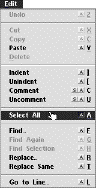
An arrow next to a menu item indicates that has a submenu. Move the cursor over a submenu title to open it. Then click the menu item you want to choose in the submenu.
Navigating Menus From the Keyboard
You can press and release a key to display the triggers for the menu titles in the active window.
- On traditional PC keyboards, press Command (labeled "Alt") and Escape at the same time.
- On newer PC keyboards press the Menu key, usually to the left of the right-hand Control key.
- On Macintosh keyboards, press Command (labeled
 ) and Escape at the same time; or press the equal sign key (=) on the numeric keypad.
If triggers are showing and you decide not to choose a menu item, press Escape to hide the triggers.
Most menu items have a trigger. To choose an item that doesn't have a trigger, you can use the arrow keys to select it and then press Enter.
When you open a menu, you can also use the arrow keys on the keyboard to navigate menus. Use the left and right arrow keys to open different menus and submenus. Use the up and down arrow keys to highlight menu items. When the menu item you want to choose is highlighted, press Enter.
To open an application's main menu, press Command-spacebar (that is, press the Command key and the spacebar at the same time). To open the application list (so you can switch applications), press Command-Tab.
Choosing Menu Items by Shortcut
Many menu items have shortcuts, key combinations you can press to choose a menu item rather than by dragging, clicking, or by navigating from the keyboard. If a menu item has a shortcut, it's displayed to the right of the item in the menu. The icon represents the Command key (either of the keys labeled "Alt" on either side of the spacebar on most PC keyboards; the key labeled
  on Mac keyboards). The
  icon represents the Shift key. Shortcuts are always displayed in menus as uppercase letters, though you need to press the Shift key along with the Command and letter keys only if the shortcut includes the
  icon. For more information about shortcuts see "Keyboard Shortcuts" on page 31.
Working With the Tracker
You use the Tracker to organize you work: files, applications, queries, and so on. The Tracker is also the main tool you use to start applications. Understanding the Hierarchical File System
Applications, documents, and other files in the Be file system are stored on disks. Because the number of files can become quite large, it's convenient to sort them into related groups. To do this, the BeOS -- like many other operating systems -- uses the metaphor of folders (also called "directories"), where you can keep related files together, and even related folders. The following illustration shows the fonts folder, which is in the system folder, which is in the BeOS folder, which is on the disk named Boot Disk.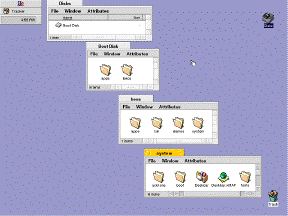
Getting Information About an Item
You can get information about an item in a window by selecting it and choosing Get Info from the File menu. Opening Folders
Double-click a folder to open a window that shows the folder's contents. The title of the folder window is the name of the folder. A folder that contains another folder is often called the parent of the folder it contains. When you're viewing the contents of a folder in a window, you can open its parent folder by choosing Open Parent from the Window menu.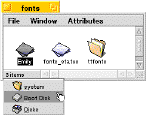
Renaming Items
You can rename any file, folder, disk, or other item in a window. To change an item's name, select the name by clicking it and type a new one. You can also select an item in a window and choose Edit Name from the window's File menu to select the name. You type and edit an item's name in the same way as you would any other text in Be applications. You can name an item anything you want, as long as there's no other item in the same folder with that name already. You can use up to 255 letters, numbers, and symbols -- anything you can type, except slash ( / ).
Warning: Do not rename the beos folder located on the boot disk or the beos will no longer work.
Tip: If you change your mind about renaming a file or folder while editing its name, press the Escape key to restore the original name.
Creating a Folder
You can create a new folder to store related files and other folders.
- Open the folder where you want to create the new folder, so the folder's window is the active window.
- Choose New Folder from the folder window's File menu. (Or press Command-N on the Mac keyboard, Alt-N on the PC.)
Moving and Copying Items
You can move items (such as a file or folder) from one folder to another, by dragging the item into the window or onto the icon of the folder where you want to move it. You may have to arrange the windows on your desktop so both the item you want to move and the window or folder where you want to move it are visible.If the folder you drag an item onto is on a different disk, the item is copied instead of moved. That is, a new copy of the item you drag is created where you dragged it, but the original copy remains in the folder from which you dragged it. If you want to have copies of the item you're moving in both the source and destination folders on the same disk, hold down the Control key (the key labeled "Ctrl" on the left side of most PC keyboards) while you drag the item. This forces a copy whether the destination is on the same disk or not.
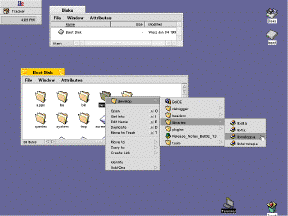
Another way to copy or move files or folders is to use the context-sensitive menus. Position the cursor over the item you want to move or copy and press the secondary mouse button. In the menu that opens under the cursor, drag to the Move To or Copy To submenu and then through the hierarchy of submenus to select the folder where you want to copy or move the item under the cursor.
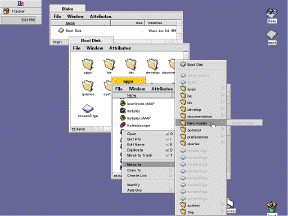
If you're copying or moving a lot of files, a status window opens with updates on the progress of that task. If you're moving or copying more than one set of files or emptying the trash, each such task is listed in the status window. You can click a status bar in the Status window and click Cancel to stop a task in midstream, but whatever has been moved, copied, or deleted so far stays moved, copied, or deleted -- it's not undone.
Replicating Items
Replicating items in the BeOS means you can take a component of an application and replicate it so it resides inside another application. To replicate an item, click on the Be logo in the Deskbar and choose Show Replicants. This creates draggers on the item you are replicating. By clicking on the dragger and holding the mouse button down, you can place the replicant anywhere, including the desktop.
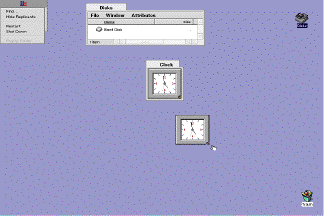
To delete a replicant, hold the secondary mouse or press Control-Command while you click the mouse button (if you have a single-button mouse) on the dragger and a pop-up menu appears and gives you the option to delete.
Duplicating Items
You can create a copy of any item by selecting it and choosing Duplicate from its window's File menu. The duplicate is created in the same folder as the original, and has the same name, with "copy" appended. If you create more than one duplicate of the same item, the duplicates have "copy 2," "copy 3," and so on, appended to the original name.
Deleting Items
You can delete files, folders, and most other items you see in the Tracker by dragging them to the Trash can icon. You can also put items in the trash by selecting them in a Tracker window and choosing the Move to Trash command from the window's File menu. When there are items in the trash, the Trash can icon appears to have trash in it:

Items you put in the trash aren't deleted permanently. You can double-click the Trash icon to see what's in the trash and drag items back into a Tracker folder window if you decide not to delete them after all.
When you're sure you want to remove items permanently, choose the Empty Trash command from the Tracker's main menu, or click and hold the mouse on the Trash can icon to see the Trash pop-up menu, then choose Empty Trash.
If you make a habit of putting items in the trash and never emptying it, the trash eventually takes up a lot of disk space, so it's a good idea to empty the trash periodically.
Working With the Deskbar
When you initially boot into the BeOS, the Deskbar appears in the upper-right corner of the screen.
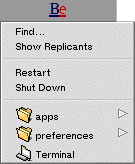
Click once on the Be Logo to view the Be Menu items. The Be Menu contains Find, the system commands (such as Restart, Shut Down, and Show Replicants), and any items that reside in the Be folder located on the startup disk.
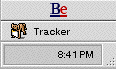
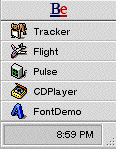
The area between the Be logo and the clock is the application list, which shows the Tracker and all currently running applications:
Moving the Deskbar
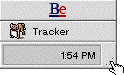
You move the Deskbar by dragging it by the dotted area in its lower-right corner to the desired location. The Deskbar can be moved to any of the four corners as well as the top and bottom of the screen.
Finding Items
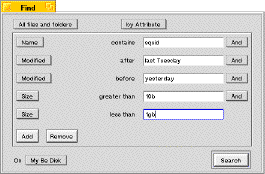
You can use the Find command in the Be Menu on the Deskbar to search for files, folders, and other items in the Be file system (that is, items stored as files on a disk). You can also search for entities such as e-mail or the names of audio CD tracks you enter in the CDPlayer application. When you choose Find, the Find window opens; there you specify in greater or lesser detail the attributes of what you're looking for. These specifications, called queries, are saved in the Be database, so you can reuse them later.To find an item follow these steps:
- Choose Find from the Tracker's main menu.
- Choose what kind of items you want to find, and how you want to search (by name, attribute, or formula).
- Specify the attributes of the item or items you want to find.
- Specify the disk on which you want to search.
- Click Find. A query window opens, listing all the items that match the attributes you set in the Find window.
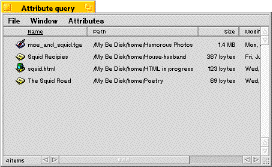
Caution: Though you can see and edit a text version of the query in the upper part of a query window, resist the temptation to experiment. The query language is incomplete in the Preview Release version of the software, and you can easily create an unresolvable query.
Opening a Query
The Be database saves every query you create -- until you decide to delete it. You can peruse your queries in the home/queries directory on your boot disk. Double-click a query in the window to open another query window, which shows the current result of the saved query.You can drag queries you don't want any more from the Query window to the trash.
Taking a Screen Shot
There are two ways to take a screen shot in the BeOS. Press the Print Screen key or command -shift-3 (alt-shift-3 on a PC keyboard). The screen shot appears in the folder called home on your boot disk. All screen shots are in targa format. You can open the screen shot be dragging it onto the application called Rraster. Rraster is located at file://boot/beos/apps/rraster/.
[Contents] [Prev] [Next] [Index]
http://www.be.com/ Copyright © 1997, Be, Incorporated. All rights reserved.