Installing and configuring Web Publisher
Netscape Web Publisher is a Java applet that provides convenient client access to web server publishing. The default installation of a Netscape Enterprise 3.x server includes access to the Web Publisher applet and home page.This chapter discusses some basic information about installing and configuring Web Publisher and describes issues specific to the browser you are using:
- The Web Publisher home page
- The Web Publisher console window
- Configuration Files
- For Communicator and Composer users
- Upgrading from Navigator 3 to Communicator 4
- Enabling Java
- Installing the local applet and the Composer plug-in
- Changing the default version of the Web Publisher applet
- Setting your editor preferences
- Java security certificates
- Page services menu command
- For Navigator 3 users
- Enabling Java
- Installing the local applet and the Web Publisher plug-in
- Changing the default version of the Web Publisher applet
- Setting your editor preferences
- Local file access checks
- For Internet Explorer users
The Web Publisher home page
The Web Publisher home page is included as part of the default Enterprise Server installation. From this page, you can launch Web Publisher, define the web publishing document directory, download the plug-ins appropriate for your system, and access online help.To locate the Web Publisher home page, type in this URL:
This displays the Web Publisher home page, which has a Start Web Publisher button as well as useful links for downloading installer software and for accessing the online help system. After installing the plug-in for your system, you can launch Web Publisher from this page.Choosing a document directory
When you start up Web Publisher, you need to identify which document directory you want it to use. By default, Web Publisher has the primary document directory as its scope. You can change this to point at a different folder on your server by choosing one from the drop-down list or by directly typing in the folder you want to use. Whichever folder you enter becomes added to the drop-down list for your future convenience. The list can hold up to 10 folders. If you add additional folders, the first ones you entered are deleted from the list.
Note
If you enter an invalid URL or directory, the Web Publisher menu commands are dimmed out and are unavailable for use. Return to the home page and enter a valid directory before relaunching Web Publisher.
About the plug-ins and the local applet
With Enterprise Server 3.5.1, you can also install the Web Publisher applet on your own local computer. The local Web Publisher launches more quickly than the server-based version, which must be downloaded from the server during the launch process.
There are two plug-ins: one for users of Netscape Navigator version 3.0x and an optional plug-in for users of the Netscape Composer component of Netscape Communicator. If you are using version 3.0x of Netscape Navigator and want to be able to use all of the Web Publisher functions, you need the Web Publisher plug-in. If you are using Netscape Communicator, the plug-in enhances the Composer's editing and publishing capabilities and improves client access to server documents and folders.
The Web Publisher plug-in for Navigator 3.0x users enables the Web Publisher applet to perform many important functions, such as editing, publishing, or using version control. It is required because Java applets running in Navigator 3.0x are, by default, not permitted to access files on your local hard disk. Please note that Web Publisher does not work with Navigator 3.00 and earlier versions.
The Composer plug-in enhances Netscape Composer so that you can seamlessly edit and publish documents that are stored on a remote server and lets you lock and unlock Web Publisher files and folders from your desktop without having to launch the Web Publisher applet.
Depending on which browser you use, you download different software for installation. Communicator users can use SmartUpdate to install the local version of the applet and the Composer plug-in separately; Navigator 3.0x users download software that installs both the plug-in and the local applet.
The Web Publisher console window
When you start up Web Publisher, a special Web Publisher browser window appears on your screen that provides a Java environment for Web Publisher. This browser window must remain open in order for you to be able to run Web Publisher. When you exit Web Publisher, this window is automatically closed for you.- Note
If you are using the locally installed version of the applet, this console window does not close when you exit Web Publisher. You have to close it manually yourself.
User access requirements
In order to use Web Publisher, you must be defined as a valid user with basic read or read-write permissions for a Netscape Enterprise 3.5.1 server. See your server administrator if you have any questions about your user privileges.The default access control for a Netscape Enterprise Server is to permit any defined user to have write privileges to the server's files. Your server administrator can adjust this for a specific server. You can also adjust this for individual files and folders that you own by using Web Publisher's access control function. See Chapter 7, "Access control," for more information.
Configuration files
There are two configuration files that determine how Web Publisher works:- editor preferences file (Navigator 3.0x users only)
- Web Publisher preferences file
These files are stored locally in your system in the folder that contains your Netscape browser program. For example, for a Navigator 3.0x user on a Windows system it might be in C:\Program Files\Netscape\Navigator. In general, users usually do not need to modify these files. There are, however, some circumstances when you may want to make changes to these files. See the section for your particular browser for more information.
The editor preferences file, editor.txt, associates file types with applications that are to be launched when Navigator 3.0x users open a file for editing. Users of Netscape Navigator 3.0x need to set up their editor.txt file when they first use Web Publisher. The Web Publisher preferences file, nswppref.txt, defines your Web Publisher session and, for Communicator users, stores their editor preferences. There are many program details listed in the file that define internal configurations, such as the size of applet window, and there are others that the various Edit | Preferences menu commands define for you. Normally you do not need to make any modifications to this file.
There is one situation in which you might need to manually change to this file. This occurs when an unexpected file is listed in the Publish All Edited Files dialog box. This might happen when a user manually unlock an "in edit" file through the Properties page or when a Navigator 3.0x user attempts to cancel an editing operation by clicking Cancel on any but the first the local file access dialog box.
Generally, executing the Publish command takes the file out of the "in edit" state and restores to the server. For version controlled files, however, this results in an additional version being incremented in your version history. If you wish to avoid this, you can manually modify your Web Publisher preferences file to remove the "in edit" flag from this file.
To do this, use your local text editor to edit the file. The file will have one or more lines at the end that read like this:
EDITED: http://yourServer/TempDir/myFile.html
These entries indicate which files are still being edited, that is, they have not yet been published back to the server. If you need to manually release a file from the "in edit" state, you simply delete the offending line. Save the file and return to the Web Publisher applet to see that the file no longer appears as an edited file.
For Communicator and Composer users
This section applies only to Web Publisher users who are using Netscape Communicator and its Composer component.Upgrading from Navigator 3 to Communicator 4
This applies only to Unix users who were using Web Publisher with Navigator 3.0x and now want to upgrade to using a locally installed version of Web Publisher with Communicator 4. These users must change their CLASSPATH directive to work with the new browser environment.To do this, set your CLASSPATH thus:
-
> set CLASSPATH="/u/user1/.netscape/java/download/WebPubArchive.jar:$CLASSPATH"
Enabling Java
Netscape Web Publisher requires that you have Java enabled in your browser in order for the applet to run. To enable Java in the Netscape Navigator component of Netscape Communicator, do the following:Installing the local applet and the Composer plug-in
With the Composer plug-in, you can seamlessly edit and publish files on remote web servers. This is an optional plug-in that adds special web publishing capabilities to the editing and publishing functions. It also adds the Web Publisher Lock and Unlock menu commands to the Tools menu, which allows Composer users to lock and unlock remote files. In this way, you can perform web server publishing directly from the Communicator software on your local desktop.The instructions listed here for installing the Composer plug-in assume that your Netscape Communicator installation is in the default directory. For example, on a typical Windows system, the default document directory would be:C:\Program Files\Netscape\Communicator If you are using a different directory, be sure to adjust the paths as you install the plug-in.
- Note
- Java
- JavaScript
- AutoInstall
To use SmartUpdate, you must set your Communicator preferences (with the Edit | Preferences menu command) so that these are all enabled:
To install the local applet and the Composer plug-in:
- Go to the Web Publisher home page with this URL: yourServer/publisher.
- Click the "SmartUpdate" link.
- If you want to install the Composer plug-in, click the "Web Publisher Composer Plug-in" link.
- If you want to install the applet on your local machine, click the "Local Web Publisher" link at the bottom of the form. This automatically sets Web Publisher to use the local version of the applet.
Note
Unix users must manually adjust their CLASSPATH directive to point to the WebPubArchive.jar file. For example, you could use code similar to this C shell example, which assumes that CLASSPATH is already set:
> set CLASSPATH="/u/user1/.netscape/java/download/WebPubArchive.jar:$CLASSPATH"
If CLASSPATH is not set, you could use code like this:
> set CLASSPATH=/u/user1/.netscape/java/download/WebPubArchive.jar"
To uninstall the local applet, remove the WebPubArchive.jar file from the /java/download directory in your Communicator program's directory.
Changing the default version of the Web Publisher applet
If you do not install the local version of the applet, the default version is the server-based version. When you install the local version of the applet, the installation process changes the default to be the local version. If you wish to change the default version, follow these steps:- Go to the Web Publisher home page at yourServer/publisher.
- Click the "default version" link.
- Click the "Use Server Version" or the "Use Local Version" button.
- If you used the applet after you started up your browser (even if the applet is not currently running), you need to clear your disk and memory cache and restart Communicator.
- Return to the Web Publisher home page at yourServer/publisher.
- Click the "Start Web Publisher" button
Setting your editor preferences
To define editor applications, use the Edit menu to access the Editors preference command to display a dialog box listing your editor preferences, which initially includes entries for HTML files with the html and htm extensions. The information is stored in the Web Publisher preferences file (nswpprefs.txt).- Note
If you want to be able to launch the Composer for editing HTML files, you cannot use the standalone Navigator 4 browser because it does not include the Netscape Composer editor.
To add editor entries, follow these steps:
- Click the Add New button. The Set Editor Program dialog box is displayed.
- Enter the file extension for the given file type, either without or without the preceding period. That is, you could type doc or .doc to define an editor for word processing documents.
- Enter the exact line of code to launch the editor. In many cases this will simply be the full pathname for the executable program file. For example, C:\msoffice\winword\winword.exe
- Click the option "Use Communicator to edit directly on the server" if you do not want to create a temporary copy of the edited file on your local system during the editing process.
In other cases, you may need to enter a command that includes arguments or options. You can use the %f symbolic name to insert the file's name into the command line, or %u to include the server URL.
- Note
When you use editors such as Word or Notepad, you must save the file within the application and then use the Web Publisher "Upload file to server" or the "Publish edited file" command to publish it to the server.
Java security certificates
Netscape Web Publisher is a signed applet that requires Netscape Communicator users to grant access through a Java Security certificate. The first time you attempt a Web Publisher operation that accesses local files, a window is displayed that provides details of the local file access operation and requests that you grant or deny access to the applet.If you check the box to "Remember this decision each time I start Communicator," the Java security checking is handled afterwards in the background for you.
Communicator 4.04 has additional security requirements and additional certificates prompt you to grant privileges. To use all of Web Publisher's features and functions, you must grant all three certificate privileges. Otherwise, your access to Web Publisher's functions is limited.
- Contacting and connecting with other computers over a network.
- This privilege allows the applet archive file (WebPubArchive.jar) to
be installed locally. An applet that is installed locally gets a
security exception when it attempts to connect to any http:// server, and
therefore needs this privilege to be enabled.
- This privilege affects the applet window's banner at the bottom. Without this privilege, the banner always displays "Unsigned Java Applet" whether or not the applet actually has other signed-applet privileges.
- This privilege is necessary for any local file access operation, such as uploading and downloading files plus browsing through local files. In addition, the Web Publisher preferences file (nswpprefs.txt)contains the current user-settings values (user name, applet size and
screen position etc.) and is modified when any user settings are
changed.
Page services menu command
If you are browsing a server document in the Navigator component of Netscape Communicator, you can quickly access the file's web publishing information in the Web Publisher Services page by using the page services menu command.To do this, follow these steps:
- Open a server document in the Netscape Navigator browser window.
- From the View menu, choose the page services command.
- search
- agent services
- access control
- online help
- the Web Publisher applet (this launches the applet if you haven't already)
For Navigator 3 users
This section applies only to Web Publisher users who are using version 3.0x of Netscape Navigator.Enabling Java
Netscape Web Publisher requires that you have Java enabled in your browser in order for the applet to run. To enable Java in Netscape Navigator 3.0x, do the following:Installing the local applet and the Web Publisher plug-in
To preserve the security of your machine's files in pre-Communicator versions of Netscape Navigator, unauthenticated Java applets cannot access local files. In order to use the Web Publisher features that involve accessing local files, you need to install plug-in software that provides additional security procedures to allow local file access under special circumstances. Once you've installed the plug-in, Web Publisher prompts you to confirm your actions when you read and write files on your local drive. This includes editing files because they are temporarily stored on your local system while you are editing them.You can use most of the functions of Web Publisher, such as copy and move files, without the plug-in, but the publishing and version control functions are disabled.
The instructions listed here for installing the plug-in assume that your installation is in the default directory. For example, on a typical Windows system, the default document directory would be:
C:\Program Files\Netscape\Navigator
If you are using a different directory for Netscape Navigator, be sure to adjust the paths as you install the plug-in.
- Go to the Web Publisher home page with this URL: yourServer/publisher.
- Click the "download" link
- Download the software for your platform. The installer software installs the local version of Web Publisher as well as the Web Publisher plug-in for Navigator 3.0x users.
- Install the software:
- Unix users: Now run the install.sh shell.
- Windows users: Now run the WPNav3LC-WIN32.exe file.
To uninstall the local applet, remove the WebPubArchive30.zip file from the /java/classes directory in your Navigator program's directory.
Changing the default version of the Web Publisher applet
When you install the plug-in and the local version of the applet, the installation process changes the default to be the local version. If you wish to use the server-based version, follow these steps:- Uninstall the local applet by removing the WebPubArchive30.zip file from the /java/classes directory in your Navigator program's directory.
- If you used the applet after you started up your browser (even if the applet is not currently running), you need to clear your disk and memory cache and restart Navigator.
- Return to the Web Publisher home page at yourServer/publisher.
- Click the "Start Web Publisher" button
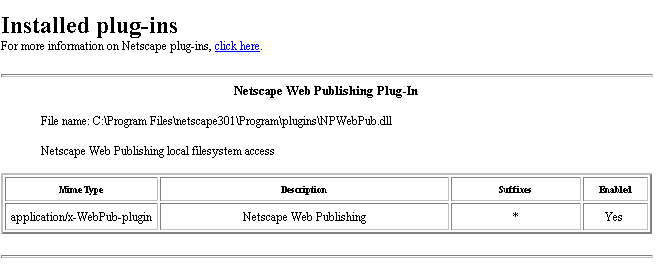
You can check if the plug-in has been installed by going to the Help menu in your Netscape Navigator browser window and choose the About Plug-ins command. The plug-in should be listed there, as shown in Figure 2.2.
Figure 2-2: The Web Publisher plug-in installed
Setting your editor preferences
Netscape Web Publisher allows you to associate a particular application with a given file type. When you edit a file, Web Publisher launches its associated application, which could be MS Word, MS Excel, Netscape Composer, Netscape Navigator's HTML Editor, or some other program.The editor.txt file identifies which programs Web Publisher should use to edit files in different formats. By default there are entries in the editor preferences file to open HTML files in the editor part of your Netscape program, but you can add as many as you need to edit each of the different file types you work with. For example, if you have MS Word documents or GIF graphic files, you can edit them in MS Word or PaintShop Pro, respectively.
Users of Netscape Navigator use their local text editor to edit the editor.txt file.
- Note
If you change your editor preferences, you have to restart your browser to make the changes take effect.
Warning
Many Windows systems use the 8.3 MS-DOS filename convention, which cannot handle filenames longer than 8 characters or filenames that contains spaces. This means that a Windows directory such asThe editor.txt file for a Windows NT system requires double backward slashes between parts of the pathname. A sample editor.txt file looks like this:
C:\Program Files\Netscape301\WebPubshould be defined in your editor.txt file as the following:
C:\Progra~1\Netsca~1\WebPub
editor.htm=c:\\Program Files\\netscape\\program\\netscape.exe -edit
editor.html=c:\\Program Files\\netscape\\program\\netscape.exe -edit
editor.doc=c:\\msoffice\\winword\\winword.exe
editor.txt=c:\\winnt35\\notepad.exe
or with the 8.3 file notation:
editor.htm=c:\\progra~1\\netscape\\program\\netscape.exe -edit
editor.html=c:\\progra~1\\netscape\\program\\netscape.exe -edit
editor.doc=c:\\msoffice\\winword\\winword.exe
editor.txt=c:\\winnt35\\notepad.exe
A sample editor.txt file for a typical Unix system looks like this:
editor.htm=/usr/bin/xterm -e vi
editor.html=/usr/bin/xterm -e vi
editor.txt=/usr/bin/xterm -e vi
- Note
When you use editors such as Word or Notepad, you must save the file within the application and then use the Web Publisher "Upload file to server" or the "Publish edited file" command to publish it to the server.
Local file access checks
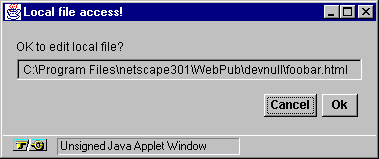
Because Web Publisher is a Java applet, it does not allow access to local files and folders. The Web Publisher plug-in permits local file access, but requires you to confirm all such operations.In Netscape Navigator 3.0x, for example, when you want to edit a file, Web Publisher displays a set of dialog boxes such as those shown here in Figure 2.3 and Figure 2.4. An edited file is considered to be a "local" file because Web Publisher places a temporary copy of the file on your local system while you are editing it.
Figure 2-3: The local file write confirmation dialog box
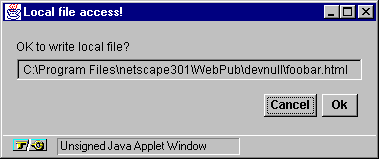
Figure 2.3 shows the dialog box for confirmation before trying to modify a file, and Figure 2.4 shows the dialog box checking for permission to edit the file.
Figure 2-4: The local file edit confirmation dialog box
You may get an additional dialog box if the temporary directory for storing files while they are being edited does not yet exist. Web Publisher will create the directory for you, but you must confirm that it is okay.
For Internet Explorer users
Internet Explorer users have access to Web Publisher features and functions, although Internet Explorer 3.x users only have access to a limited set of functions. Internet Explorer 4.x users can use all of Web Publisher's features provided that they do the following:- You need to identify the file editor you wish to use as a default for your HTML files.
- You must disable the advanced "use HTTP 1.1" option.
You do not have access to a local version of the applet if you use Internet Explorer nor is there any special plug-in for Internet Explorer users.