Monitoring the server
 ou can monitor your server's activity using
several different methods. You can view the server's status in real time
by using the Hypertext Transfer Protocol (HTTP) or the Simple Network Management
Protocol (SNMP). You can also monitor your server by recording and viewing
log files.
ou can monitor your server's activity using
several different methods. You can view the server's status in real time
by using the Hypertext Transfer Protocol (HTTP) or the Simple Network Management
Protocol (SNMP). You can also monitor your server by recording and viewing
log files.
Working with log files
Server log files record your server's activity. You can use these logs to monitor your server and to help you when troubleshooting. The error log file, located in httpd-servername/logs in the server root directory, lists all the errors the server has encountered. The access log, located inhttpd-servername/logs in the server root directory, records information about requests to the server and the responses from the server. You can use the Server Manager to specify what to include in the access log file. Use the log analyzer to generate server statistics. You can back up server error and access log files by archiving them.
Viewing an access log file
You can view the server's active and archived access log files from the Server Manager.
- From the Server Manager, choose Server Status|View Access Log. The View Access Log form appears.
- Choose the access log file you want to see. Active log files for resources and archived log files appear in the list.
- To limit how much of the access log you see, type the number of lines you want to see in the "Number of entries" field. The order of the log entries on the screen is the order in which they were recorded in the log.
- If you'd like to filter the access log entries for a particular word, type the word in the "Only show entries with" field. Case is important; make sure the case for your entry matches the case of the word you're searching for. (For example, if you want to see only those access log entries that contain "POST," type POST.)
- Click OK.
wiley.a.com - - [16/Feb/1996:21:18:26 -0800] "GET / HTTP/1.0" 200 751

wiley.a.com - - [17/Feb/1996:1:04:38 -0800] "GET /docs/grafx/icon.gif HTTP/1.0" 204 342

wiley.a.com - - [20/Feb/1996:4:36:53 -0800] "GET /help HTTP/1.0" 401 571

arrow.a.com - john [29/Mar/1996:4:36:53 -0800] "GET /help HTTP/1.0" 401 571
Table 10.1 describes the last line of the sample access log.
wiley.a.com - - [25/Mar/1996:12:55:26 -0800] "GET /index.htm HTTP/1.0" "GET" "/?-" "HTTP/
   1.0" 304 0 - Mozilla/2.0 (WinNT; I)

wiley.a.com - - [25/Mar/1996:12:55:26 -0800] "GET / HTTP/1.0" "GET" "/?-" "HTTP/1.0" 304 0
   - Mozilla/2.0 (WinNT; I)

wiley.a.com - - [25/Mar/1996:12:55:26 -0800] "GET / HTTP/1.0" "GET" "/?-" "HTTP/1.0" 304 0
   - Mozilla/2.0 (X11; I; IRIX 5.3 IP22)
The access log in the flexible logging format looks similar to the access log using the Common Logfile Format.
Viewing the error log file
The error log file contains errors the server has encountered since the log file was created; it also contains informational messages about the server, such as when the server was started. Incorrect user authentication is also recorded in the error log. Use the error log to find broken URL paths or missing files.To view the error log file from the Server Manager:
- From the Server Manager, choose Server Status|View Error Log. The View Error Log form appears.
- If you want to see more or less than 25 lines of the error log, use the "Number of errors to view" field to enter the number of lines you'd like to see. The order of the log entries on the screen is the order in which they were recorded in the log.
- If you'd like to filter the error messages for a particular word, type the word in the "Only show entries with" field. Case is important; make sure the case for your entry matches the case of the word you're searching for. (For example, if you want to see only those error messages that contain "warning," type warning.)
- Click OK.
[13/Feb/1996:16:56:51] info: successful server startup

[20/Mar/1996 19:08:52] warning: for host wiley.a.com trying to GET /report.html,
    append-trailer reports: error opening /usr/ns-home/docs/report.html (No such file or
directory)

[30/Mar/1996 15:05:43] security: for host arrow.a.com trying to GET /, basic-ncsa
    reports: user jane password did not match database /usr/ns-home/authdb/mktgdb
In this example, the first line is an informational message--the server started up successfully. The second log entry shows that the client wiley.a.com requested the file report.html, but the file wasn't in the primary document directory on the server. The third log entry shows that the password entered for the user jane was incorrect.
Setting log preferences
During installation, an access log file named access was created for the server. You can customize access logging for any resource by specifying whether to log accesses, what format to use for logging, and whether the server should spend time looking up the domain names of clients when they access a resource.Server access logs can be in Common Logfile Format, flexible log format, or your own customizable format. The Common Logfile Format is a commonly supported format that provides a fixed amount of information about the server. The flexible log format allows you to choose (from the Server Manager) what to log. A customizable format uses parameter blocks that you specify to control what gets logged. Once an access log for a resource has been created, you can't change its format unless you archive it or create a new access log file for the resource.
To set access logging preferences:
- From the Server Manager, choose Server Status|Log Preferences. The Log Preferences form appears.
- Use the Resource Picker to choose the resource you'd like to apply custom logging to.
- Select whether to log client accesses.
- Type the full path for the log file.
- Choose whether to record domain names or IP addresses in the access log.
- Choose the format in which the log file should be: Common Logfile Format, or flexible log format (Only log radio button), or custom format. If you click Only log, you can choose any or all of the following flexible log format items:
As a default, the log files are kept in the logs directory in the server root directory. If you specify a partial pathname, the server assumes the path is the logs directory in the server root.
- Client hostname--The hostname (or IP address if DNS is disabled) of the client requesting access.
- Authenticate username--If authentication was necessary, you can have the authenticated username listed in the access log.
- System date--The date and time of the client request.
- Full request--The exact request the client made.
- Status--The status code the server returned to the client.
- Content length--The content length, in bytes, of the document sent to the client.
- HTTP header, "referer"--The referer specifies the page from which the client accessed the current page. For example, if a user was looking at the results from a text search query, the referer would be the page from which the user accessed the text search engine. Referers allow the server to create a list of backtracked links.
- HTTP header, "user-agent"-- The user-agent information--which includes the type of browser the client is using, its version, and the operating system it's running on--comes from the User-agent field in the HTTP header information the client sends to the server.
- Method--The request method used.
- URI--Universal Resource Identifier. The location of a resource on the server. For example, for
- Query string of the URI--Anything after the question mark in a URI. For example, for
- Protocol--The transport protocol and version used.
http://www.a.com:8080/special/docs, the URI is
special/docs.
http://www.a.com:8080/special/docs?find_this, the query string of the URI is find_this.
http://developer.netscape.com/library/documentation/.
Archiving log files
You can archive the access and error log files and have the server create new ones.When you archive log files, the server renames the current log files and then creates new log files with the original names. You can back up or archive (or delete) the old log files, which are saved as the original filename followed by the date and time the file was rotated. For example, access might become access.24Apr-04AM.
You can archive log files immediately or have the server archive log files at a specific time on specific days. The information about when to archive log files is stored in the cron.conf file in the admin-serv directory in the server root directory; the server's cron configuration options are stored in ns-cron.conf in the admin-serv directory.
Note
Before running the log analyzer, you should archive the server logs.To archive log files:
- From the Server Manager, choose Server Status|Archive Log. The Archive Log Files form appears.
- Click Archive if you want to rotate the log files immediately.
- Click OK.
- Shut down the administration server by clicking the "shut down" link on the page that appears.
- Restart the administration server.
If you want archiving to occur at specific times on specific days, click the "Rotate log at" button, choose a time from the pull-down menu, and select the days for archiving to occur.
Monitoring the server using HTTP
You can monitor your server's usage with the interactive server monitor. You can see how many requests your server is handling and how it is handling these requests. If the interactive server monitor reports that the server is handling a great number of requests, you may need to adjust the server configuration or the system's network kernel to accommodate the requests. The interactive server monitor is shown in Figure 10.1.To monitor your server from the Server Manager:
- From the Server Manager, choose Server Status|Monitor Current Activity.
- Click "Monitor current activity on port port_number". The interactive server monitor shown in Figure 10.1 appears.
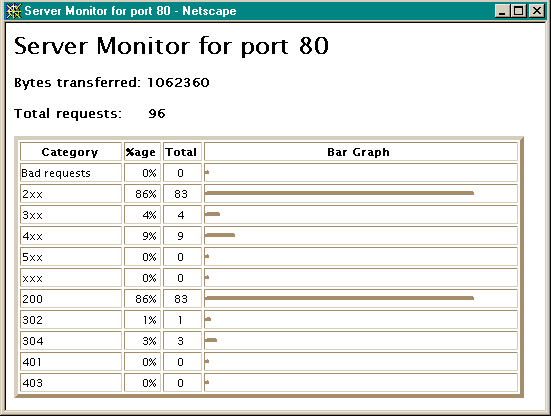
The interactive server monitor reports the totals for the following server values:
- Bytes transferred - the total number of bytes the server is transferring
- Total requests - the total number of requests the server is handling
The interactive server monitor also reports the totals
for the following server values as a percentage of the total activity, in absolute values, and as a bar graph showing the percentage of the total activity:
- Bad requests - the number of bad requests the server is handling
- 2xx - the number of status codes ranging from 200 to 299 that the server is handling
- 3xx - the number of status codes ranging from 300 to 399 that the server is handling
- 4xx - the number of status codes ranging from 400 to 499 that the server is handling
- 5xx - the number of status codes of 500 and higher that the server is handling
- xxx - the total number of 2xx, 3xx, 4xx, and 5xx status codes the server is handling minus timeouts and other errors that did return an HTTP status code
- 200 - the number of successful transactions the server is processing
- 302 - the number of relocated URL status codes the server is processing
- 304 - the number of requests for which the server tells the client to use a local copy of a URL instead of retrieving a newer version from the server
- 401 - the number of unauthorized requests the server is handling
- 403 - the number of forbidden URL status codes the server is handling
Working with the log analyzer
Use the log analyzer to generate statistics about your server, such as a summary of activity, most commonly accessed URLs, times during the day when the server is accessed most frequently, and so on. You can run the log analyzer from the Server Manager or the command line.Note
Before running the log analyzer, you should archive the server logs. For more information about archiving server logs, see "Monitoring the server using SNMP" on page 171.
Running the log analyzer from the Server Manager
To run the log analyzer from the Server Manager:
- From the Server Manager, choose Server Status|Generate Report. The Generate Report form appears.
- Type the name of your server; this name appears in the generated report.
- Choose whether the report will appear in HTML or plain text format.
- Select the log file you want to analyze.
- If you want to save the results in a file, type an output filename in the Output file field. If you leave the field blank, the analyzer prints results on the screen. For large log files, you should save the results to a file because printing the output to the screen might take a long time.
- Select whether to generate totals for certain server statistics. You can generate the following totals:
- Total hits--The total number of hits the server received since access logging was enabled.
- 304 (Not Modified) status codes--The number of times the requesting client used a local copy of the requested document, rather than retrieving it from the server.
- 302 (Redirects) status codes--The number of times the server redirected to a new URL because the original URL moved.
- 404 (Not Found) status codes--The number of times the server couldn't find the requested document or the server didn't serve the document because the client was not an authorized user.
- 500 (Server Error) status codes--The number of times a server-related error occurred.
- Total unique URLs--The number of unique URLs accessed since access logging was enabled.
- Total unique hosts--The number of unique client hosts who have accessed the server since access logging was enabled.
- Total kilobytes transferred--The number of kilobytes the server transferred since access logging was enabled.
- Top number of one-second periods--You can generate the number of one-second periods during which requests were highest.
- Top number of one-minute periods--You can generate the number of one-minute periods during which requests were highest.
- Top number of one-hour periods--You can generate the number of one-hour periods during which requests were highest.
- Top number of users--You can generate the top number of users that accessed your server, provided that you included this as an item to log when you enabled access logging.
- Top number of referers--You can generate the number of referers that appear in your log analysis, provided that you included this as an item to log when you enabled access logging.
- Top number of user agents--You can generate the number of user agents that appear in your log analysis, provided that you included this as an item to log when you enabled access logging.
- Top number of miscellaneous logged items--You can generate the number of miscellaneous logged items that appear in your log analysis, provided that you included this as an item to log when you enabled access logging. These miscellaneous items include the request method, the URI, and the URI query.
- Most commonly accessed URLs--You can have the log analyzer show the most commonly accessed URLs or URLs that were accessed more than a specified number of times.
- Hosts most often accessing your server--You can have the log analyzer show the hosts most often accessing your server or hosts that have accessed your server more than a specified number of times.
Running the log analyzer from the command line
To analyze access log files from the command line, run the tool, flexanlg, which is in extras/flexanlg in your server root directory.To run flexanlg, type the following command and options at the command prompt:
flexanlg [ -P ] [-n name] [-x] [-r] [-p order] [-i file]* [ -m metafile ]*
[ o file][ c opts] [-t opts] [-l opts]
The following describes the syntax. (You can get this information online by typing flexanlg -h.)
-P: proxy log format                                  Default: no

-n servername: The name of the server

-x : Output in HTML                                   Default: no

-r : Resolve IP addresses to hostnames                Default: no

-p [c,t,l]: Output order (counts, time stats, lists)  Default: ctl

-i filename: Input log file(s)                        Default: none

-o filename: Output log file                          Default: stdout

-m filename: Meta file(s)                             Default: none

-c [h,n,r,f,e,u,o,k,c,z]: Count these item(s) -       Default: hnreuokc

    h: total hits

    n: 304 Not Modified status codes (Use Local Copy)

    r: 302 Found status codes (Redirects)

    f: 404 Not Found status codes (Document Not Found)

    e: 500 Server Error status codes (Misconfiguration)

    u: total unique URL's

    o: total unique hosts

    k: total kilobytes transferred

    c: total kilobytes saved by caches

    z: Do not count any items.

-t [sx,mx,hx, xx,z]: Find general stats - Default:s5m5h24x10

    s(number): Find top (number) seconds of log

    m(number): Find top (number) minutes of log

    h(number): Find top (number) hours of log

    u(number): Find top (number) users of log

    a(number): Find top (number) user agents of log

    r(number): Find top (number) referers of log

    x(number): Find top (number) for miscellaneous keywords

    z: Do not find any general stats.

-l [cx,hx]: Make a list of -                          Default: c+3h5

    c(x,+x): Most commonly accessed URLs

             (x: Only list x entries)

             (+x: Only list if accessed more than x times)

    h(x,+x): Hosts (or IP addresses) most often accessing your server

             (x: Only list x entries)

             (+x: Only list if accessed more than x times)

    z: Do not make any lists
Monitoring the server using SNMP
You can monitor your server in real-time by using the Simple Network Management Protocol (SNMP). SNMP is a protocol used to exchange data about network activity. With SNMP, data travels between a managed device and a network management station (NMS) where users remotely manage the network.A managed device is anything that runs SNMP (for example, hosts, or routers). Your Enterprise Server is a managed device. An NMS is usually a powerful workstation with one or more network management applications installed. A network management application graphically shows information about managed devices (which device is up or down, which and how many error messages were received, and so on).
Every managed device contains an SNMP agent that gathers information regarding the network activity of the device. This agent is known as the subagent. Each Netscape server (except the administration server) has a subagent.
Another SNMP agent exchanges information between the subagent and NMS. This agent is called the master agent. A master agent runs on the same host machine as the subagents it talks to. You can have multiple subagents installed on a host machine. All of these subagents can communicate with the master agent.
Values for various variables that can be queried are kept on the managed device and reported to the NMS as necessary. Each variable is known as a managed object, which is anything the agent can access and send to the NMS. All managed objects are defined in a management information base (MIB), which is a database with a tree-like hierarchy. The top level of the hierarchy contains the most general information about the network. Each branch underneath is more specific and deals with separate network areas.
How does SNMP work?
SNMP exchanges network information in the form of protocol data units (PDUs). PDUs contain information about various variables stored on the managed device. These variables, also known as managed objects, have values and titles that are reported to the NMS as necessary. Communication between an NMS and managed device can take place in one of two forms:NMS-initiated communication: NMS-initiated communication is the most common type of communication between an NMS and a managed device. In this type of communication, the NMS either requests information from the managed device or changes the value of a variable stored on the managed device.
These are the steps that make up an NMS-initiated SNMP session:
- The NMS searches the server's MIB to determine which managed devices and objects need to be monitored.
- The NMS sends a PDU to the managed device's subagent through the master agent. This PDU either requests information from the managed device or tells the subagent to change the values for variables stored on the managed device.
- The subagent for the managed device receives the PDU from the master agent.
- If the PDU from the NMS is a request for information about variables, the subagent gives information to the master agent and the master agent sends it back to the NMS in the form of another PDU. The NMS then displays the information textually or graphically.
If the PDU from the NMS requests that the subagent set variable values, the subagent sets these values.
These are the steps that make up a managed device-initiated SNMP session:
- An event occurs on the managed device.
- The subagent informs the master agent of the event.
- The master agent sends a PDU to the NMS to inform the NMS of the event.
- The NMS displays the information textually or graphically.
The Enterprise Server MIB
Each Netscape server has its own MIB (management information base). The Enterprise Server's MIB is a file called netscape-http.mib. This MIB contains the definitions for various variables pertaining to network management for the Enterprise Server. These variables are known as managed objects. Using the Enterprise Server MIB and network management software, such as HP OpenView, you can monitor your web server like all other devices on your network.The Enterprise Server MIB has an object identifier of netscape 1 (that is, http OBJECT IDENTIFIER : := { netscape 1 }) and is located in the server_root/plugins/snmp directory.
You can see administrative information about your web server and monitor the server in real time using the Enterprise Server MIB. Table 10.2 lists and describes the managed objects stored in the netscape-http.mib.
Installing subagents on AIX
If your SNMP daemon is running on AIX, it supports SMUX. For this reason, you don't need to install a master agent. However, you do need to change the AIX SNMP daemon configuration.AIX uses several configuration files to screen its communications. One of them, snmpd.conf, needs to be changed so that the SNMP daemon accepts the incoming messages from the SMUX subagent. For more information, see the online manual page for snmpd.conf. You need to add a line to define each subagent.
For example, you might add this line to the snmpd.conf:
smux 1.3.6.1.4.1.1.1450.1 "" IP_address net_maskIP_address is the IP address of the host the subagent is running on, and net_mask is the network mask of that host.
Note
Do not use the loopback address 127.0.0.1; use the real IP address instead.If you need more information, see your related system documentation for details.
Enabling the subagent
After you've installed the master agent that comes with your administration server, you need to enable the subagent for your web server. For more information on installing the master agent, see Managing Netscape Servers . You can use the Server Manager to enable the subagent.
- From the Server Manager, choose Server Status|SNMP Subagent Configuration. The SNMP Configuration form appears.
- Type the name of the system that has the master agent installed on it. (The default is the local system.)
- Type a description.
- Type your organization name.
- Type the web server's location.
- Type the contact person for the web server.
- Click the On radio button.
- Click OK.
- Start the subagent from the SNMP Subagent Control form. For more information on starting the subagent, see "Starting, stopping, and restarting the subagent" on page 177.
Starting, stopping, and restarting the subagent
Once you have enabled the subagent, you can start, stop or restart it from the SNMP Subagent Control Form.To start, stop, or restart the subagent:
- From the Server Manager, choose Server Status|SNMP Subagent Control. The SNMP Subagent Control form appears.
- Click the Start, Stop, or Restart button.