Appendix A: The Mouse and Keyboard
Appendix A: The Mouse and Keyboard
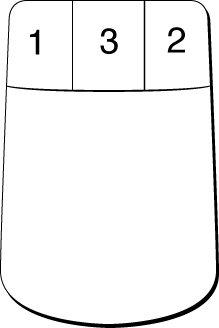
The BeOS recognizes one-, two-, and three-button mice. By default, the left button is the first button; the right button is the second; and the middle button is the third.
To reset the button order, use the Mouse preferences.
Simulating Multiple-button Mice
A single-button mouse can simulate a two- or three-button mouse. On a PC keyboard (including a Windows keyboard), the key combinations, based on the 104-key Windows keyboard, are these:
- Control+Alt+click simulates the second mouse button.
- Control+Win+click simulates the third mouse button.
Use the Mouse preferences to adjust the timing of multiple clicks and set the cursor's movement speed. These are the basic mousing terms used in this guide:
| This | Means To Do This |
| Move | Move the mouse without pressing a mouse button. |
| Click | Press and quickly release a mouse button without moving the mouse. |
| Press | Press and hold down a mouse button without moving the mouse. |
| Drag | Press and hold down a mouse button while moving the mouse. |
| Double-click | Press and release a mouse button twice in quick succession. |
| Double-click and drag | Like a double-click, but hold down a mouse button instead of releasing it the second time, then move the mouse. |
Which Key, Which Keyboard?
This table shows the equivalent keys for different keyboards.
| Windows keyboard (104 keys) | PC keyboard (101 keys) | PPC (Mac) keyboard (105 keys) |
|---|---|---|
| Alt | Alt | Command |
| Left or Right Windows key | Right Alt | Option |
| Left or Right control | Left/Right control | Left or Right control |
| Backspace | Backspace | Delete |
| Menu key | (no equivalent) | (no equivalent) |
| Delete (above arrow keys) | Delete (above arrow keys) | Del (above arrow keys) |
| Enter (main keyboard) | Enter (main keyboard) | Return |
| Enter (numeric keypad) | Enter (numeric keypad) | Enter (numeric keypad) |
Choosing a Shortcut Key
Menu preferences lets you choose a shortcut key--that is, the key you use to invoke a shortcut. What's available to choose from depends on your keyboard.
| Shortcut key | Windows keyboard (104 keys) | PC keyboard (101 keys) | (Mac) keyboard (105 keys) |
|---|---|---|---|
| Alt | Alt means both the right and left Alt keys work as the shortcut key. | Alt as the shortcut key applies to left Alt only; right Alt is the Option key. | N/A |
| Control | Control means both the right and left Control keys work as the shortcut key. | Control means both the right and left Control keys work as the shortcut key. | Control means both the left and right Control keys work as the shortcut key. |
| Command key | N/A | N/A | Command or Control means both the left and right Command and Control keys work as the shortcut key. |
For simplicity, a 104-key keyboard with Alt as the shortcut key is used throughout the user guide.
Keyboard Shortcuts
System Shortcuts
| Action or key combination | Means |
|---|---|
| Alt+Escape | Activate/deactivate (but not open/close) the first menu in a window. |
| Escape | Cancel (available, but not all applications use it). |
| Tab | Change keyboard focus to the next item in a window or panel. |
| Alt+Tab | Change keyboard focus to next group of controls (e.g., in a preferences panel); does this by highlighting first control in the group. |
| Control+Tab | Bring up the Twitcher app, which lets you switch apps with the keyboard. If you make Control your shortcut key, use Alt+Tab to bring up the Twitcher. |
| Win+Tab | Force a jump to the next control, if inputting text |
| Return | Press a default button. |
| Spacebar | Activate or toggle the current control (button, checkbox, etc). |
 |
NOTE: The addition of the Shift key to some combinations will perform the action in reverse. |
Tracker Shortcuts
Several Tracker shortcuts include both keyboard and mouse action.
| Action or key combination | Means |
|---|---|
| Click an item. | Select the item. |
| Click and drag across one or more items. | Select the items you drag across. |
| Type one or more letters. | Select the item that starts with that letter or letters. |
| Press an arrow key. | Select the next item in the direction of the arrow. You can also select Tracker window items using Tab and Shift+Tab, as described in "System Shortcuts." |
| Shift+ mouse click or drag. If you drag with the mouse, release the button before releasing the Shift key. | Select or deselect additional items. |
| Shift+letter | Select or deselect additional items. |
| Alt+O or Return/Enter | Open the selected item. |
| Alt+D | Duplicate the selection. |
| Win+double-click | Close current directory before performing an action. |
| Win+drag | Copy a selection to a new location rather than move it. |
| Alt+Up Arrow | Close the current folder and open its parent. |
| Alt+Down Arrow | Open any highlighted folder. |
| Alt+Win+Up arrow | Close the current folder and open its parent. |
| Alt+Win+Down arrow | Close the current folder and open the selected folder. |
| Alt+F | Open Find dialog--initiate a query. |
| Alt+Y | Resize to fit. |
Application Shortcuts
This is a summary of the most common application shortcuts:
| Action or key combination | Means |
|---|---|
| Alt+N | Open new application window. |
| Alt+O | Open a file or folder. |
| Alt+S | Save current work in a file. |
| Alt+Shft+S | Save a file by a different name. |
| Alt+Z | Undo work since last save. |
| Alt+Shft+Z | Redo last undo. |
| Alt+W | Close application window. |
| Alt+Shft+P | Open PageSetup preferences for printing. |
| Alt+P | Print. |
| Alt+Q | Quit the application; same as Close if only one application window is open. |
| Alt+W | Close the current window; quit the app if only one application window is open. |
Menu Navigation and Selection Shortcuts
The table summarizes keyboard and mouse shortcuts for navigating menus and selecting items:
| To | Do this |
|---|---|
| Open a menu | Click the menu title and release the mouse, or
click the menu title and hold the mouse button, or press Alt+Escape and type the menu title's trigger letter or use arrows. or, press the Menu key on a Windows keyboard. |
| Navigate a menu | Drag the mouse through menu items, or
press the up or down arrow in an open menu. |
| Choose a menu item | Click the item with the mouse, or
type the item's trigger letter (if it has one), or select an item by dragging with the mouse or using the arrow keys, then press Enter/space. |
| Close a menu | Choose an item, or
click elsewhere in the window, or press the Escape key. |
File and Document Management Shortcuts
| Key combination | Means |
|---|---|
| Alt+O | Open the selected file or document. |
| Alt+N | Open a new file or document. |
| Alt+S | Save the current file or doc; same as "Save As" for a file not previously saved. |
| Alt+shft+S | Save As, or save the current file/doc in a new file. |
| Alt+P | Print. |
| Alt+Shift+P | Open the Page Setup dialog. |
Text Selection and Editing Shortcuts
These apply to word processors, text editors, and terminal emulators.
| Keyboard/Mouse combination | Means |
|---|---|
| Click | Select an insertion point. |
| Double-click | Select a word. |
| Triple-click | Select a paragraph. |
| Drag across text | Select a character at a time. |
| Double-click and drag | Select whole words at a time. |
| Triple-click and drag | Select whole paragraphs at a time. |
| Hold down the Shift key | Extend or reduce a range of selected text. |
| Press Control+Shft+arrow key | Select one space to the left or right of the cursor (with left/right arrow keys) or a line above or below the cursor (up/down arrow keys). |
| Alt+A | Select all. |
| Alt+Z | Undo; redo if multiple undo not available. |
The following text-editing shortcuts are based on the Clipboard feature. Affected text can be moved between windows in one application or between windows in different applications.
| Key combination | Means |
|---|---|
| Alt+X, | Cut the selected text. |
| Alt+C | Copy the selected text. |
| Alt+V | Paste the selected text to the right of the cursor. |
Document Navigation Shortcuts
These shortcuts apply generally to word processors, text editors, and terminal emulators, though some apply only to text documents.
| Action or key combination | Means |
|---|---|
| Left arrow | Move the cursor left. |
| Right arrow | Move the cursor right. |
| Up arrow | Move the cursor up. |
| Down arrow | Move the cursor down. |
| Control+Left arrow | Move the cursor back one word. |
| Control+Right arrow | Move the cursor forward one word. |
| Control+Up/Down arrow | Skip by paragraphs. |
| Home | Move the cursor to the beginning of the line. |
| End | Move the cursor to the end of the line. |
| Page up/down | Move the cursor up/down one page (screen). |
| Control+Home | Move the cursor to the beginning of the doc. |
| Control+End | Move the cursor to the end of the doc. |
| Control+Page Up/Down | Move the cursor to the top or bottom of current page without moving the page. |
Document Viewing Shortcuts
These shortcuts apply to read-only documents, such as HTML, Adobe PDF files, manpages, etc.
| Key combination | Means |
|---|---|
| Left/Right arrow | Scroll left/right. |
| Up/Down arrow | Scroll up/down. |
| Alt+Left/Right arrow | Go to the previous/next document (in a browser). |
List View Shortcuts
These shortcuts apply to List Views in Tracker windows, mail/news readers, music playlists, and so on.
| Action or key combination | Means |
|---|---|
| Up arrow | Select the previous item to currently selected one; select first item in the list if no there is no highlighted selection. |
| Down arrow | Select the next item from the currently selected one; select the last item in the list if there is no highlighted selection. |
| Alt+Right arrow | Expand a folder, thread, menu, etc. |
| Alt+Left arrow | Collapse a folder, thread, menu, etc. |
| Return or space bar | Activate the selected item(s). |
| Alt+A | Select all. |
| Letter keys | Move to the closest alphabetic match. |
| Tab | Move to the next item in order. |
| Shift+Tab | Move to the previous item. |
| Shift+click | Select contiguous items as the mouse is dragged. |
Miscellaneous Shortcuts
| Key combination | Means |
|---|---|
| Control+Tab | Holding down Control while pressing quickly on Tab cycles through the open applications without bringing up the Twitcher application switcher interface. |
| Alt+F1-F12 | Pressing Alt+a numbered function key switches to that number desktop in the Workspaces application. |
The Be User's Guide, in lovely HTML, for BeOS Release 4.
Copyright © 1998 Be, Inc. All rights reserved.
Last modified November 10, 1998.