Customizing the BeOS
Customizing the BeOS
You can customize the look and feel of your computer with BeOS preference applications. The applications discussed in this chapter live in the /boot/preferences directory, and can most easily be found by popping open the Be Menu and choosing the preferences command.
| Backgrounds | Boot | DataTranslations |
| Devices (Intel only) | DriveSetup | FileTypes |
| Fonts | Joysticks | Keyboard |
| Keymap | Menu | Mouse |
| Network | Printers | Screen |
| ScrollBar | Time (and Date) | VirtualMemory |
| Workspaces |
Backgrounds
Backgrounds lets you set the background color or image for the desktop and for Tracker's folder windows:
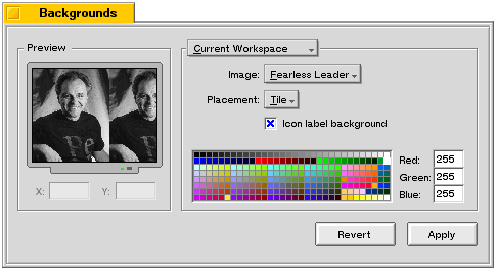
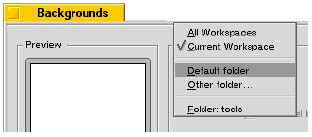
The pop up above the right box lets you set the background that you're applying the settings to. The two Workspaces commands apply the settings to the current workspace, or to all workspaces. The two folder commands apply the settings to all Tracker folders (Default), or to a specific folder (Other). When you add a background to a specific folder, the name of the folder is added to the Folder: list so you can retrieve the settings later.
To set a background color, choose None from the Image: pop up and use the color control to set the color that you want.
To set a background image, drop the image file into the Preview box, and choose a placement option from the Placement: popup (The Center and Scale to Fit placements apply only to desktop backgrounds, not to folders). If you choose the Manual setting, the X: and Y: fields will display the coordinates of the image's origin (upper left corner). To move the image, simply drag it in the Preview screen, or type in the X: and Y: fields.
The Icon label background box, if checked, applies the chosen color to the boxes that contain the labels of icons that appear on the desktop. If it's unchecked, the label boxes are transparent. In either case, the label text color is either black or white--whichever is more legible given the icon label color.
If you're setting a background color (as opposed to a background image), the Icon label background checkbox is disabled and the label backgrounds are transparent. Again, the icon label color is decided on the basis of legibility.
Boot
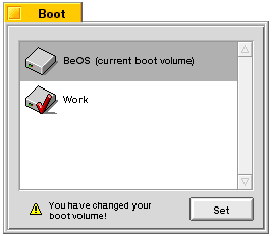
Boot lets you choose the BeOS volume that you boot from. This is useful only if you have the BeOS installed on more than one volume mounted on your computer, or on more than one disk connected to it. Each mounted volume is listed by name, with the current boot volume noted in parentheses. If you choose another volume a check mark appears over it and a warning that you've changed your boot volume displays at the bottom of the window. The next time you boot, the system will load the BeOS from your newly selected boot volume.
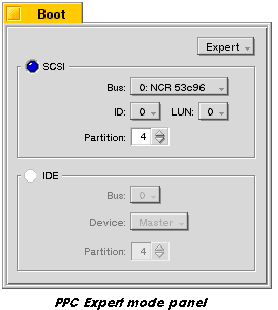
On PPC, the Easy/Expert pop up lets you choose the boot volume by name (Easy) or by its "bus" address (Expert). If you're booting from a SCSI hard disk, leave the LUN: (Logical Unit Number) set at 0.
DataTranslations
Data translators let you open or save a file as a particular type. For example, if you want to look at a GIF file, you need a GIF translator on your system to open the file. The DataTranslations window shows you which translators you have on your system, and, if they have settings (not all do), lets you adjust them. For example, the JPEG translator lets you adjust the output quality of the image.
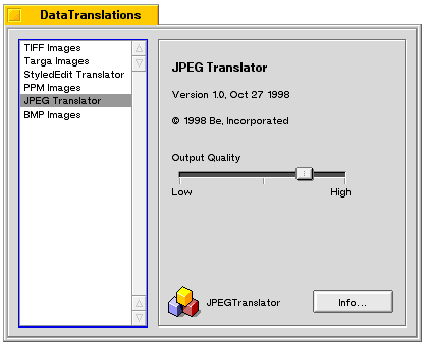
The BeOS ships with TIFF, Targa, StyledEdit, JPEG, and BMP translators. Other applications (such as Gobe Productive) add translators to your system when you install them. To add a translator on your own, drag it into the DataTranslations window.
Devices (Intel only)
Devices lists all the devices on your computer. You can use Devices to see what devices you have, what their capabilities and configurations are, and whether or not they are enabled. You can also use Devices to add devices to your system and to reconfigure existing devices. For more information on Devices, see http://www.be.com/documentation/user_docs/index.html.
DriveSetup
 |
WARNING: It's possible to lose data accidentally in DriveSetup (by initializing a drive, for example). Pay attention to warning dialogs to avert a catastrophe. |
DriveSetup lets you work with any type of drive supported by the BeOS. You can mount, unmount, format, partition, eject, and initialize disks connected to your computer.
Some important terms to remember:
- A disk drive is a physical device; e.g., a SCSI or IDE hard drive.
- You can partition a disk into multiple volumes.
- A volume is a logical device. A single hard drive can have multiple volumes; e.g., one for Windows or Mac OS and one for the BeOS.
DriveSetup Features
The Drive Setup window shows the drives currently attached to the system, whether mounted or not. The window below shows three drives connected to the computer: a floppy, a hard drive, and a CD drive. A small triangle appears next to partitioned drives with multiple volumes. Click the triangle to see all the volumes on that drive.
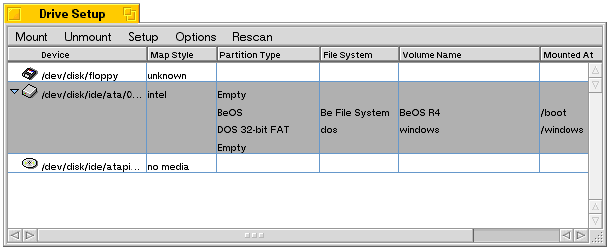
The table below identifies and describes the information displayed in the Drive Setup window:
| Name | Shows this |
|---|---|
| Device | Lists the SCSI, IDE, or floppy drive devices you can mount on this computer. |
| Map Style | Identifies the partition style. Currently the BeOS supports two styles: Apple and Intel. |
| Partition Type | The specific partitions on a given volume. The BeOS recognizes BeOS, DOS 16-bit and 32-bit, Macintosh HFS (Hierarchical File System), ISO 9660, and "ofs" (Old Be File System) partitions. |
| File System | Shows the specific file system for each volume. |
| Volume Name | The name for each volume on a drive. |
| Mounted At | Shows the path to the mounted volume. |
| Size | Shows the size of each device and/or volume (doesn't appear in the screenshot). |
Mounting and Unmounting Volumes
Mounting means displaying a drive or volume on your desktop. A volume must be mounted for you to be able to read it and write to it. To mount a volume:
1. Launch DriveSetup.
2. Select the device you want to mount: e.g., floppy, CD, Zip drive, etc.
3. Select the Mount menu (or pop up the context menu on the drive you want to mount). You can choose to mount all partitions or a specific type of volume.
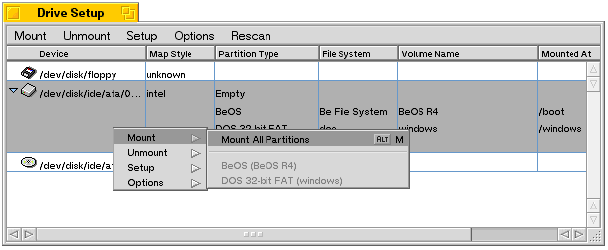
To unmount a volume, follow the same steps, selecting the Unmount menu.
Partitioning a Disk
|
WARNING: Partitioning a disk destroys all the data on it! Back up data you want to keep before partitioning the disk. |
DriveSetup can create multiple partitions on a disk, except floppy disks (which are too small to partition) and read-only media like CD-ROMs. You partition your hard drive to allocate a portion of it to the BeOS. You can create either Intel- or Apple-style partitions in DriveSetup.
|
NOTE: The drive or volume you want to partition must be unmounted. |
Creating Intel-Style Partitions
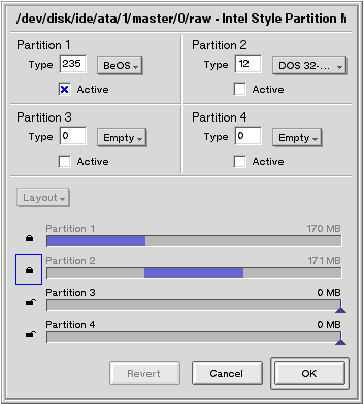
1. In the DriveSetup panel, choose Partition from the Setup menu. The Partition Map panel lets you create as many as four partitions.
2. Set the partition type in the top part of the Partition Map, using the Type popup list, or enter the number manually, if you know it.
3. Check the Active box of the partition you want to make active; only one partition can be active at a time.
4. Set the layout of your partitions in the bottom part of the window. Click the Layout button to choose from four preset configurations. You can also set the partition size manually by dragging the sliders in each partition bar. The minimum partition size for the BeOS is 200 MB.
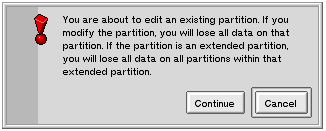
5. The lock icons at the left end of the partition bars are there to keep you from accidentally losing data in partitions that you don't wish to modify. Click the icon to unlock it. A dialog warns that you may lose data if you modify the partition.
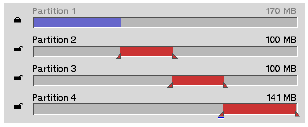
As further protection against losing data, the color of the partition bar changes from blue to red when the change you're making to a partition's size is about to cause you to lose data.
6. After you've the configured the partitions, click OK to partition the drive.
To use your new partitions, you have to mount them.
Creating Apple-Style Partitions
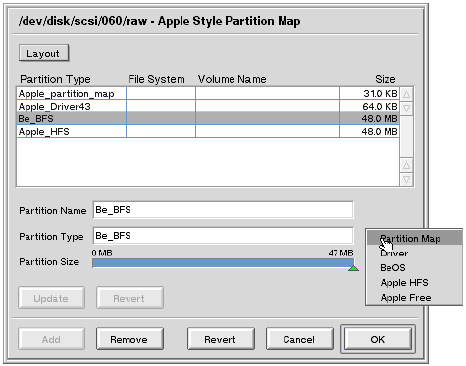
1. In DriveSetup, choose Partition from the Setup menu.
2. In the Partition Map panel that appears, click the Layout button to choose one of four preset configurations. You can alter preset configurations by clicking on a preset partition and changing the name, type, or size.
|
WARNING: Use only one of the preset partition types in the pop-up menu or your partition will not be recognized by the BeOS or MacOS. |
3. To change the partition size move the slider left to increase or right to decrease the size. If you change the size, you should click update to see the new sizes of all the partitions.
4. You can also add or remove partitions with the Add and Remove buttons at the bottom of the window. After you configure the partitions, click OK to partition the drive. A dialog warns that you may lose all the data on your disk; continue only if you are sure you want to erase the disk.
Initializing a Disk
Initializing a disk prepares it for data in a certain file system format; e.g., Mac HFS, DOS, BeOS. You must initialize a new BeOS partition before you can write data to it:
1. In DriveSetup, select the disk or volume to initialize and unmount it.
2. Select Initialize from the Setup menu. Your initialization choices are Be File System, dos (Intel machines), Mac HFS, ISO 9660, or the Old Be File System.
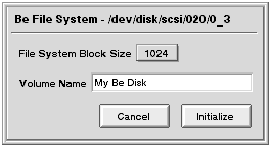
3. A dialog that lets you name the volume and set the file system block size appears. The default size is 1024; this gives the best performance in most cases. If you are an expert and will have only a few very large files, you might want to increase the system block size.
Formatting a Disk
|
WARNING: Formatting a disk destroys all data on that disk. Back up data you want to keep before formatting the disk. |
Formatting is a time consuming, low-level process. You should attempt it only if initialization fails.
1. In DriveSetup, select and unmount the disk you want to format.
2. Select Format from the Setup menu. In the warning dialog that appears click Format to proceed.
FileTypes
A file's file type describes the data that the file contains. File types are used by the system--and Tracker in particular--to figure out how to deal with a file. For example, the file type determines which application opens a file when you double-click it. FileTypes lets you change the characteristics that pertain to a particular file type, and also lets you set the file types of specific files.
When you launch FileTypes you see this window:
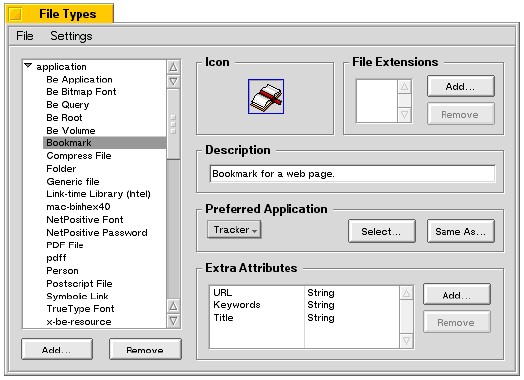
The left side of the window is a scrolling list of all the file types known to your system. File types are broken into broad categories (application, audio, image, and so on). The system adds new file types automatically when you install new applications; you can also manually add and remove types from the list via the dialogs accessed through the Add... and Remove buttons beneath the scrolling list.
A file type is associated with the icon that appears in the Icon box. Double-clicking in the Icon box (which will be empty if the type doesn't yet have an icon) launches the Icon-O-Matic application which lets you create and modify icons (as explained in "Editing an Icon " in this chapter).
The File Extensions section displays the file name extensions (such as ".html", ".gif", and so on) that are associated with a file type. If a file doesn't have a file type assigned to it already, the system will look at the file's extension to try figure out what the type should be. After the type is assigned, the file's extension is ignored (by the file-typing mechanism).
The file type Description is a human-readable description of a file type.
The Preferred Application is the app that's launched when you double-click a file of the given type. See "35099: head2: The FileType Add-on" section, immediately below, for a description of ways to do this.
The Extra Attributes section lists the additional attributes that are associated with a file type. A Tracker window knows how to display these extra attributes when it's in List View mode, as explained in "List View" in Chapter 1. Although you can add and remove attributes yourself, it's best to leave these operations to applications and the system.
Opening a File
You can examine the file type of a specific file by choosing the File > Open command, or by dropping a file icon (or set of icons) onto the File Types window. The additional window that opens (after you choose the file) is identical to the window that opens when you use the FileType add-on in Tracker, as explained in the next section.
The FileType Add-on
Another way to access FileTypes is to use the FileType add-on in a Tracker window. The add-on is a convenient way to change the file type, or other characteristic, of a specific file:
1. Open a Tracker window and select one or more files.
2. Select Add-Ons > FileType from the window's File menu or from the file's context menu. (The context menu method is shown here.)
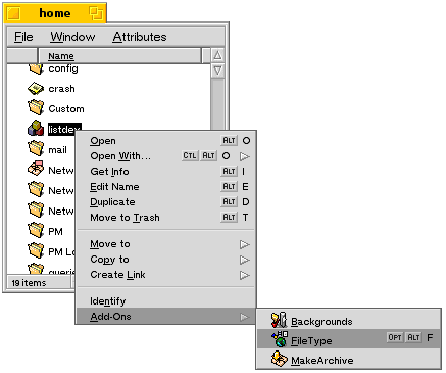
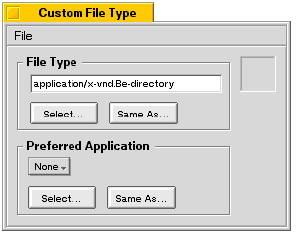
The File Type window appears:
|
NOTE: Changes you make in this window apply to all file that you selected in the Tracker window. |
In the File Type section is the file type associated with the file(s). There are four ways to change the type:
- Enter (as text) the file type in the text field.
- Click Select... and choose a type from the list of all types known to the system.
- Click Same as... to make the type of this file the same as some other file (which you choose from the file selection panel that's displayed).
- Drag and drop a file onto the File Type section of the panel; the file that you're examining assumes the type of the dropped file.
The Preferred Application section of the dialog lets you set associate a particular application with the file(s) in one of these ways:
- Choose an application from the pop up menu.
- Click Select... to bring up a file selection panel, and choose an application by locating it in the file system.
- Make it the same as the application associated with another file via the Same as... button.
- Drag and drop the desired application onto the Preferred Application section of the window.
The box on the right side of the window displays the file's icon (if it has one). To create a new icon or edit the existing one, double-click inside the box to launch the Icon-O-Matic application, which is explained in the next section.
Editing an Icon
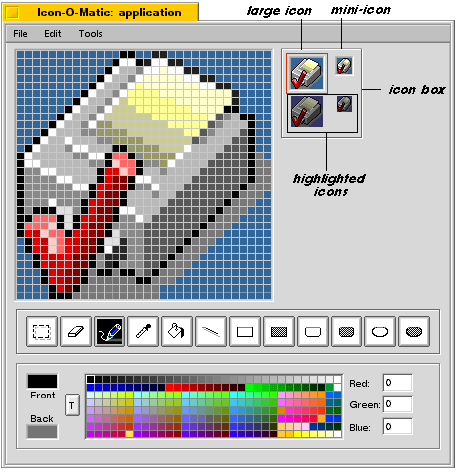
Double-clicking inside the Icon box in the File Types or File Type add-on window launches the Icon-O-Matic icon editor, where you can create and edit the icon that's associated with a file type or with a specific file. Note that if the file or file type doesn't have an icon associated with it when you double-click the icon box, a dialog will ask you if you want to create one; click New Icon to continue.
The window let's you create both a large icon and a mini-icon. Click on the large or mini-icon in the icon box on the right to switch between the icons (the red outline indicates the icon that you're currently working on). To automatically generate a mini-icon from a large icon, grab the large icon (within the icon box) and drop it on the mini-icon.
The highlighted versions of the icons are automatically generated--you can't create your own versions.
Fonts
Fonts lets you set the system fonts and the size of the font caches.
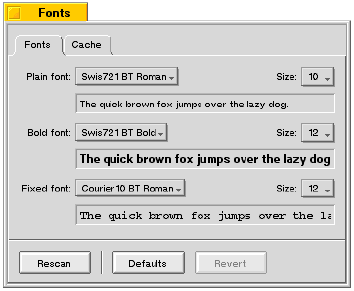
There are three types of system fonts: plain, bold, and fixed-spaced. Individual fonts have additional pop ups that let you choose among style options available for that font. You can set the size, from 9 to 12 points, with the Size: popup.
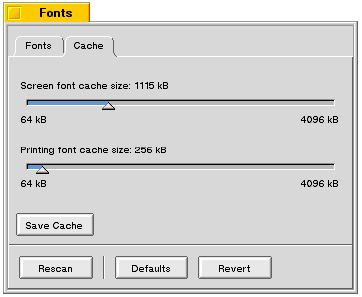
Click the Cache tab to set the size of your font caches:
- Screen font cache size: determines how much RAM is allocated to hold font bitmaps. A large cache mean faster screen redraws, but less RAM available for applications.
- Printing font cache size: determines how much RAM is allocated to printer fonts. A large cache means faster printing, but less RAM available for applications. You need a Printer Font Cache only if you print to HP LaserJet-compatible printers.
Adding Fonts
The BeOS includes a TrueType font renderer, which displays TrueType fonts in almost any size. The standard set of TrueType fonts included with the BeOS is stored in /boot/beos/etc/fonts/ttfonts. These are the default system fonts; you should not change them.
You can purchase or download additional TrueType fonts in Windows (not Macintosh) format and add them to the BeOS:
1. Place the fonts in the /boot/home/config/fonts/ttfonts folder.
2. Make sure the each font file has a ".ttf" extension (case sensitive--do not use ".TTF").
3. To tell the BeOS to look at your new fonts, click the Rescan button in the Fonts window. Or just reboot--the fonts are automatically rescanned when you start up the BeOS.
Joysticks
Joysticks configures the joysticks that you have plugged into your computer.
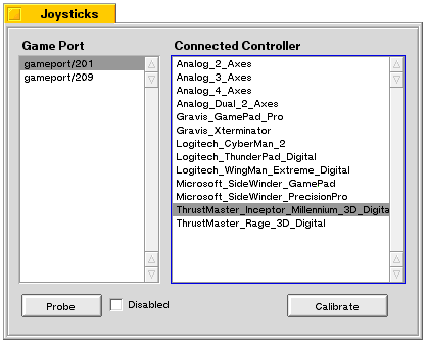
The Game Port list shows the available ports on your computer, with the port your joystick is plugged into selected. Probe will automatically attempt to figure out what kind of controller you have when you select a game port. If Probe can't identify your controller, you can select it manually from the Connected Controller list.
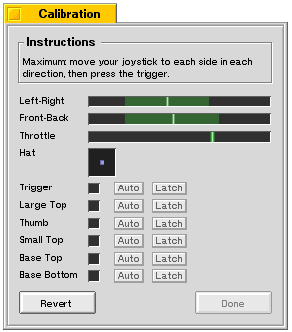
After your joystick is identified, click Calibrate to display the window where you fine tune your joystick. Text at the top of the panel instructs you in the art of calibrating your joystick (the window's appearance depends on the type of joystick you have).
Keyboard
Keyboard lets you set the delay between a key press and the subsequent key repeat, and let's you set the rate at which the key is repeated. New settings take effect immediately.
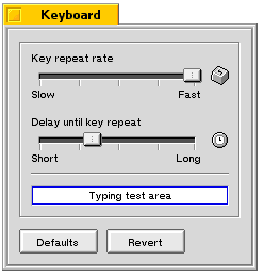
Click Revert to restore your current key-repeat settings. Click Defaults to restore the settings that were in effect when you installed the BeOS
Keymap
Keymap shows you the current keymap--the characters you see on-screen when you press each key.
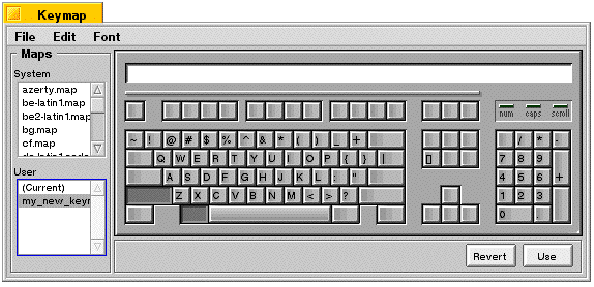
You can select a system keymap and type on the keyboard or click keys in the Keymap window to see the resulting character in the field at the top of the window. Each keymap is made up of nine tables that show how the "character" keys are mapped when different modifier keys are held down (the default display is with no modifiers). To see a particular modifier key map, hold down a modifier key combination (Shift, Windows/Option, Alt) when you click or press a character key.
Different fonts map characters to different keys. You can choose a font from the Font menu to see that font's mapping. This is a useful way to look for characters you don't use often, such as bullets, accents, or other special characters.
You can change the keymap to support different languages or keyboard layouts. The BeOS comes with a number of preconfigured keymaps to choose from in the scrolling Maps list. To customize a keymap or create your own:
1. Choose any user or system keymap.
2. Click File and Save As... and enter the name of your new keymap.
3. Make sure the keymap is being saved to /boot/home/config/settings/keymap.
4. To make the keymap selected in the Keymap window active, click the Use button in the lower-right corner.
5. The new keymap is displayed in the User list.
You can customize a keymap by using the second mouse button to drag a character key from one position to another. When you do this, all the modifier mapping tables move with the key.
To revert to the default keymap, choose one of the standard System keymaps.
|
NOTE: Selecting a new keymap may change the shortcut key in the Menu preferences. |
Menu
Menu lets you change the appearance and behavior of menus throughout the BeOS. Most importantly, it lets you set the system-wide shortcut key--this is the key that you use in combination with a character to "silently" perform a menu command.
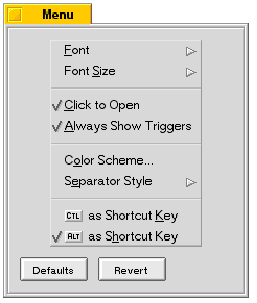
The settings in the Font preference are.
| Setting | Lets you do this |
|---|---|
| Font | Choose a font and style. |
| Font Size | Choose a font size. |
| Click to Open | If checked, lets you open a menu or submenu by clicking the menu's title; if unchecked you can only drag through menus. |
| Always Show Triggers | If checked, triggers for menu titles, commands, and other menu items are always visible and can be activated by pressing the trigger letter. |
| Color Scheme | Set the colors that are used in menus. |
| Separator Style | Choose the type of separator that's used to group commands in a menu. |
| Key as Shortcut Key | Choose Alt or Control ("Ctl") as your shortcut key. (On Macintosh, the Alt key appears as the Apple "cloverleaf".) |
Menu changes are enforced when you launch an application. For example, if you change the menu font size, the applications that are currently running aren't affected, but all subsequently launched applications will display the change.
Mouse
Mouse lets you tell the system how many buttons are on your mouse, and lets you set the mouse's its double-click speed, the speed with which it moves the cursor, and whether window focus should follow the mouse:
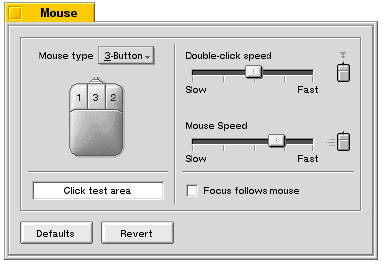
- Set double-click speed with the Double-click speed slider; test your setting in the Click test area.
- Use the Mouse Speed slider to set how far the cursor moves across the screen when you move the mouse.
- You can set the number of buttons on the mouse you use with the Mouse type popup, and rearrange the default order of the mouse buttons with the individual button pop ups.
- If you check Focus follows mouse, the window the cursor is over will always be the active window, even if it is not the frontmost window.
|
NOTE: A single-button mouse can emulate a three-button mouse: Press Ctrl+Alt while clicking the mouse button to emulate the second mouse button, and Ctrl+Win while clicking to emulate the third mouse button. |
Network
The Network preferences is explained in Chapter 3, "Connecting to the Network."
Printers
Printers lets you add and remove printers. Print preferences, such as page size and orientation are set in the application you're printing from.
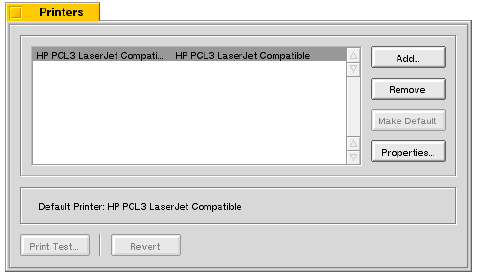
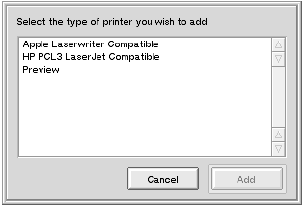
To add a printer click the Add button. This brings up a panel where you can choose the type of printer you want to add:
- "Apple Laserwriter Compatible" means Level 1 and level 2 Postscript LaserWriter-compatible printers connected via EtherTalk (AppleTalk protocol on Ethernet).
- "HP PCL3 LaserJet Compatible" means a LaserJet-compatible (PCL3) printers connected via the parallel port.
|
WARNING: Do not try to add an HP LaserJet-compatible printer to a Power Macintosh-compatible computer. |
- The "Preview" printer is a virtual, onscreen printer that lets you view the output onscreen, and make decisions about font, layout, and so on, without wasting paper.
When you add a printer subsequent dialogs let you name it and choose it as your default printer. You can make a different printer the default by highlighting it and clicking Make Default.
when you print to the Preview printer, you'll first see a page setup panel and then a simple print panel:
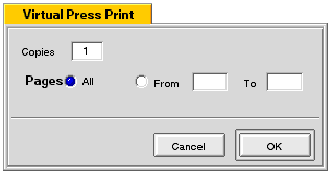
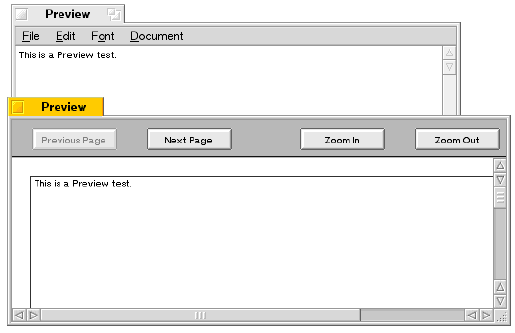
Your onscreen print output looks like this:
Screen
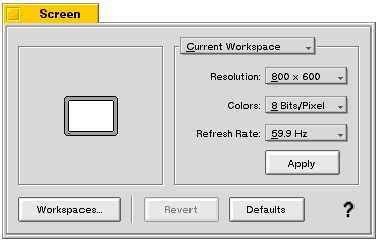
Screen lets you set your monitor's screen resolution, bits per pixel, and refresh rate.
The Current Workspace/All Workspaces pop up lets you choose the scope of the settings that you're about to apply. After you click Apply a dialog appears that asks you to confirm your choice. If you don't confirm within some amount of time (about seven seconds), the screen reverts to its former settings. Note that you adjust the refresh rate in .1 Hz increments by pressing the Left/Right arrow keys on the keyboard--this technique is useful when you're fine-tuning for the best-looking refresh rate. When adjusting the refresh rate in this manner, the confirmation dialog doesn't appear.
Initially, the BeOS displays a 640x480, 8-bit, 60.1 Hz screen. If your graphics card and monitor can accommodate a higher resolution, more colors per pixel, or a faster refresh rate, you should change these settings (see the WARNING below).
For detailed information about what kinds of graphics cards work with the BeOS, see the Be web site (http://www.be.com/products/beosreadylist.html).
|
TIP: To solve most screen problems press Alt+Control+Shift+F12 to restore all default settings except desktop color (this shortcut works at any time, even when Screen isn't running, though the default settings aren't saved unless Screen is running).
| |
|
WARNING: You can do serious damage to a monitor if you select a resolution, number of colors per pixel, or refresh rate the monitor isn't designed to support. Read the manuals that came with your monitor and graphics card to find out what combinations of settings are safe for the monitor. An alert dialog that appears before your changes take effect gives you a chance to cancel a setting you're unsure of before implementing it. |
Adjusting the Screen Size and Position
When the Screen window is active, you can adjust the size of the screen image on the monitor by holding down the Shift key while pressing the arrow keys. The Up/Down arrow keys resize the screen vertically, and the Left/Right arrow keys resize it horizontally. You can adjust the position of the screen image by holding down the Control key and pressing the arrow keys.
ScrollBar
ScrollBar lets you set the look and feel of your window's scroll bars:
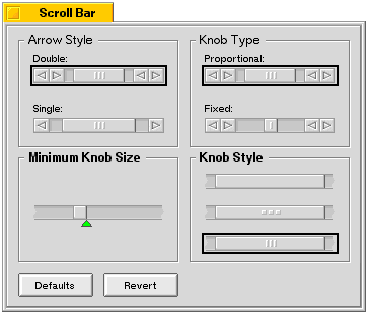
Choose the Arrow Style, Knob Style, and Knob Type you prefer. Drag the green arrow to adjust the minimum scroll knob size. Click Defaults to return all the settings to the way they were when you first installed the BeOS. The settings you make in the Scroll Bar window affect windows when you next open them.
Time (and Date)
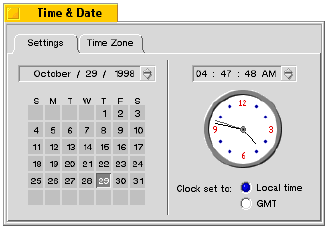
You set the date and time with Time:
In the Settings tab you can set the date by highlighting each element in the date bar and clicking the up or down arrows; to set the day of the month only, click in the calendar. You can set the time by highlighting elements in the time bar and clicking up or down, but it's more entertaining to drag the clock hands around.
If you are running the BeOS on a computer on which you also plan to run Windows, leave the setting on Local Time. The reason for this is that Windows sets the computer's internal clock to the local time in your timezone. If you change the BeOS preference to GMT, adjust the time, and then run Windows on your computer, the Windows desktop clock will be incorrect. If you then reset the time in Windows so the desktop clock shows the correct time, the time when you next run the BeOS will be incorrect.
|
NOTE: The BeOS handles Daylight Savings Time automatically, so you don't need to remember to fall back or spring ahead. |
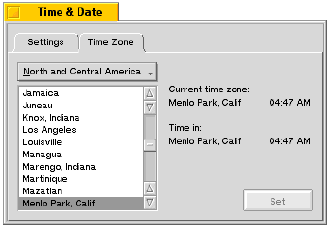
The default Time Zone setting is for Menlo Park, California. If you're in a different time zone, change this setting and click Set. This sets the correct time for your zone in the Settings tab.
VirtualMemory
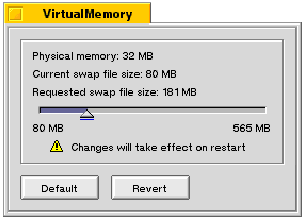
VirtualMemory lets you set the amount of disk space that's used to augment the physical RAM on your system:
The VirtualMemory window displays the amount of installed RAM (Physical Memory:) and the amount of hard drive space allocated to virtual memory (Current Swap File Size:). You can't change the physical memory (at least not from software), but you can change the virtual memory size--simply drag the slider around (or Tab to highlight the slider and use the arrow keys to adjust it in 1 MB increments). You have to reboot to make your change take effect.
The amount of virtual memory that you can request is based on the amount of free space on your boot disk. VirtualMemory may restrict the size of the swap file that you request.
Workspaces
Workspaces is an interface to the different working areas, or workspaces, that you have set up. You can have as many as nine workspaces; each workspace has its own set of windows that you're working in. You use different workspaces to organize your work--productivity apps in one workspace, audio/visual in another, mail in a third, and so on.
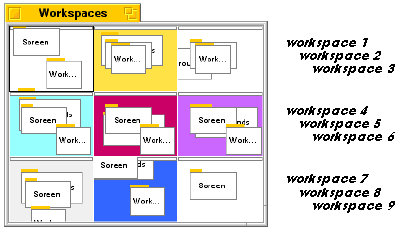
When you launch Workspaces, a "workspace map" is displayed; the windows in each workspace are represented in miniature:
To switch to another workspace, click in a "pane" in the Workspaces window, or press Alt+Fn (function key n) where n is a number between 1 and 9: Alt+F1 takes you to the first workspace, Alt+F2 takes you to the second, and so on. As displayed in the Workspaces window, workspaces are numbered left-to-right and top-to-bottom, as shown above.
You can move a window from one workspace to another by dragging its miniature representation in the Workspaces window. When you open a folder that's already open in another workspace, the window is brought into your current workspace, and is removed from the workspace it was in. However, if you select a window from the Deskbar's Window List, you're taken to the workspace that the window is open in ("remote" windows are indicated by "speedlines" in the Window List).
The Be User's Guide, in lovely HTML, for BeOS Release 4.
Copyright © 1998 Be, Inc. All rights reserved.
Last modified November 10, 1998.