Be Application Basics
Be Application Basics
This chapter introduces the techniques you use when working
with the applications that Be supplies. Many of these
techniques, such as how you launch and quit an app,
or how you open and save files, can be applied to third-party
applications, as well. Native BeOS applications
are in the /apps folder located on
your boot volume. As a convenience, the folder
is included in Deskbar's Be Menu,
as explained in
"The Deskbar,"
in Chapter 1.
This chapter contains:
| Working with BeOS Applications |
| Working with Files |
| Working with Text |
Working with BeOS Applications
Here's how you launch, switch between, and quit applications. Keep in mind that because the BeOS is multitasking, you can run many applications at the same time.
Launching an Application
The obvious ways to start an application are by (a) double-clicking its icon, (b) selecting the icon (in a Tracker window) and choosing Open from the File menu, or (c) selecting the icon and pressing Enter. You can also launch an application by opening a file: Opening a file automatically launches the preferred app for that file. (To set the preferred app use the FileTypes preference.)
When an application is running, its name is added to the Application List in the Deskbar. When you select an app in the Application List, you can see its open and hidden windows as explained in "The Application List" in Chapter 1.
The Active Application and Switching Apps
While all running applications are "active," in the sense that they can all be doing work at the same time, the application in the frontmost window (with the yellow tab) is referred to as the active application, and responds to keyboard actions.
 |
NOTE: The exception to the active window being frontmost occurs if you check the Focus Follows Mouse checkbox in the Mouse preferences. In that case, the active window is the one the mouse is pointing to, whether it's frontmost or not. |
Switching between Applications
You can switch easily between applications by clicking in an open window belonging to the application you want to switch to. In addition, you can use the Deskbar's Application List or you can use the Twitcher application, as explained below.
The Twitcher
Twitcher lets you see and switch between running applications and their windows. To bring up the Twitcher, press and hold Control, and then press and release Tab. The Twitcher window looks like this:
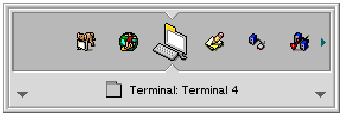
With Control still held down, successive Tabs (or left/right arrows) will cycle through your open applications. The up/down arrow cycles through an app's windows. To switch to the app (and window therein) that Twitcher is pointing to, simply release the Control key. The application's window comes to the front on your desktopl; if the window is in another workspace, you're taken to that workspace.
Quitting an Application
To quit an application, you can (a) choose the Quit menu command, generally found in the File menu, (b) type Alt+Q, the shortcut key for Quit, or (c) close the app's last open window--most applications are designed to quit when all their windows have been closed. If you're running a full-screen application such as the Dominoes demo or many games, pressing Alt+Q is the only way to quit.
Working with Files
If you've ever turned on a computer, chances are you already know how to open a file, create a new one, save it, and close it. Here's some additional information for handling files in the BeOS.
The "Open With" Window
When you open a file, the application that's designated as the file's preferred application is told to display the file's contents. However, there are times when you may want to use some other application to view the file. To get a list of candidate applications, select a file in a Tracker window and choose the Open With command in the File menu. An Open With window is displayed that shows all the applications the system thinks it can use to open the file.
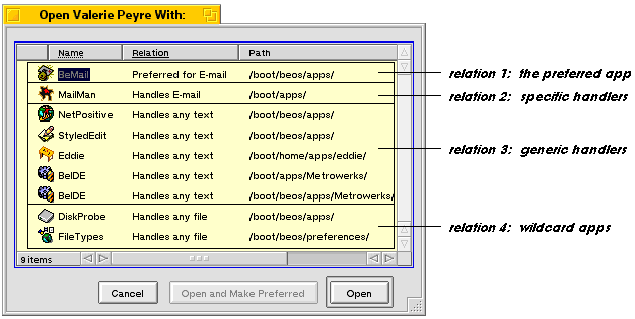
The applications are divided into four "relations", or aptness for opening the file:
- The first relation always contains the preferred application (only).
- The second relation includes all applications that handle the file's "specific" type.
- The third relation includes applications that know how to handle the file's generic type. Examples would be video applications that open any MPEG file, or applications that open any type of text file, whether the text is in a word processing file or source code file.
- In the fourth relation are wildcard applications that will try to open any file.
If you select an application other than the preferred one, the Open and Make Preferred button becomes live. This button makes the application you choose the preferred app to open this file and all other files of the same type. Selecting an app in the list and choosing Open uses the chosen app without changing the identity of the preferred application.
|
NOTE: If the system can't identify the type of file you're trying to open, the Open With window will list all applications, and list as them as "Does not handle file." If you choose one of these apps, an overly-cautious dialog warns you that the application you've selected to open your file doesn't support the file. |
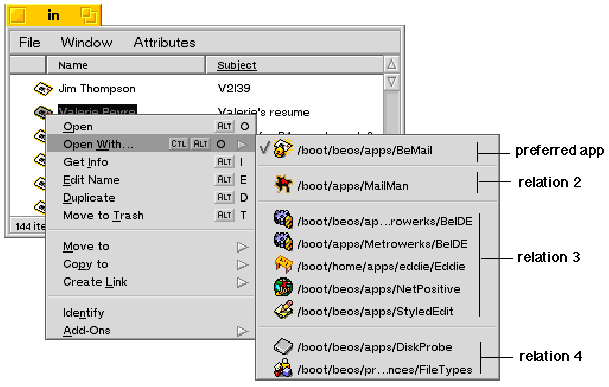
You can also get to the Open With list by popping open a file's context menu. The four relations are divided graphically:
Opening a File by Dragging and Dropping
You can drag a file onto an application icon to open it in that application. If the application is able to open the file, its icon is highlighted. Drag and drop is a good way to open a file in an application that isn't the preferred app, because it doesn't reset the preferred app. For example, let's say you want to edit an HTML document. Rather than double-click the icon, which would launch NetPositive, you would drop it onto the StyledEdit application.
When you drag a file and hold it over an app that doesn't know how to open the file, the app's icon doesn't highlight, and the app won't open the file. To force the app to accept the file, hold down the Control key when you drop the file icon.
Working with Text
The following sections summarize working with text on the BeOS.
Selecting and Editing Text
You select text to change it or to edit it in some arrangement of the Cut, Copy, and Paste commands. For information on mouse and keyboard shortcuts see " Text Selection and Editing Shortcuts" in Appendix A.
Deleting Text
The simplest way to delete text is to press the Backspace key (located at the right end of the number row on the keyboard), which erases text to the left of the insertion point, character by character. (Depending on the keyboard you're using, the Backspace key may be labeled "Delete," "Backspace," or may have a left-pointing arrow.) A second Delete key, which in the extended keyboard is located between the letter section and the number keypad and above the directional arrows, erases text to the right.
Clippings
Clippings is a BeOS feature that lets you make a persistent file of text that you drag out of an open document. You create a clipping file by selecting text and dragging it to the desktop, where it appears as a file named "Clipping from filename", where filename is the name of the file that the text was dragged from. You can drag the clipping file into any text editor application that accepts drag and drop. What happens when you do this depends on the application you drop the clipping file into. If you drop it into a StyledEdit window, it appears as the original selected text; if you drop it into a Terminal window you'll see the directory path to the clipping file.
To delete a clipping, drag its icon to the trash.
The Be User's Guide, in lovely HTML, for BeOS Release 4.
Copyright © 1998 Be, Inc. All rights reserved.
Last modified November 10, 1998.