Be User's Guide: Media
| The Be User's Guide Table of Contents |
Customizing the BeOS: Media
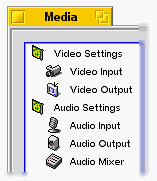 The Media application combines Audio and
Video preferences; it's where you configure settings for both.
You need a sound card for audio applications, and you usually need one to get
sound with video applications (note that some video cards have audio chips built-in).
You need a video capture card and some video output hardware or
application software to use the Video preferences.
The Media application combines Audio and
Video preferences; it's where you configure settings for both.
You need a sound card for audio applications, and you usually need one to get
sound with video applications (note that some video cards have audio chips built-in).
You need a video capture card and some video output hardware or
application software to use the Video preferences.
When you open Media prefs, you'll see a list of video and audio topics on the left-hand side of the panel; highlighting a topic brings up its corresponding settings panel on the right.
 |
NOTE: Media replaces the old Sound preference (which has been removed in Release 4.5). |
Audio
The Audio settings are described below.
Audio Settings
Highlight Audio Settings to see a panel that lets you choose your default input/output audio device.
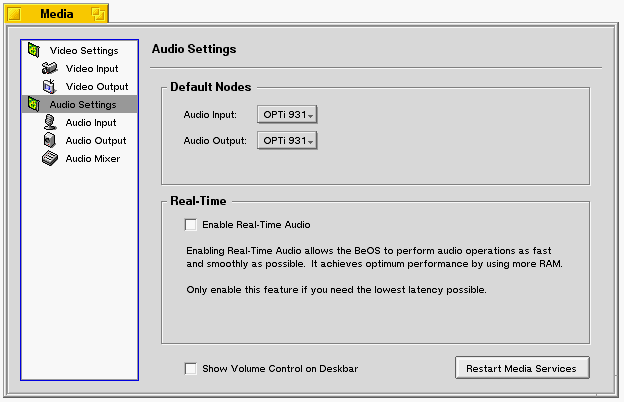
What you'll see in the Audio Input: and Audio Output: popups reflects the type of sound card you have (if you see the message "This hardware has no controls," you don't have a sound card). Unless you have more than one card you'll see only one choice for input and one for output.
You should check the Enable Real-Time Audio check box if you want to improve audio performance...but only if you have RAM to burn. Real-Time Audio is set to "on" by default in systems with 64 MB of RAM or more, and off otherwise. If the system doesn't think you have enough RAM and CPU capacity to Enable Real-Time Audio, the box will be grayed out, and the text will explain the minimum requirements necessary for real time.
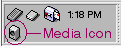 Checking Show Volume Control on Deskbar puts a Media icon in Deskbar's
Status View.
Once the icon is active, you can click on it to pop up a slider
that lets you control system volume.
Right-click on the icon to pop up a menu that lets you open Media or Sounds preferences
or the MediaPlayer directly.
Checking Show Volume Control on Deskbar puts a Media icon in Deskbar's
Status View.
Once the icon is active, you can click on it to pop up a slider
that lets you control system volume.
Right-click on the icon to pop up a menu that lets you open Media or Sounds preferences
or the MediaPlayer directly.
Click the Restart Media Server button to make your changes take effect (except for Show Volume Control on Deskbar, which takes effect immediately).
Audio Input
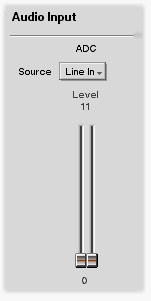 Audio Input lets you select your input source
(CD, line in, microphone, and microphone + 20 decibels) and its volume (gain).
Audio Input lets you select your input source
(CD, line in, microphone, and microphone + 20 decibels) and its volume (gain).
Audio Output
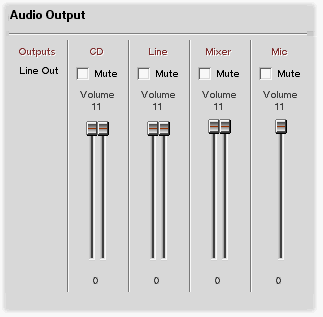
Highlight Audio Output and set your output volume(s) with the sliders, or use the Mute buttons to suppress output to the named device(s).
Audio Mixer
Highlight Audio Mixer if you want to mix sound from different applications. Each time you launch another application, the Audio Mixer panel expands to add another control. You can also mute or set the volume for your system beep here.
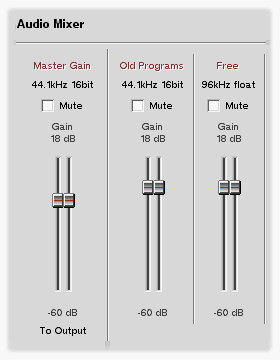
For each input source, you'll see one or two volume sliders depending on whether the source is mono or stereo.
Older applications that don't use the new Media Kit appear under Old Programs as one application.
 Audio Schematic
The illustration below represents the Audio settings schematically.
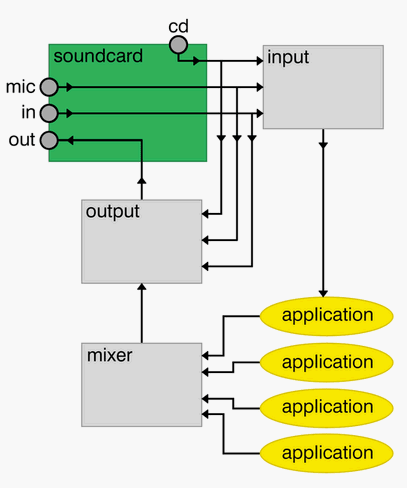
Sound comes in through the sound card, flows into the Audio Input panel (the gray box labelled "input" in the illustration), through audio-processing applications, on to the Audio Mixer, and then to Audio Output where it's mixed with audio that's taken directly from the sound card.
Video
You configure the Video settings if you have a video capture card
to which you're connecting a video camera, a VCR, or your cable TV line
in order to view or record data.
This release has support for video capture cards based on the
Brooktree BT848, BT878, and BT879 chips.
For the most recent list of video cards that use these chips, see
Video Settings
Highlight Video Settings to bring up a panel where you choose your default input/output video device.
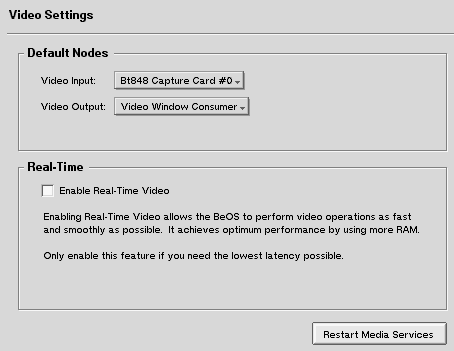
What you see in the the Video Input: and Video Output: popups reflects the type of video capture card and video output hardware and software you have; unless you have more than one of each you'll see only one choice for input and one for output.
Check the Enable Real-Time Video check box if you want to improve video performance, but only if you plenty of RAM. Enable Real-Time Video is set to "off" by default.
After you make your selections in this panel click the Restart Media Server button to make your selections take effect.
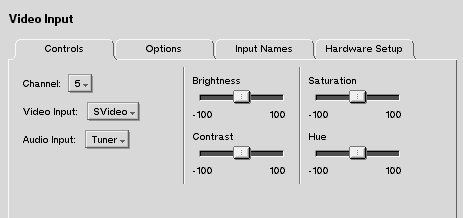
Video Input
Highlight Video Input to configure your video capture card. Again, the controls you'll see depend on the type of card you have. A panel of controls for the BT848 family is shown below.
Video Output
Video Output is provided for completeness. Very few computers have a video output path.
Sound Card Bugs
If you're using a SoundBlaster ISA card, or a Es137x-based or Solo-1-based card, be aware of the following:
- SoundBlaster ISA cards.
These cards need one 8-bit and one 16-bit
DMA channel to support recording and playback.
If you can't record and/or playback with this card,
you may need to free some device resources.
Go to Devices and read about
resource conflicts.
-
SoundBlaster 16.
If you have a SoundBlaster 16 card that only
requests 8-bit DMA channels, recording will not
work.
-
Es137x-based cards (this includes most SoundBlaster PCI cards).
If you have an Es137x-based card that doesn't work,
try moving it to the topmost PCI slot.
If it still doesn't work, move it to the bottom slot.
- Solo-1-based cards (IOMagic and others). If your system's motherboard uses a SiS chipset, you shouldn't even try to record with cards based on the Solo-1 chip—doing so could crash your system.
for BeOS Release 4.5.
Copyright © 1999 Be, Inc. All rights reserved.