Be User's Guide: Devices
| The Be User's Guide Table of Contents |
Customizing the BeOS: Devices
(Intel only)
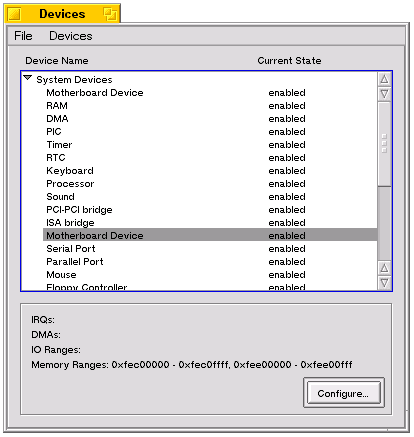 The Devices preference lets you add, configure, and disable
the hardware devices (modems, various cards, mouse, keyboard, etc.)
you have
attached to your Intel computer (Intel only!).
To get information about a device, double-click a device name in
the Devices window
(or highlight the device and click Configure) and
go to the Info tab of the panel that opens.
Some basic information is displayed there: the device type,
which bus it's on (ISA or PCI), whether a resources conflict exists, and so on.
The Devices preference lets you add, configure, and disable
the hardware devices (modems, various cards, mouse, keyboard, etc.)
you have
attached to your Intel computer (Intel only!).
To get information about a device, double-click a device name in
the Devices window
(or highlight the device and click Configure) and
go to the Info tab of the panel that opens.
Some basic information is displayed there: the device type,
which bus it's on (ISA or PCI), whether a resources conflict exists, and so on.
The information you see in Devices is not always reliable—devices sometimes appear to be enabled when they're not. If you have a "broken" device that shows up in the list as enabled, check Troubleshooting Device Configuration Problems below.
Configuring Devices
All devices have system resources associated with them. These resources are IRQs (interrupt requests), DMAs (direct memory access), I/O ports, and memory. Devices don't share resources (with the exception of PCI devices, which can share IRQs). When you boot, the system configures all the devices in or attached to your computer so their resources don't conflict. However, sometimes this "configuration manager" doesn't manage things successfully, and one or more devices on your system will either turn up as disabled (you'll know it's disabled because it appears in red in the Devices list) or just won't work. Configuration failure is usually due to:
- A resource conflict.
- An unknown device on the system.
- The configuration manager isn't smart enough to figure out the device configuration.
 Identifying Resource Conflicts
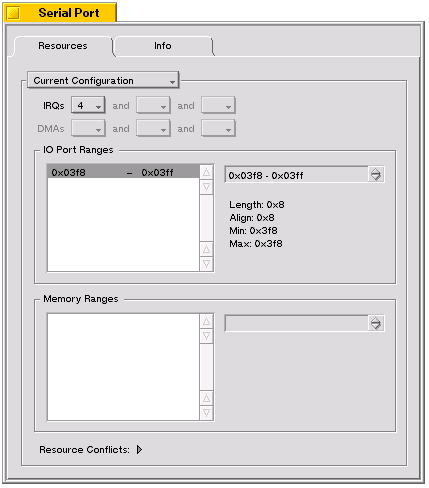 Resource conflicts should occur only between ISA and plug and play devices.
There are two
perspectives from which to view such conflicts when they occur:
From the point of view of the device or from the point of view of the resource.
Resource conflicts should occur only between ISA and plug and play devices.
There are two
perspectives from which to view such conflicts when they occur:
From the point of view of the device or from the point of view of the resource.
- To identify the conflict by way of the device,
double-click on the disabled device in the Devices window to pop open a
device resources and info window.
Then toggle open the Resources Conflicts section of the window (at the bottom)
to see which resources are in conflict.
- To identify the conflict by way of the resource, select Devices > Resource Usage (Alt+U). The Resource Usage window opens at the IRQ tab with the devices that are in conflict showing in red.
The troubleshooting section that follows tells you how to deal with some
device configuration problems you might run into.
Troubleshooting Device Configuration Problems
Problem: Missing driver.
If a device shows up as enabled in the Devices list but is not working, the problem may be that you don't have a driver for it.nbsp; This is often the case with sound card failure.
Problem: Resource conflict.
If something's not working and you've checked that it's connected properly, open Devices to check to see if it's disabled. The usual reason a device is disabled is because of a resource conflict. If the disabled device is one you want to use, you'll need to disable another device, or reconfigure the disabled device or the conflicting device, to free up resources for it. You can disable serial and parallel port devices in the BIOS (how you do this is different for every BIOS, so check your computer user guide for specifics). To disable a plug and play device, highlight it in the devices list (under ISA/Plug and Play Devices) and double-click on it. In the resources and info panel that appears, click the Current Configuration button in the upper-left of the Resources tab. If the device is one that can be disabled, Disable Device will be active and you can click it to do the job.
It's also possible that a device that's not working (the mouse won't move, the keyboard doesn't work) won't show up as disabled on the Devices list. This may also be a resource conflict. Try disabling other devices to free up resources and see if that fixes the problem.
Problem: Unknown device.
If you have any jumpered devices (ISA, non–plug and play cards; generally, older devices) on your system, it may not be able to recognize them. Do you have an old modem, sound card, or Ethernet card? If so, you must tell your configuration manager about it in Devices preferences. For all unknown devices other than internal modems, go to Devices>Add Jumpered Device>Custom and fill in the panel that asks you for information about the device. (You'll need to get this information from the guide that came with the device.) If you don't know all the resources a device uses, just fill in the ones you do know.
If the unknown device is an internal modem go to Devices>Add Jumpered Device>Modem and select a serial port from the popup in the configuration panel that appears. You may have to tweak the settings used for the modem, particularly the IRQ. If you want to do that, double-click on the new jumpered device and change the settings manually.
Just as with resource conflicts, if a device doesn't show up in red in the Devices list but isn't working, it may be in conflict with a jumpered device. In that case, choose Devices > Add Jumpered Device > Custom and create a new device in the panel that appears, then reboot.
Problem: Not-so-smart configuration manager.
If the device doesn't appear in red in the Devices list, and probably is not a jumpered device, it may not be working because it incorrectly believes that it can use a certain resource—usually an IRQ. To test this, force the device to use a different IRQ. There are two ways to do this:
- Create a jumpered device that uses that particular resource with
Devices > Add Jumpered Device > Custom
and reboot to make it take effect.
- Explicitly set the device's configuration by clicking the Configure... button and entering configuration information in the Resources tab of the panel that appears; reboot to make your changes take effect.
You can also try to see if there's any way to use all devices without having to disable any of them. Choose Devices > Resource Usage (Alt+U) to see what resources your devices are using, then highlight a device, click the Configure... button to bring up its configuration information, and see if you can reconfigure the device by hand. If this doesn't work, you'll have to decide which devices you need less and disable them while you're working in BeOS.
Problem: Not enough resources for all your plug and play devices.
Try setting the Plug and Play OS to "no" in your computer's BIOS settings—if it's there. To find out how to get into your computer's BIOS, read the user guide that came with it.
Adding Devices
In general, you should only need to add jumpered devices to your system. These are older, ISA-based cards that your system's configuration manager cannot recognize. The configuration manager should automatically configure any newer, PCI-based hardware.
To add a jumpered device:
- Get the following information from the user guide that came with the device: IRQ, DMA, I/O range, and memory range. You must have all of this information before you can proceed.
- Choose
Devices > Add Jumpered Device > Custom
to bring up the an Untitled Device panel.
- If the jumpered device is an internal modem (external plug and play modems are
automatically detected by the system), choose
Devices > Add Jumpered Device > Modem.
In the small configuration panel that appears, select a port for the internal modem
from the popup, and click Add.
- For devices other than internal modems type a name
(preferably the specific name of the device) in the Device Name field of the
Untitled Device window; the name appears in the panel's title tab as you type it.
- Select the type of jumpered device in the Device Type popup.
- Check the IRQ and DMA setting according to the
information in your device's user guide.
- To set IO Port Ranges, click the Add button.
In the box that pops up, type in (or use the up/down arrow buttons) the
IO port range information for your device.
You can add as many devices as you want, but you must add each one separately,
returning to Devices > Add Jumpered Device
each time.
- Click the Add button in the Memory Ranges
section and enter the appropriate information in the box that pops up,
then click Done to return to the new device window.

NOTE: You can add multiple IO port ranges and memory ranges to a single device, but you have to add them one at a time, clicking Add to bring up the range entry box each time. - Reboot your computer.
If it hangs, go to Troubleshooting Jumpered Devices, below.
Troubleshooting Jumpered DevicesIf your computer hangs on reboot after you've added a jumpered device, reboot in "safe" mode:
- Reboot; when the BeOS splash screen appears, press the spacebar briefly
and wait for the Boot Loader screen to come up.
- Use the arrow keys to highlight Select safe mode options
and press Enter.
- In the list that appears, use the arrow keys to
highlight Safe mode (it should be highlighted by default), and press
Enter. An "x" should appear in the Safe mode checkbox.
- arrow down to Return to main menu and press Enter.
- Back in the Boot Loader main menu,
arrow down to Continue booting and press Enter.
The system should boot into "fail-safe" video mode, with a grayscale screen.
You can then launch Devices to delete the device
(Devices > Delete Jumpered Device),
or
edit the device's settings in the
resource and info window.
You can also delete the device by highlighting it in the
Devices window scrolling list and choosing
The Be User's Guide,
for BeOS Release 4.5.Copyright © 1999 Be, Inc. All rights reserved.
- Reboot; when the BeOS splash screen appears, press the spacebar briefly
and wait for the Boot Loader screen to come up.