Developer Release Notes: BeOS Release 4.5, BeIDE
| index | headlines | <<previous | next>> |
|
BeIDE
Developer Release Notes BeOS Release 4.5 |
The following notes describe additions and enhancements to the BeIDE. Additional BeIDE documentation can be found in...
- BeIDE and ELF.
Information on converting
your Intel BeIDE projects to use the ELF format and gcc compiler.
- Writing an Editor for the BeIDE.
Information for editor developers on the interface
between the BeIDE and an external editor.
- BeIDE Add-ons.
Information on how to use the add-ons that are supplied with the BeIDE.
- BeIDE Key Bindings.
Information on how to use the alternate key bindings.
- BeIDE Drag and Drop. Everything you need to know about BeIDE's drag and dropability.
Headlines
- Conversion to ELF
As of Release 4.0, the BeIDE uses the ELF format and the gcc compiler and tools on Intel machines. To use old (pre-Release 4.0) Intel projects, you have to fiddle with their contents and settings, as described in BeIDE Projects to ELF. PPC projects do not have to be converted. - Cross Development
Cross development tools are now available. The addons you need are in /boot/develop/BeIDE/optional/CrossDevelopment. See the ReadMe file for instructions. - Be Book Integration
The BeIDE now looks up words in the Be Book. Alt double-click on a word in any text window; the BeIDE will look in the Be Book for a matching word, and then display the relevant page in NetPositive (or your preferred browser). You can also look up a word by typing it in the panel that's brought up by the Search > Lookup Documentation... menu item in a text window, or Edit > Lookup Documentation... in the Project Window. You can look for class names, functions, constants, and section headings.The results from a search are listed in a Message Window; exact hits are listed first, followed by terms that contain the searched for word. Clicking on an item in the list opens the documentation in NetPositive. If there's only one exact hit, NetPositive opens immediately to that page.
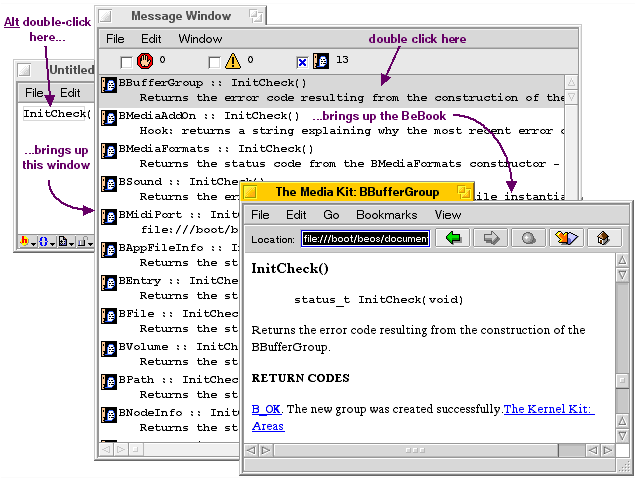
The first time you search for a Be Book term, the BeIDE un-zips the Be Book Bookmark files. This may take a minute or so.
Type Alt+. to cancel the lookup.
- External Editors
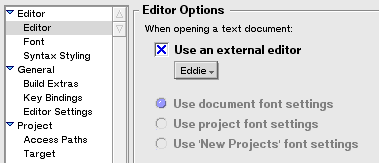 The Editor panel
in the Settings Window lets you specify the editor that's used
to open and display text files.
To choose a non-BeIDE editor,
click the Use an external editor checkbox, and select
the editor from the pop up list.
The Editor panel
in the Settings Window lets you specify the editor that's used
to open and display text files.
To choose a non-BeIDE editor,
click the Use an external editor checkbox, and select
the editor from the pop up list.
If you choose an external editor, you'll still be able to open a file in the BeIDE editor if you drop the file on the BeIDE icon, or if you open the file from a BeIDE Open or Open File menu item or from the file's context menu in the Project Window's file list.
- Alternate Key Bindings
The General/Key Bindings panel in the Settings Window lets you choose from four pre-defined settings (default, Control, Alt, and emacs mode), or you can create your own. See BeIDE Key Bindings for details. - Copy in the Project Window
Go to the Project Window; select some files from the file list and copy them (Edit > Copy or Alt+c). The full pathnames of the selected files are placed on the clipboard. - Drag and Drop
Want to search all of the system headers? Drag /boot/develop/headers into the Multi-File Search: box in the Find Window and save the list as a File Set so you can easily switch to it when you need to look up a function. Better yet, drag the folder out of the Project/Access Paths panel in the Settings Window.For a complete list of drag and drop abilities, see BeIDE Drag and Drop.
- Smart Concurrent Compile Count
The General/Build Extras panel (in the Settings Window) has a new Concurrent Compiles option: Same as CPUs. It's more than a good idea—it's the default. - Add to Project
You can add a file to a project at the same time that you save the file by clicking the Add to Project checkbox in the Save File panel. (The checkbox is only visible when a project is open and the file being saved isn't part of a project.) - Find's Regular Expression Helper
In addition to listing recently requested strings, the popups to the right of the Find: and Replace: fields incrementally build a regular expression formula. Choose a description from the popped up menu, and the proper regular expression element is placed in the field.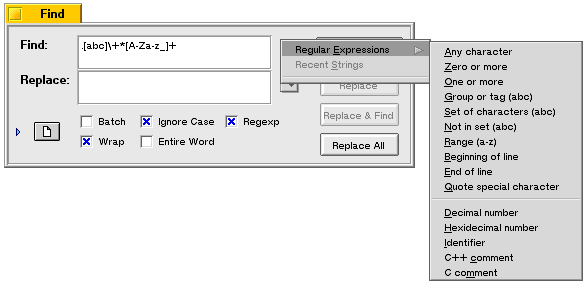
- makemake
The makemake command line program, which builds makefiles that use the BeOS Generic MakeFile Engine, now lives in the optional directory. See makemake.readme for more information. - bdb Debugger (Intel only)
In the Intel BeIDE, select Project > Enable Debugger to generate debugging information and then compile and run by selecting Project > Debug or by typing Alt+r. See bdb for more information on the debugger. - Object Directories
Object files are now put into a directory named (Objects.projectName) rather than just in (Objects). This lets you have multiple projects in one directory. BeIDE knows how to convert existing (Objects) directories— you don't have to recompile your projects to take advantage of this new feature.
Bug Fixes and Miscellaneous Changes
- The BeIDE is now installed in /boot/develop/BeIDE.
The files and
folders that make up the BeIDE can be found inside this directory.
-
There are new stationery files for the Intel BeIDE (in the
stationery folder).
Pre-R4 stationery files won't work
with the R4 Intel BeIDE.
- The files in a group can now be sorted. Highlight a file
in a group, or the group itself, and then select
Project > Sort Group.
- When the last window is closed, the BeIDE properly quits.
- The Recent Projects menu item is now called
Open Recent, and includes projects and files.
The list is persistent between BeIDE sessions.
- Alt+. aborts the current
build or documentation look-up regardless of which BeIDE
window is active—
except for the Find Window.
Alt+. in the Find Window
aborts the current search.
(The Alt+. binding can be
changed by setting the Stop operation
value in General/Key Bindings/Misc
in the Settings Window.)
- The optional add-ons are installed by default.
See BeIDE Add-Ons for more information.
- The Find Window's Recent Strings pop up menus have been enhanced and
improved; in particular, the interaction with the Replace:
field is more consistent.
- Read-only project files are respected.
If you try to modify a read-only
project, an alert lets you choose to cancel the operation or unlock the project and
continue.
- The BeIDE no longer crashes when opening files that contain Macintosh characters.
- Files that need to be compiled are visually marked.
After compilation, the mark remains if the file contains errors.
- Option+Alt+down/up arrow
(or Control+Alt+down/up arrow
depending on your key bindings) moves you to the next/previous
error or message in the Message
Window.
- Intel Only
The differences between project and system access paths are now
correctly handled. #include <header.h>
searches for header.h in the system access paths only,
unless the Treat #include <...> as #include "..."
checkbox is enabled.
Because of this change, projects which previously built correctly might not build because of header files that cannot be found. Use the Project/Access Paths panel in the Settings Window to move access paths for files included with "#include <...>" from the project list to the system list—or enable the Treat #include <...> as #include "..." checkbox.
Known Limitations
- Don't do a Batch-mode Replace All on more than about 50 files at a time.
Support
If you have a question about the BeIDE or its tools, write to:
- cwsupport@be.com
If you find a bug, report it to the Be bug database:
- www.be.com/developers/bugs/
CodeWarrior information can be found online at:
- www.be.com/products/codewarrior/
| index | headlines | <<previous | next>> |
| BeOS Release 4.5 |
Copyright ©
1999 Be, Inc.
All rights reserved.