Managing links
Netscape Web Publisher maintains links between files, updating links automatically as you copy, move, and rename files and directories. The Web Publisher link management function can automatically check and update local links in HTML documents.The Web Publisher link management function considers these types of links:
- internal, or local: HTTP links between files on the same server.
- external: links that point to locations outside the web server. External links are to other HTTP servers, to ftp servers, and to mail and messaging systems.
Note
If your server administrator turns link management off for your server, you have no access to the link checking function or to the link status database. Please check with your server administrator if link management is turned off. Note that if link management is turned on again, the link status database is empty, and you will have to recheck all files for their current link status.
Link management actions
Web Publisher link management provides internal link-checking mechanisms that take place in the background as part of many Web Publisher operations. This section describes what happens behind the scenes.When an edited file is published
When an edited document is published:When a file is uploaded to the server
When a local document is uploaded to the server:- all internal links are checked
- incoming external links to file become valid
- outgoing external links are not checked
When a file is copied
When you copy a document or folder: In a copy, the original file still exists, so links pointing into or out of the original file are not affected. Outgoing links to other documents on the same server are checked and fixed by automatic link updating as needed to keep them pointing to the right file.For example, if you copy fileA from oldFolder to newFolder, and fileA has a relative link to fileB in the same directory, the new fileA will have a link that points back to fileB in oldFolder rather than try to find a fileB within the same newFolder directory. That is, a relative link (../fileB) to another file is expanded to include its directory (../oldFolder/fileB).
Table 8-1: Link management copy actions
When a file is moved or renamed
When you move or rename a document or folder: In a move, the original file no longer exists, so links pointing into or out of the original file must be changed to reflect the file's new location. Links coming in from and going out to other server documents on the same server are checked and fixed by automatic link updating as needed to keep them pointing to the right file.For example, if you move fileA from oldFolder to newFolder, and fileA has a link to fileB in the same directory, the new fileA will have a link that points back to fileB in oldFolder rather than try to find a fileB within the same newFolder directory. That is, a relative link (../fileB) to another file is expanded to include its directory (../oldFolder/fileB).
Table 8-2: Link management move or rename actions
When a file is being edited
Links to a file in the edit state are operational because you can view edited files in the browser.Links out of an edited file become invalid when the target file has been moved or renamed during the edit. To fix this, you must go in manually and change the document yourself.
When a file is locked
Locks are ignored. Web Publisher can update a file's links even while it is locked.When a file is deleted
All incoming links become invalid.Automatic link updating
When you upload or publish a document, Web Publisher's link management function checks its links automatically. When you copy, move, or rename files in Web Publisher, their links are updated so that they still point to the same documents. This is done by automatically updating the name mapping between the old and new directories.By changing a link in a file, this function also changes the file's latest modification date. In situations where users need to keep close track of any file modifications, a server administrator can turn off this option. (This is the default.)
When this option is turned off, the links in a file are not kept up to date as other files or folders are moved or renamed. If the option is turned on again, Web Publisher does not return to do any clean-up on files whose links were broken during the time the option was turned off.
The mapping rules are different for move and copy operations. The link updating happens the same way for both operations, but the scope of which documents are affected is quite different.
For a copy, only the copied document needs to be updated if it has any invalid outgoing links. For a move, any and all server documents with links that point at the moved document need to be updated in addition to the moved document, if it has any invalid outgoing links.
Getting link status information
You can get the current status of the links in a file or in all the files within a directory. Web Publisher tries to keep links up to date, name mapping as needed to point to renamed and moved files and folders.- Special filename limitations:
You cannot perform certain operations on files or folders with these characters in their names: percent (%), equal sign (=), plus sign (-), or embedded spaces ( ). You cannot browse, open, upload, download, or check links on files or folders with such names. Also, you cannot use tildes (~) as part of a URI on Windows NT systems. If the file you want to
use contains a special character in its name, you must rename the file before you can use it in Web Publisher.
Checking links
You can check the status of your links by following these steps:- Select the file or folder in the Web Publisher window.
- From the Services menu, choose Check Links. A new browser window appears with the file's link status information displayed
- If you are checking the links in a folder, you can check the "Include subfolders" option to include its subfolders and their files.
or,
from the Web Publisher Services page, choose Check Links. The link status information is displayed in the right frame.
When Web Publisher finishes checking the links in a folder, the Link Status page lists all the files within the folder that have outgoing links that are all working or that have one or more broken links. The link status of the subfolders is nto displayed.
Viewing link status information
The link status information for a file whose links have been verified at least once consists of a list of the file's links with icons indicating the status of each link:Working: The link has been checked and has been found to be a valid, operational link to an existing file on the same server. You also see this status for files in a folder that do not contain any outgoing links.
Broken: The link has been checked and has been found to be a link that targets a file that doesn't exist on the server with the name and path indicated by the link. The link may be a new incorrect link or it may be a link that once worked and that now, for whatever reason, no longer works.
External (For files only): The link targets a destination that cannot be checked. For example, mailto and ftp locations and files or folders of external servers cannot be checked by Web Publisher.
Unchecked (For folders only): The links in this file within the folder have not yet been checked.
Checking a file's links
To check the links in a file, do the following:- Select a file and view its properties in the Web Publisher Services menu.
- Click the Check Links button.
Checking a folder's links
To check the links for a folder, do the following:- Select a folder and view its properties in the Web Publisher Services menu.
- Click the Check Links button.
- You can include the subfolders in the link checking. The default is to not include them.
Note
When link management is turned off for your server and then turned back on again, the link status database is empty. You can recreate a complete link status database by checking the links for your primary document directory with the "Include Subfolders" option selected.
Finding broken links in a folder
To find out if there are any Web Publisher documents with broken links in a particular folder, do the following:- Select a folder in the Web Publisher window.
- To make sure your link status database is up to date, begin by using the Check Links function for the folder (with Include Subfolders selected).
- From the Services menu, choose Find Broken Links.
- Special filename limitations:
You cannot perform certain operations on files or folders with these characters in their names: percent (%), equal sign (=), plus sign (-), or embedded spaces ( ). You cannot browse, open, upload, download, or check links on files or folders with such names. Also, you cannot use tildes (~) as part of a URI on Windows NT systems. If the file you want to
use contains a special character in its name, you must rename the file before you can use it in Web Publisher.
- Note
The search function is an integral part of finding broken links. If search has been turned off for your server, the Find Broken Links function is not available.
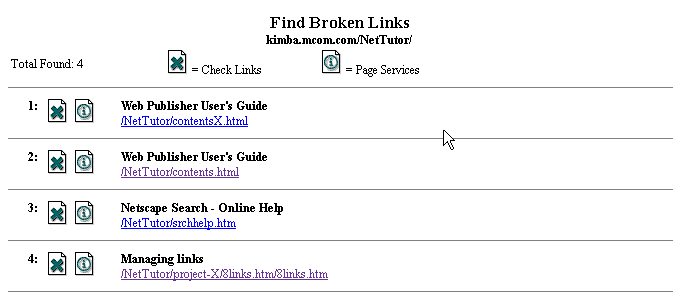
For each file in the list, Web Publisher provides
- the file's URL, so you can view it in your browser and edit it to resolve the broken links
- an icon for Check Links, so you can check the file's latest link status
- an icon for the Web Publisher Services page, so you can view the file's properties