Be User's Guide: VirtualMemory
| The Be User's Guide Table of Contents |
Customizing the BeOS: VirtualMemory
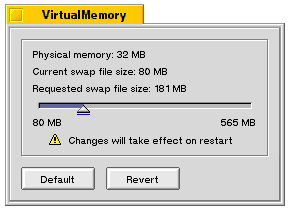 VirtualMemory lets you set the amount of disk space that's
used to augment the physical RAM on your system.
VirtualMemory lets you set the amount of disk space that's
used to augment the physical RAM on your system.
The VirtualMemory window displays the amount of installed RAM (Physical Memory:) and the amount of hard drive space allocated to virtual memory (Current Swap File Size:). You can't change the physical memory (at least not from software), but you can change the virtual memory size—simply drag the slider around (or Tab to highlight the slider and use the arrow keys to adjust it in 1 MB increments).
Changes take effect when you reboot.
 |
The amount of virtual memory that you can request is based on the amount of free space on your boot disk. VirtualMemory may restrict the size of the swap file that you request. |
for BeOS Release 4.5.
Copyright © 1999 Be, Inc. All rights reserved.