Be User's Guide: ScreenSaver
| The Be User's Guide Table of Contents |
Customizing the BeOS: ScreenSaver
 ScreenSaver lets you choose a "screen saver" module—the image or animation that's
automatically displayed when your computer has been idle for awhile.
ScreenSaver lets you choose a "screen saver" module—the image or animation that's
automatically displayed when your computer has been idle for awhile.
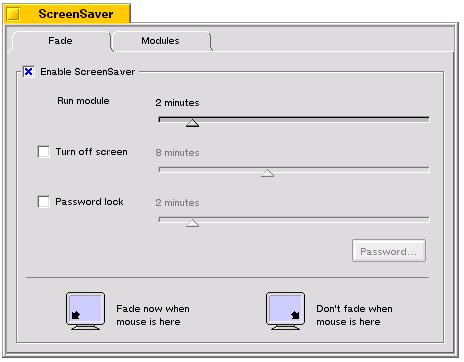
To turn on the scren saver mechanism, choose the Fade tab in the ScreenSaver window, and check Enable ScreenSaver checkbox.
Set the Run module slider for the length of time the computer must be idle before the module starts. Check Turn off screen and set the slider if you want your screen turned off after some amount of idle time. Check Password lock if you want the computer to ask for a password when its screen saving is interrupted.
The monitor icons at the bottom of the Fade tab let you predicate the screen saver on the location of the mouse.
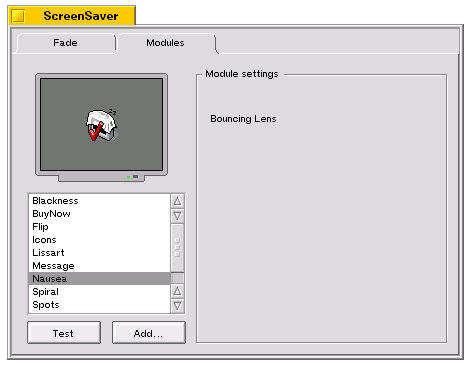 Now go to the Modules tab and choose a screen saver
module from the list (click Test to try it out)
Now go to the Modules tab and choose a screen saver
module from the list (click Test to try it out)
for BeOS Release 4.5.
Copyright © 1999 Be, Inc. All rights reserved.