Be User's Guide: Screen
| The Be User's Guide Table of Contents |
Customizing the BeOS: Screen
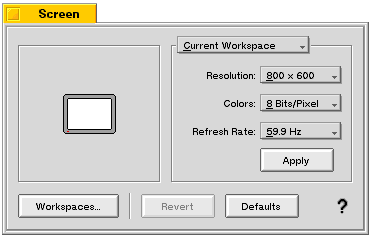 Screen lets you set your monitor's screen resolution, bits per pixel, and refresh rate.
The Current Workspace/All Workspaces popup lets you choose the scope of the settings that you're about to apply. After you click Apply, a dialog appears that asks you to confirm your choice. If you don't confirm within some amount of time, the screen reverts to its former settings. Note that you can adjust the refresh rate in .1 Hz increments by pressing the left and right arrow keys on the keyboard—this technique is useful when you're fine-tuning for the best-looking refresh rate. When adjusting the refresh rate in this manner, the confirmation dialog doesn't appear.
Initially, the BeOS displays a 640x480, 8-bit, 60.1 Hz screen. If your graphics card and monitor can accommodate a higher resolution, more colors per pixel, or a faster refresh rate, you should change these settings.
For detailed information about what kinds of graphics cards work with the BeOS, see the hardware list on the Be Web site.
 |
TIP: To solve most screen problems press
Alt+Control+Shift+F12
to restore all default settings (except desktop color).
This shortcut works at any time—even when Screen isn't running.
Note, however that the restored default settings aren't
saved unless Screen is running.
| |
 |
WARNING: You can do serious damage to a monitor if you select a resolution, number of colors per pixel, or refresh rate the monitor isn't designed to support. Read the manuals that came with your monitor and graphics card to find out what combinations of settings are safe for the monitor. An alert dialog that appears before your changes take effect gives you a chance to cancel a setting you're unsure of before implementing it. |
 Adjusting the Screen Size and Position
When the Screen window is active, you can adjust the size of the screen image on the monitor by holding down the Shift key while pressing the arrow keys. The up/down arrow keys resize the screen vertically, and the left/right arrow keys resize it horizontally. You can adjust the position of the screen image by holding down the Control key and pressing the arrow keys.
Setting Workspace Count
The Screen preferences also lets you set the number of workspaces. (The Workspaces preferences itself doesn't have any controls—that's why the setting is here.) Pop up the Workspace count: list and choose a number between 1 and 32.
for BeOS Release 4.5.
Copyright © 1999 Be, Inc. All rights reserved.