Be User's Guide: Mouse
| The Be User's Guide Table of Contents |
Customizing the BeOS: Mouse
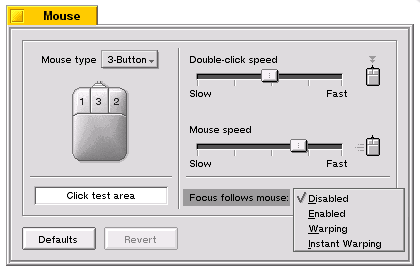 Mouse lets you tell the system how many buttons are on your mouse,
and lets you set the mouse's double-click speed, the speed with which it moves the cursor,
and whether window focus should follow the mouse:
Mouse lets you tell the system how many buttons are on your mouse,
and lets you set the mouse's double-click speed, the speed with which it moves the cursor,
and whether window focus should follow the mouse:
- Set double-click speed with the Double-click speed slider; test your setting in the
Click test area.
- Use the Mouse Speed slider to set how fast the cursor moves
across the screen when you move the mouse.
- You can set the number of buttons on the mouse you use with the
Mouse type popup, and rearrange the default order of the mouse buttons
with the individual button popups.
- The Focus Follows Mouse setting affects the cursor and it's
relationship to windows on the desktop.
The Focus Follows Mouse popup gives you four choices:
- Disabled (the default) means the frontmost window is live; clicking in another window brings it to the front and makes it the live window.
- Enabled means the window the cursor is over is live; with Enabled checked, you click once in a window's tab or the thin outer window frame to toggle between applications.
- Warping causes the cursor to move to an application you're toggling to (the target app).
- Instant warping is the same as Warping, but faster; you don't see the cursor move to the target app.
- Disabled (the default) means the frontmost window is live; clicking in another window brings it to the front and makes it the live window.
 |
A single-button mouse can emulate a three-button mouse: Press Ctrl+Alt while clicking the mouse button to emulate the second mouse button, and Ctrl+Win while clicking to emulate the third mouse button. |
for BeOS Release 4.5.
Copyright © 1999 Be, Inc. All rights reserved.