Be User's Guide: 3D Mixer
| The Be User's Guide Table of Contents |
3D Mixer
3D Mixer is a sound mixer that's lets you edit and
mix sounds in real time. The app provides two separate views of your
sounds:
- In Time View, the individual sound tracks are laid out
on a time grid. In this view, you can move tracks around in time, lengthen
and shorten their durations, create loop points, and so on.
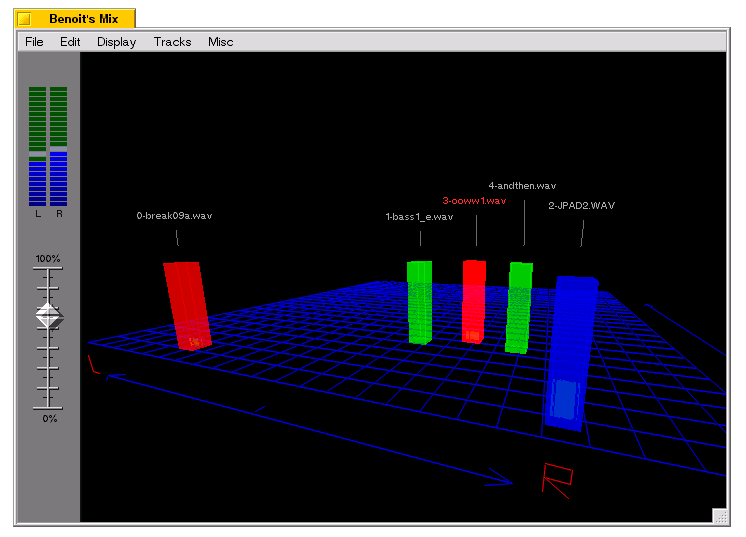
- In Space View, individual tracks appear as a rectangular columns on a planar grid; to move a sound in space or change its amplitude, you grab the column and drag it around the grid.
When the 3D Mixer is launched, it appears in Time View. To toggle between the two views, type Alt+t. If your monitor is large and is set to a high resolution, you may get a split screen that shows both views at the same time.
Time View and Space View are described in the next sections. The parts of the app that are common to the two views—the menu bar and the volume control—are described after that.
For a tutorial that steps you through some common sound mixing activities,
see 3D Mixer Tutorial.
Currently, 3D Mixer supports AIFF and WAV sound files.
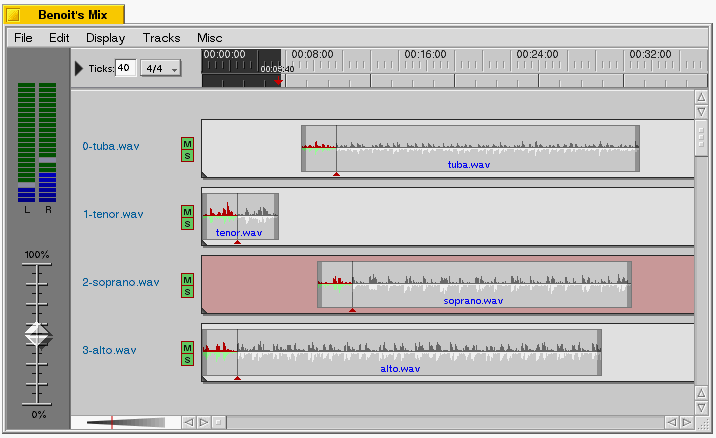
The Time View display looks like this:
The main portion of the window is where your project's individual
sound tracks are displayed. You add a track by dropping a soundfile into
the window, or by importing a project through
File > Open Project....
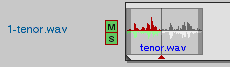
When you add a track, a named "track display" is added to the Track Editor:
You can edit a track's name by clicking on it.
To the right of the name are the M (mute) and S (solo) buttons,
which you click to mute/unmute a single track or to solo a track (i.e. to mute all the others).
In Time View, time runs right to left. You position a sound with respect to time by
grabbing the sound samples and dragging them right (later) or left (earlier).
Along the top of the Time View are the time controls:
The controls consist of a Ticks: box,
a "beats" popup (where a beat is a group of ticks), and the time line itself.
The time line shows real time along the
top of the display, and ticks/beats along the bottom. As you play with the
value of the Ticks: box and the beats popup, you'll see the tick/beat
hash marks change with respect to real time.
You can scroll the time line (the individual tracks scroll accordingly), and
you can use it to set the portion of sound to play. To loop over a section
of your sound, simply select a portion of the time line (shift+click to
extend a selection).
At the bottom of the Time View window, and to the left of the
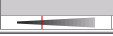
horizontal scroller, is a zoom control:
The zoom control is a slider that lets you zoom in and out on the sound data.
To zoom out (to show more time and less detail), drag the hairline toward the fat part of
the slider (to the right); to zoom in,
drag it to the thin end (the left end).
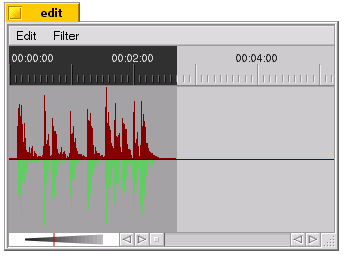
Double-click on a sound track to bring up an Edit window for that track:
The Edit window lets you cut, copy, and paste sound data. These
commands are associated with the expected Edit menu items.
(Currently, the Clear
command is the same as Cut.)
The Filter menu contains commands that affect the
content or quality of the sound. The Filter commands only affect the currently
selected portion of the sound:
The Space View lets you spatially arrange your edited sound
files by placing them on a planar grid. The Space View display looks like this:
Each sound track is represented by a rectangular column.
The right/left location of a column sets the sound's stereo image; the front/back
location affects the sound's amplitude (the closer to the front of the grid, the louder the
sound).
You can grab the grid anywhere with the mouse and turn, spin, or
flip it. "Throw" the grid and it will continue to rotate.
To help you maintain your orientation, the left/right arrow always sticks to
the front of the grid. (Note that by moving the grid you don't affect the placement or
amplitude of the sounds that are playing.)
As mentioned above, the rectangular
columns represent sound tracks.
You can drag them around the grid and hear the results in real time.
If you want to mute or solo a track, click on the column (and release!) and then press
M (mute) or S (solo).
The 3D Mixer menu bar contains these commands:
Don't miss About Benôit Mix in the File menu.
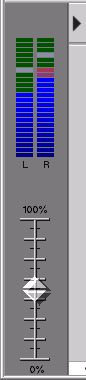
A level meter and volume control are displayed
down the left side of the 3D Mixer:
The level meter is a real-time indication of the amplitude of the playing sound.
The volume control slider is a "master" control: It affects all tracks that
are currently playing.
To show/hide these indicators, toggle the triangle below the menu bar
immediately to the right of the level meter; you can also toggle these controls
in and out of view with the Tab key.
Copyright © 1999 Be, Inc. All rights reserved.
Time View
Time and Zoom

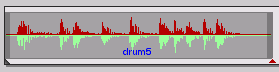
 To the left is a sound zoomed in; on the right is the same sound zoomed out. The two displays
represent the same amount of real time; only the time scope (and the
level of detail) is changed.
To the left is a sound zoomed in; on the right is the same sound zoomed out. The two displays
represent the same amount of real time; only the time scope (and the
level of detail) is changed.
The Edit Window
Space View
The Grid
The Columns
Menu Bar
Volume Control
for BeOS Release 4.5.