Be User's Guide: Time and Date
| The Be User's Guide Table of Contents |
Customizing the BeOS: Time and Date
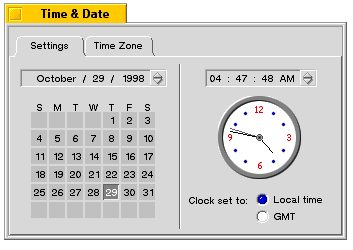 The Time preference lets you set the date and time.
In the Settings tab you can set the date by highlighting each element in the date bar and clicking the up or down arrows. To set the day of the month only, click in the calendar. You can set the time by highlighting elements in the time bar and clicking up or down, but it's more entertaining to drag the clock hands around.
 |
NOTE: The BeOS handles Daylight Savings Time automatically, so you don't need to remember to fall back or spring ahead. |
 |
WARNING:If you are running the BeOS on a computer on which you also plan to run Windows, leave Clock set to: set to Local Time. |
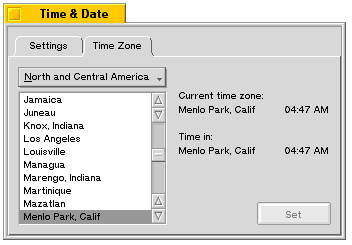 The default Time Zone setting is for Menlo Park, California.
If you think you're in a different time zone,
change this setting and click Set.
This sets the correct time for your zone in the Settings tab.
The default Time Zone setting is for Menlo Park, California.
If you think you're in a different time zone,
change this setting and click Set.
This sets the correct time for your zone in the Settings tab.
for BeOS Release 4.5.
Copyright © 1999 Be, Inc. All rights reserved.