Be User's Guide: Printers
| The Be User's Guide Table of Contents |
Customizing the BeOS: Printers
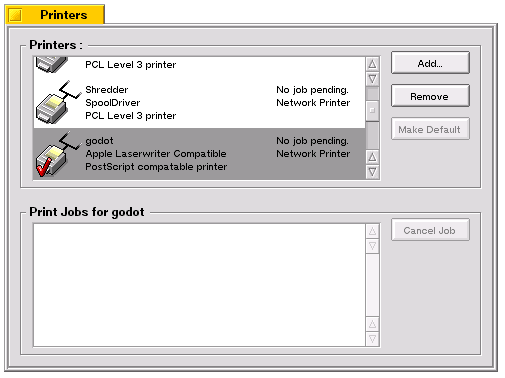 Printers lets you add and remove printers, select a default printer,
and check the status of your print jobs.
Printers lets you add and remove printers, select a default printer,
and check the status of your print jobs.
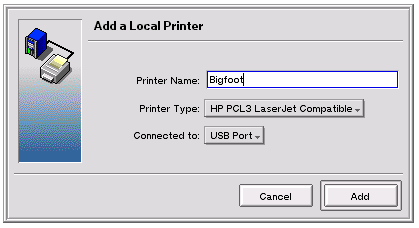
To add a printer click Add..., choose whether you want to add a local or network printer in the panel that appears and then click Continue. Another panel appears which asks you to supply a printer name, a type, and the location of the printer, as described in the following sections.
To remove a printer, highlight it in the main Printers window and click Remove.
 Adding a Local Printer
The panel that adds a local printer looks like this:
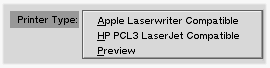 In the Printer Type:
popup, you'll see that the BeOS supports Apple Laserwriter and
HP PCL LaserJet compatible printers.
It also supports a Preview type;
this is a virtual printer that displays to the screen.
In the Printer Type:
popup, you'll see that the BeOS supports Apple Laserwriter and
HP PCL LaserJet compatible printers.
It also supports a Preview type;
this is a virtual printer that displays to the screen.
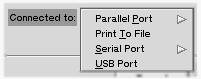 The Connected to: popup includes
a Print to file option that lets
you direct a description of the printed page to
a file.
The Connected to: popup includes
a Print to file option that lets
you direct a description of the printed page to
a file.
When you're done, click Add to add your printer to the Printers portion of the main window. As you're returning to the main window, you'll be asked if you want to make this new printer the default (the choice is yours).
Adding a Network Printer
The network printer panel looks much the same as the local panel:
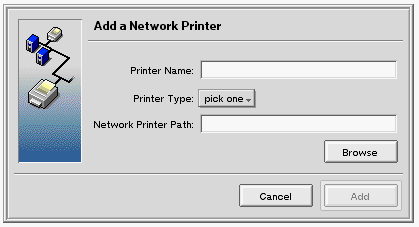
Note, however, that the Network printer path: and the Browse... button only appear if you're running the BeOS network sharing interface World o' Networking (WON). If you know the path to the printer, you can type it in; otherwise, click the Browse... button and select a printer by browsing the network.
If you don't have WON running, Printers assumes you're adding an Appletalk printer, and limits your choice to the Appletalk printers that it can find.
for BeOS Release 4.5.
Copyright © 1999 Be, Inc. All rights reserved.