Be User's Guide: Fonts
| The Be User's Guide Table of Contents |
Customizing the BeOS: Fonts
Fonts lets you set the system fonts and the size of the font caches.
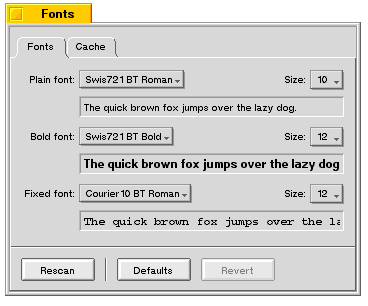
There are three types of system fonts: plain, bold, and fixed-spaced. Individual fonts have additional pop ups that let you choose among style options available for that font. You can set the size, from 9 to 12 points, with the Size: popup.
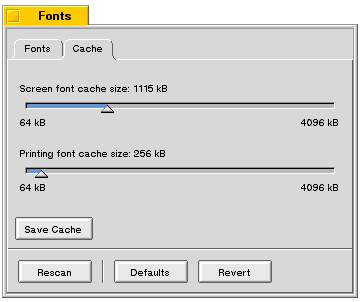 Click the Cache tab to set the size of your font caches:
- Screen font cache size: determines how much RAM is allocated to hold
font bitmaps.
A large cache mean faster screen redraws, but less RAM available for applications.
- Printing font cache size: determines how much RAM is allocated to printer fonts. A large cache means faster printing, but less RAM available for applications. You need a Printer Font Cache only if you print to HP LaserJet-compatible printers.
Adding Fonts
The BeOS includes a TrueType font renderer, which displays TrueType fonts in almost any size. The standard set of TrueType fonts included with the BeOS is stored in /boot/beos/etc/fonts/ttfonts. These are the default system fonts; you should not change them.
You can purchase or download additional TrueType fonts in Windows (not Macintosh) format and add them to the BeOS:
- Place the fonts in the /boot/home/config/fonts/ttfonts folder.
- To tell the BeOS to look at your new fonts, click the Rescan button in the Fonts window—or just reboot. The fonts are automatically rescanned when you start up the BeOS.
To add PostScript fonts, make a new psfonts folder in /boot/home/config/fonts, and put your fonts there. Rescan or reboot, as you would for TrueType fonts.
for BeOS Release 4.5.
Copyright © 1999 Be, Inc. All rights reserved.