Be User's Guide: FileTypes
| The Be User's Guide Table of Contents |
Customizing the BeOS: FileTypes
A file's file type describes the data that the file contains.
File types are used by the system—and Tracker in particular—to figure out
how to deal with a file. For example,
the file type determines which application opens a file
when you double-click it.
FileTypes lets you change the characteristics that pertain to
a particular file type, and also lets you set the file types of specific files.
When you launch FileTypes you see this window:
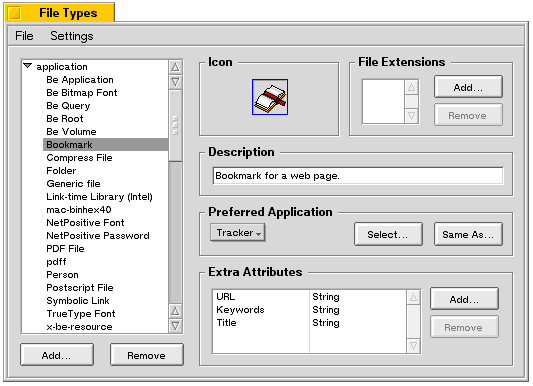
The left side of the window is a scrolling list of all the file types known to your system. File types are broken into broad categories (application, audio, image, and so on). The system adds new file types automatically when you install new applications; you can also manually add and remove types from the list via the dialogs accessed through the Add... and Remove buttons beneath the scrolling list.
A file type is associated with the icon that appears in the Icon box. Double-clicking in the Icon box (which will be empty if the type doesn't yet have an icon) launches the Icon-O-Matic application which lets you create and modify icons (as explained in "Editing an Icon", below).
The File Extensions section displays the file name extensions (such as ".html", ".gif", and so on) that are associated with a file type. If a file doesn't have a file type assigned to it already, the system will look at the file's extension to try figure out what the type should be. After the type is assigned, the file's extension is ignored (by the file-typing mechanism).
The file type Description is a human-readable description of a file type.
The Preferred Application is the app that's launched when you double-click a file of the given type. See "The FileType Add-on" section, immediately below, for a description of ways to do this.
The Extra Attributes section lists the additional attributes that are associated with a file type. A Tracker window knows how to display these extra attributes when it's in List View mode, as explained in "List View" in Chapter 1. Although you can add and remove attributes yourself, it's best to leave these operations to applications and the system.
You can examine the file type of a specific file by choosing the File > Open command, or by dropping a file icon (or set of icons) onto the File Types window. The additional window that opens (after you choose the file) is identical to the window that opens when you use the FileType add-on in Tracker, as explained in the next section.
The FileType Add-on
Another way to access FileTypes is to use the FileType add-on in a Tracker window. The add-on is a convenient way to change the file type, or other characteristic, of a specific file:
- Open a Tracker window and select one or more files.
- Select Add-Ons > FileType from the window's
File menu or from the file's context menu.
(The context menu is shown below.)
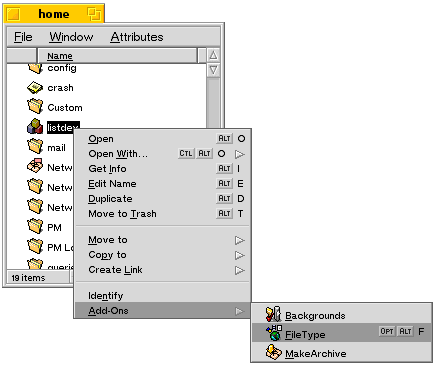
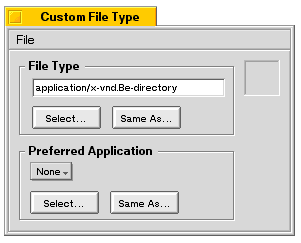
The File Type window appears:
 |
NOTE: Changes you make in this window apply to all files that you selected in the Tracker window. |
In the File Type section is the file type associated with the file(s). There are four ways to change the type:
- Enter (as text) the file type in the text field.
- Click Select... and choose a type from the list of all types known to the system.
- Click Same as... to make the type of this file the same as some
other file (which you choose from the file selection panel that's displayed).
- Drag and drop a file onto the File Type section of the panel; the file that you're examining assumes the type of the dropped file.
The Preferred Application section of the dialog lets you set associate a particular application with the file(s) in one of these ways:
- Choose an application from the pop up menu.
- Click Select... to bring up a file selection panel, and choose an application by locating it in the file system.
- Make it the same as the application associated with another file via the Same as... button.
- Drag and drop the desired application onto the Preferred Application section of the window.
The box on the right side of the window displays the file's icon (if it has one). To create a new icon or edit the existing one, double-click inside the box to launch the Icon-O-Matic application, which is explained in the next section.
Editing an Icon
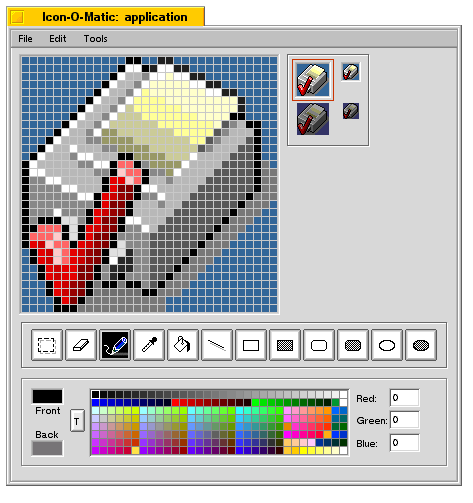
Double-clicking inside the Icon box in the File Types or File Type add-on window launches the Icon-O-Matic icon editor, where you can create and edit the icon that's associated with a file type or with a specific file. Note that if the file or file type doesn't have an icon associated with it when you double-click the icon box, a dialog will ask you if you want to create one; click New Icon to continue.
The window let's you create both a large icon and a mini-icon. Click on the large or mini-icon in the icon box on the right to switch between the icons (the red outline indicates the icon that you're currently working on).
To automatically generate a mini-icon from a large icon, grab the large icon (within the icon box) and drop it on the mini-icon.
The highlighted versions of the icons are automatically generated—you can't create your own versions.
for BeOS Release 4.5.
Copyright © 1999 Be, Inc. All rights reserved.