Be User's Guide: Backgrounds
| The Be User's Guide Table of Contents |
Customizing the BeOS: Backgrounds
Backgrounds lets you set each workspace's background color or image.
It also lets you set a background image for
each Tracker
window. (Note that to set a Tracker window's background, it
must be in Icon View or
Mini Icon View).
When you launch Backgrounds, you see this window:
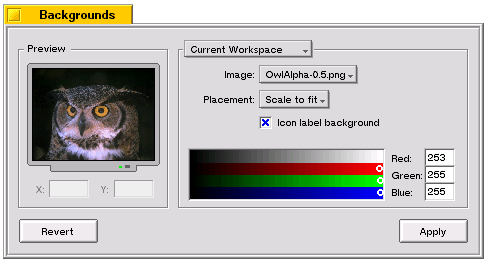
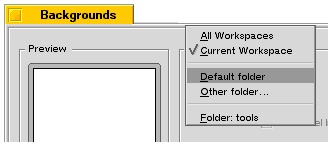 The pop up above the right box lets you set the target (workspace or folder) that you're
applying the settings to.
The two Workspaces commands apply the settings to the current workspace,
or to all workspaces, respectively
The two folder commands apply the settings to all
Tracker folders (Default), or to a specific
folder (Other).
When you add a background to a specific folder,
the name of the folder is added to the Folder: list so you can retrieve the settings later.
The pop up above the right box lets you set the target (workspace or folder) that you're
applying the settings to.
The two Workspaces commands apply the settings to the current workspace,
or to all workspaces, respectively
The two folder commands apply the settings to all
Tracker folders (Default), or to a specific
folder (Other).
When you add a background to a specific folder,
the name of the folder is added to the Folder: list so you can retrieve the settings later.
To set a background color, choose None from the Image: pop up and use the color control to set the color that you want.
To set a background image, drop the image file into the Preview box, and choose a placement option from the Placement: popup (The Center and Scale to Fit placements apply only to desktop backgrounds, not to folders). If you choose the Manual setting, the X: and Y: fields will display the coordinates of the image's origin (upper left corner). To move the image, simply drag it in the Preview screen, or type in the X: and Y: fields.
The Icon label background box, if checked, applies the chosen color to the boxes that contain the labels of icons that appear on the desktop. If it's unchecked, the label boxes are transparent. In either case, the label text color is either black or white--whichever is more legible given the icon label color.
If you're setting a background color (as opposed to a background image), the Icon label background checkbox is disabled and the label backgrounds are transparent. Again, the icon label color is decided on the basis of legibility.
for BeOS Release 4.5.
Copyright © 1999 Be, Inc. All rights reserved.