Be User's Guide: Using Network Services
| The Be User's Guide Table of Contents |
Using Network Services
This chapter discusses tells you how to use the NetPositive to access web pages, how to set up
your own "poor man's" web server, and how to use the E-mail preferences and BeMail application to
send and receive e-mail.
| NetPositive | |
| The Poor Man's Web Server | |
| BeMail |
If you haven't already configured your BeOS system to use the Internet, see Chapter 3, Connecting to the Network.
NetPositive
The NetPositive application is Be's web browser. This is the NetPositive browser window:
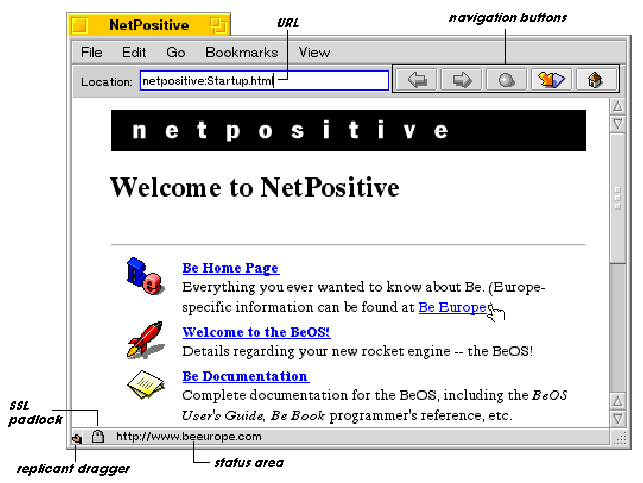
- The NetPositive menus are described in the next section.
- The Location: field shows the URL of the current page; type a new
URL into this field and press Return or Enter to go to that site.
- Navigation buttons (Back, Forward, Stop, Reload, Home) to the right of the location field let you flip through web pages that you've visited during the current NetPositive session.
- The status area shows the destination of the hyperlink the cursor is currently pointing to. It also shows the progress of a page download.
- The replicant dragger lets you drag the current
web page as a replicant. See NetPositive as a Replicant
for more information.
- The SSL ("Secure Socket Layer") padlock appears locked if you're in a site that is secure for sending credit card or personal information, and unlocked (open) if the site isn't secure.
 Browser Window Menus
Not all of NetPositive's menus and commands are described in this section—many are already familiar or self-explanatory. The elements described here are either of particular note or are used so frequently that they deserve mention. NetPositive's preferences are described separately in Setting NetPositive Preferences below.
Go Menu
The Go menu keeps a consecutive list of pages visited in NetPositive; click any page to return to it. To set how long to keep pages in this list see General Preferences in Setting NetPositive Preferences below.
Bookmarks Menu
Use Bookmarks to add the current web page to your bookmark list. You can edit bookmarks by choosing Show Bookmarks. This brings up the Bookmarks window, where you can rename, organize into folders, and delete bookmarks.
View Menu
Document Encoding refers to the language encoding of an HTML page. If you want to read a Japanese (or Cyrillic, Greek, etc.) web page, you must set Document Encoding to Japanese; if you look at a Japanese web site with Document Encoding set to Western, you'll see that the site is illegible. You set the font that's used for a particular language in the preference's panel, as described below in Display Preferences. For languages with more than one document encoding, all encodings use the same font preference.
 |
NOTE: To view Japanese web pages, or pages created for any multibyte character language, you need to install a font that contains the language's characters. |
Context Menus
The web page display contains two types of context menus. The context menu for any part the page that isn't a hyperlink contains these commands:
| Command | Does this |
|---|---|
| Back | Takes you back to the previous page. |
| Forward | Takes you forward one page. |
| Add This Page To Bookmarks | Adds the current page to the bookmark list. |
| Bookmarks | Refers to pages added as bookmarks; selecting a bookmark takes you to that page. |
The context menu for a hyperlink contains these commands:
| Command | Does this |
|---|---|
| Open This Link | Opens the hyperlinked page. |
| New Window With This Link | Opens the hyperlinked page, and puts the contents in a new window (rather than replacing the contents of the current window). Clicking the middle button on a 3-button mouse is a shortcut to this command. |
| Add Link To Bookmarks | Adds the hyperlinked page to the bookmark list. |
| Save This Link As... | Opens the hyperlink and saves the contents to disk (rather than display it in a window). |
| Copy Link Location | Copies the URL of the hyperlink to the clipboard. |
Setting NetPositive Preferences
Click the Edit > Preferences command to see the NetPositive preferences.
General Preferences
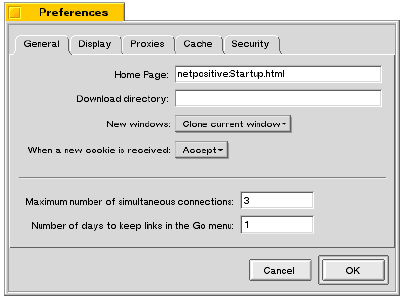
The General preference sets these attributes:
- Home Page:. Set to the page you want to open when you launch NetPositive.
|
NOTE: If you connect to the Internet by modem via PPP, you probably should set the default home page to point to an HTML file on disk (the default does this), or else leave the home page blank. If you use a remote site as a home page, when you start NetPositive, the system tries to make a PPP connection to download that page. You might not want to do this each time you open NetPositive. |
- Download directory:. Set to the folder where you want your web downloads to go. If you leave this blank, a Save window appears each time you download a file.
- New windows:. A pop-up list gives you three choices for what happens when you open a new window: Clone current window, Open home page (the one you enter in the Home Page: text field), or Open blank page.
- When a new cookie is received:. Cookies are very common and very small bits of persistent data a server can send to be stored on your hard drive for later retrieval by that server when you return to that site again. An example would be the contents of your shopping cart from a site where you've selected items to buy. This preference gives you the security option of accepting the cookie, rejecting it if you don't like the idea of having someone's prints on your hard drive, or being asked before you do either.
- Maximum number of simultaneous connections: (per window). Lets you set the number of simultaneous Internet connections to make from one window. This matters if you're using NetPositive over a slow link, like a modem, or running on slow hardware.
- Number of days to keep links in the Go menu:. The Go menu saves recent links. You can decide how long to save them, or set this field to zero to turn the Go menu off.
General settings take effect immediately.
Display Preferences
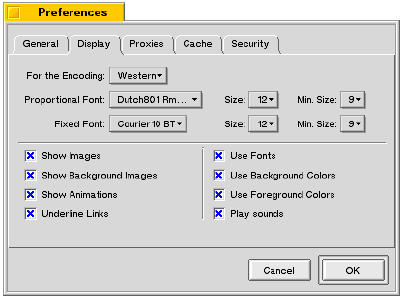
Display preferences are fairly self-explanatory, although For the Encoding: needs some deciphering. This setting remembers your font preference—the Proportional Font: setting below it—on a per document encoding basis. That is, you set each language encoding type (Western, Japanese, etc.) in the For the Encoding: popup with a certain font and size. When you go to a page in Greek (and assuming your document encoding is set to Greek), you'll see the page in Greek, in the font settings you make here.
Display settings take effect immediately.
Proxies
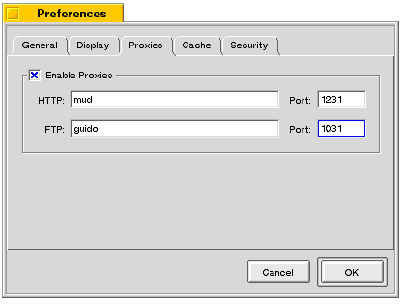
You'd probably use Enable Proxies only if you have a proxy server for special caching, or possibly for security reasons if you have a firewall—if you want to run your HTTP connections through a different server than the one you're actually connecting on.
To set this preference, check Enable Proxies, and fill in either a host name or IP address for HTTP: and/or FTP:. The FTP proxy should point to an HTTP proxy, since NetPositive only understands how to proxy through HTTP. You'll need to get the Port: information from either your system administrator or your Internet Service Provider.
You need to restart NetPositive to make your proxy settings take effect.
Cache
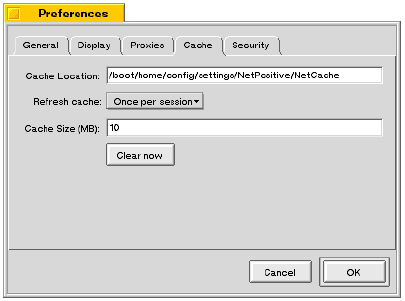
The cache is temporary storage for web pages. The default Cache Location: is /boot/home/config /settings/NetPositive/NetCache. You should only change this only if you want to put the cache on a different disk.
Refresh cache: lets you choose how often (or never) to ask the server of a cached page if the page has been updated compared to what's in the cache. This lets you keep cached pages as current as the refresh setting you choose.
You can leave Cache Size (MB): at the 10 MB default, unless you're really squeezed for disk space and need to make it smaller. Set a larger cache if you're a heavy browser user and want to reduce network traffic.
The Clear Now button deletes all the files currently in the cache.
You need to restart NetPositive to make Cache settings take effect.
Security
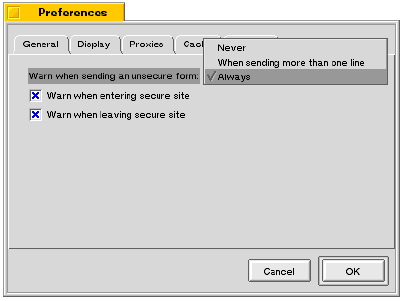
These are your security options:
- Warn when sending an unsecure form:. (Always, Never, When sending more than one line). Set this preference according to whether you want to be warned (or not) before sending an unsecure—that is, unencrypted—form, such as a credit card number.
- Warn when entering secure site: and Warn when leaving secure site:. You can ask for a message panel that's displayed whenever you enter and/or leave a secure site.
NetPositive as a Replicant—Live Desktop Pages
NetPositive is replicant-enabled, which means you can put cloned web pages into other applications or documents, or on your desktop. Except that it has no window tab, border, or menu bar, the replicant acts much like a regular NetPositive page:
- You move it by the dragger and resize it with the resize tab in the lower-right corner.
- You can go to other web sites through links or by typing into the Location: field.
- Bookmarks are available via the context menus.
- You can drag text, image, and HTML files onto the replicant.
The replicant remains active even if you quit NetPositive. If you put a NetPositive replicant on the desktop, the replicant will automatically "launch" and download its page when you reboot the BeOS.
For more information on replicants, see Replicants in Chapter 1.
Using NetPositive with Proxy Servers
If you connect to the network at work or school, you may have a proxy server for Internet access. A proxy server is a security device, filtering information that passes in and out of a network. If you've been unable to reach a web server outside your organization, it's possible that your network administrator has set up a proxy server.
For information on configuring NetPositive with a proxy server see Proxies in Setting NetPositive Preferences above.
Accessing a Network File Server with NetPositive
To access an FTP server from NetPositive, type the file server's URL into the URL field and press Enter. For example, if you type ftp://ftp.be.com/pub/, you see the contents of Be's public file server:
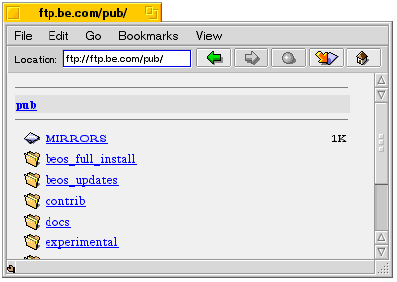
To download a file click a hyperlink. A status window shows the download's progress. To cancel the download, close the status window. You can download multiple pages at the same time. Downloads are saved to a folder you set in the General section of your NetPositive preferences (see General Preferences). If you don't set a download directory, a Save window appears for each download. If you download a compressed or archived file, NetPositive automatically launches the Expander application to expand or unarchive the file.
The PoorMan Web Server
The PoorMan application lets you create your own web site. PoorMan handles HTML pages, graphics, and other web-based information with minimal set up and hassle. It's ideal for small, personal servers and for prototyping web sites.
Setting Up PoorMan
When you launch PoorMan for the first time, you see this alert:
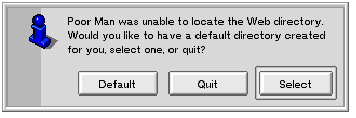
For now, pick Default and move on. PoorMan's main window then appears:
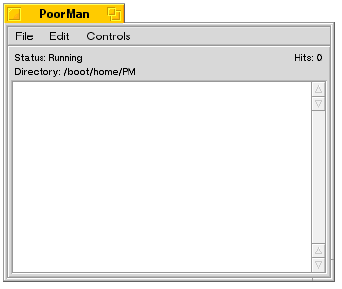
- Status: tells you if your server is running. Unless you turn off Controls > Run Server, the server should be running.
- Directory: initially shows /boot/home/PM as the default folder where your web server resides (the result of picking Default in the initial alert). Selecting a Directory Folder and Index File Name below tells you how to reset the directory (and why you should) and how to change the index file, if you wish.
- Hits: counts the number of times your website has been accessed. You can zero this out with Controls > Clear Hit Counter.
PoorMan must be running for the web server to be active. When you close the PoorMan window or quit the application, your web server goes down with it.
To log into your server, a user simply points his browser at your IP address or your domain name (given that his Domain Name Server knows how to make the conversion between the name and IP the address). Note that PoorMan doesn't change the rules of the network game—it can't provide access to a computer that is otherwise protected. For example, it won't let a user breach a firewall or other protective coating.
Setting PoorMan Preferences
You can run PoorMan with the default configuration, but it's preferable to configure a few additional settings. These sections describe the configuration options found in the PoorMan Settings dialog, accessed via Edit > Preferences.
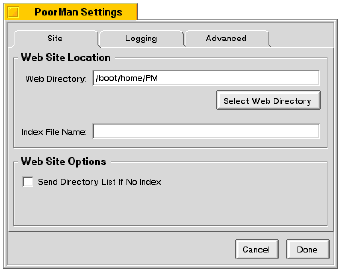
Selecting a Directory Folder and Index File Name
To prevent outside access to other folders on your system, it's a good idea to set a directory folder on your hard disk to use as the root directory of your web server. Place all your web pages and graphics in this folder.
In the PoorMan Settings window, in the Web Site Location portion of the Site tab, either type in the text field to change the directory setting or click Select Web Directory and choose from a file selection window. Your selection will appear in PoorMan's main window
The index file is the one that comes up automatically when someone connects to your web site without asking for a specific document. The default index file is named index.html. To use a different file, type another file name in the Index File Name: text field. Don't type in an entire path name—just supply the name of the file within your web directory that you want new connections to go to.
Web Site Options
In the bottom half of the Site tab is a checkbox for Send Directory List If No Index. If there isn't an index file (whatever its name) but Send Directory List... is checked, someone logging on will get a list of the files in your web directory. If the box isn't checked and no index file name is given, anyone logging onto your server will get an error message in their web browser.
Click Done when you finish making changes in the Site tab to make your settings effective.
Logging Web Site Information
The Logging tab of the settings panel gives you two options:
- Log to Console. Check this is you want the PoorMan console (in the main window) to display a message whenever someone connects to your server, or downloads pages.
- File Logging. Check Log to File to send the log to a file; you name the file in the Log File Name: field. Alternatively, click Create Log File to bring up a file selection window where you can select an existing file or type in the name of a new one.
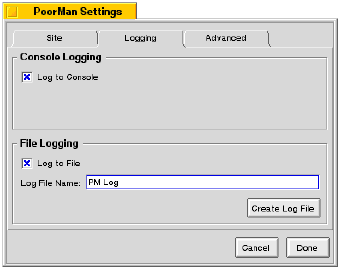
In addition, the File menu in PoorMan's main window has commands that let you write the current state of the log as a file.
Connection Options
A slider in the Advanced tab in the Poor Man Settings window lets you specify the number of connections that your server can support at the same time. The maximum number is 200; the default is 32. How high you set this option is determined by your network capacity and your machine's speed.
If you change the number of connections a dialog asks if you want to restart the server. Restarting while people are connected (that is, a file is currently being downloaded), breaks their connections.
The Controls Menu
The Controls menu in PoorMan's main window has four commands:
- Run Server lets you toggle your server on and off.
- Clear Hit Counter lets you zero out the Hits: field in the main window.
- Clear Console Log lets you clear out accumulated access information in the console.
- Clear Log File lets you erase the contents of your log file.
This section tells you how to set up your e-mail environment and describes where the BeOS stores e-mail messages. The BeMail application, which lets you read and write e-mail, is described in the next major section, BeMail.
The E-mail Preferences Application
To set up your e-mail environment, you make a visit to the E-mail preferences app. E-mail tells the mail daemon—the service that actually moves mail from your computer to your mail host (and vice versa) how and when it should run. Launch E-mail and you see this window:
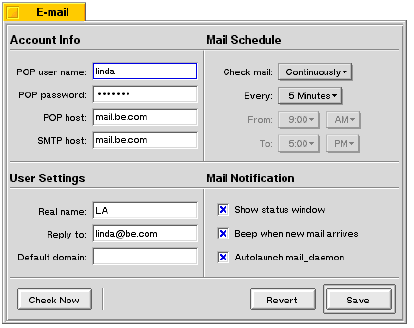
The information you enter in this window tells the BeOS where to find your mail server on the network, your name and password, and other mail-related options. Most of this information comes from your Internet Service Provider, or your network administrator.
The sections below describe each of the four parts of the E-mail preference.
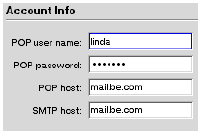
Account Info
- POP user Name:. Your POP (Post Office Protocol) name is usually the first part of your e-mail address (for example, "user" in user@company.com).
- Pop password:. If you don't enter a password, you're asked for one whenever you make a mail connection.
- POP host: and SMTP host:. These fields are the Internet domain names or IP addresses of the servers that handle your mail. POP is for incoming mail; SMTP (Simple Mail Transfer Protocol) for outgoing. If POP host: and SMTP host: are left blank, the services are disabled. If you just want to send mail, set the SMTP host and leave POP blank. The POP and SMTP hosts are usually the same server, but they don't have to be.
User Settings
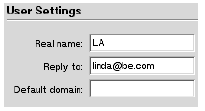
All of these settings are optional.
- Real name: field lets you stamp outgoing mail with your real name (rather than just the e-mail address).
- Reply to: is the e-mail address that you want responses to the mail that you send to be sent back to. In most cases, this is the same as your "local" e-mail address, but it doesn't have to be.
- Default domain: is the domain field that's tacked onto the end of any outgoing mail that doesn't otherwise have a domain name. For example, if you set the default domain to "be.com" and then send a message to "fido", the mail is sent to "fido@be.com".
Mail Schedule
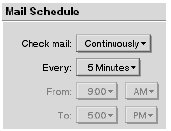
These pop ups let you set how often the mail daemon should automatically check for mail. When the daemon performs its check, it downloads new incoming mail from the POP host to your computer, and uploads outgoing messages from your computer to the SMTP host.
|
WARNING: If you connect to your network through Dial-up Networking, checking mail automatically will start a network connection, which may require a phone call. |
Mail Notification
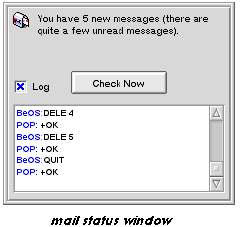
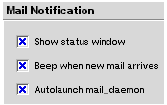
- Check Show status window to put a Mail Status window on your desktop (shown below). The Mail Status window shows how many new and unread messages you have, lets you check for new incoming messages, and displays the status of mail as it's sent and received. If you check Log the window expands to show you the details of mail access.
- Beep when new mail arrives. Check this box to set a system beep to announce new incoming mail.
- Autolaunch mail_daemon. Check this box to start mail services automatically when you start the BeOS. You should generally always have this turned on. When the mail daemon is running, a mailbox icon appears in the Deskbar's Status View.
All Done
When you finish configuring mail preferences, press Save. Press Check Now to check for new messages immediately.
Mailboxes and Checking for New Mail
The BeOS defines the /boot/home/mail directory as the repository for mail. Incoming mail messages are placed in /boot/home/mail/in. Messages that you send are placed in /boot/home/mail/out. If you create your own "mailbox" folders—into which you sort your incoming mail, for example—you're encouraged to place them in /boot/home/mail alongside the folders that Be creates.
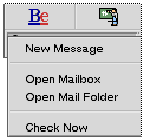
The easiest way to open one of the mailbox folders is to pop up the mailbox icon's c ontext menu (in Deskbar's Status View).
- Open Mailbox opens the incoming mail folder (/boot/home/mail/in).
- Open Mail Folder opens the "parent" mail folder (/boot/home/mail).
The In Mailbox
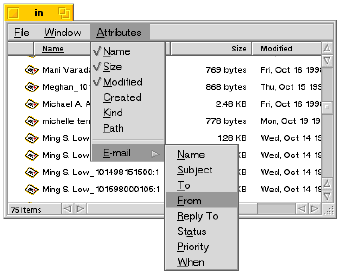
When you open the incoming mailbox (as a Tracker window) you'll see the Attributes list has been augmented to include E-mail attributes.
The E-mail attributes include the sender's Name, the Subject of the message, the e-mail address it was sent To (that's you), and so on. Note that the Priority attribute is user-editable; you can use this field to prioritize your mail. Note also that the Name of the file is not the same as the e-mail Name. The file name must be unique—the e-mail name doesn't have to be.
You can modify the set of attributes that the window displays just like in any Tracker window. For more information on Tracker window attributes, see Working with the Tracker in Chapter 1.
The Out Mailbox
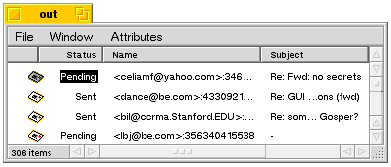
A notable feature of the out mailbox is the Status attribute. When you send mail (through BeMail) you get to decide if you want the message sent right away, or if it should sit in the out mailbox and wait for the mail daemon to perform its automated check. Messages that have been sent are marked as Sent; messages that are waiting to be sent are marked as Pending:
Checking for Mail
There are a number of ways to check for new mail:
- Wait for the mail daemon to perform its automated check.
- Press Check Now in the Mail Status window or in the E-mail preferences window.
- Choose Check Now from the mailbox context menu in Deskbar's Status View.
Each of these methods also sends Pending mail at the same time.
BeMail
BeMail is the BeOS mail-reading and -sending application. This section describes the features of the BeMail application.
Creating an E-mail Message
To create a new e-mail message with BeMail, simply launch the app. A new message window will open:
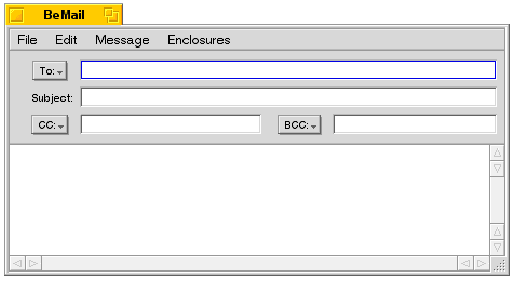
You can also get a new message window by choosing New Message in the mailbox context menu, or by choosing File > New Mail Message in an existing BeMail message window.
In the message window, you fill in the recipient's address in the To: line, the subject in the Subject: line; CC: and BCC: are carbon-copy and blind carbon copy recipients, respectively. Notice that the To:, CC:, and BCC: fields are pop ups. When you pop up one of these fields, you see a list of People groups—these are group definitions that you create with the People application. This lets you send a message to a group of people without having to type in each individual e-mail address.
The body of the message is, of course, entered in the lower part of the window.
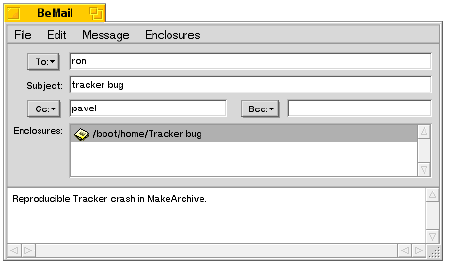
Adding an Enclosure
To attach a file (or "enclosure") to a message, drag the file into the message window; an Enclosures section opens with your file in it. You can also add an enclosure by choosing Enclosures > Add.
Sending
When you're ready to send your message, choose Send Now or Send Later from the Message menu. As described in the E-Mail section, if you choose to send later, the message is queued in the out mailbox and will be sent the next time the mail daemon checks for mail.
Reading Mail
You read incoming mail (or an old outgoing message) simply by clicking on the message. BeMail automatically launches and displays the message. When you're done reading it, you can easily get to the next message in the mailbox through these keyboard shortcuts:
- Alt+up/down arrow closes the current message and opens the previous/next message (with no annoying window flashing—it all happens within the same window). These are shortcuts for Message > Previous Message and Message > Next Message
- Alt+T moves the current message to the trash and opens the next message (short for Message > Move to Trash).
Receiving an Enclosure
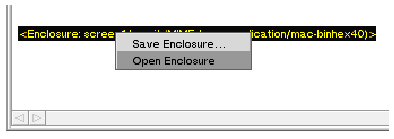
If you receive mail with an enclosure attached, right-click on the enclosure line and a pop-up appears that lets you open the enclosure or save it. If you choose Save, a file selection window lets you direct the enclosure to the folder where you want to save it.
Fine-tuning BeMail
The Preferences command in the Edit menu brings up the BeMail preferences window:
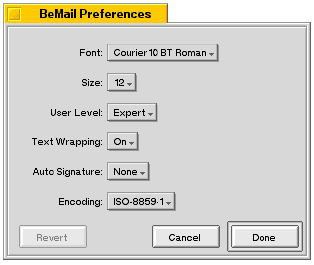
- The Font: and Size: fields set the family and size of font that's used to display the text of e-mail messages.
- User Level: is either Expert or Beginner. Beginners are asked more questions than experts—questions such as whether you really want to throw a message away when you move it to the trash.
- Text Wrapping: turns text-wrapping on and off.
- The Auto Signature pop-up menu lets you set the "signature" that's automatically appended to every message that you send. Create a signature is described below.
- Encoding: sets the character encoding that's used to display message text.
Signatures
To create a new e-mail signature, choose Edit > Signatures from the, then type and save the signature. You can now select the signature from the Auto Signature popup, and it will be added to all your outgoing mail. The signature also appears in Add Signature in the Edit menu, so if you prefer, you can add a signature you create manually by choosing that command.
for BeOS Release 4.5.
Copyright © 1999 Be, Inc. All rights reserved.