Learning Be Application Basics
Learning Be Application Basics
The BeOS comes with a number of applications. Most are in the /apps folder located on your boot drive. You start applications, open files, type and edit text, save files, quit applications, and perform many other tasks the same way in most applications. This chapter introduces you to these basic techniques, and includes the following topics:
| Section | Page |
|---|---|
| Working With BeOS Applications | |
| Working With Files | |
| Text and Printing |
Working With BeOS Applications
You can run many applications at the same time. The BeOS and its applications understand how to share processors, memory, and other resources, so multiple applications can perform operations simultaneously. The following sections describe how to launch, switch between, and quit applications.
Launching an Application
You can start an application by
- Double-clicking its icon.
- Selecting its icon and choosing Open from its File menu.
- Selecting an application icon and pressing Enter.
- Opening a file; the preferred app for that file is launched automatically. (To set the preferred app use the FileType Tracker Add-on application, explained in "Understanding File Types" in the chapter "Customizing the BeOS .")
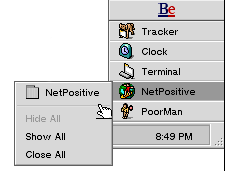
When an application is running, its name is added to the application list in the Deskbar. By convention, all running applications must have at least one window open (when you close the last open window in an application, the application quits). When you select an app in the Deskbar, you can see its open and hidden windows (see "Working With Windows" in the chapter "Learning BeOS Basics").
The Active Application
While all running applications can be "active," in the sense that they can all be doing work at the same time, only one application can be the active application. That is the one whose window is frontmost, and which has a yellow tab. This is the window that responds to keyboard actions.
The exception to the active window being frontmost occurs if you check the Focus Follows Mouse checkbox in the Mouse preferences panel. In that case, the active window is the one the mouse is over, whether it is frontmost or not. For more information see "Setting Mouse Preferences" in the chapter "Customizing the BeOS ."
To switch applications, or make a different window's application active:
- Click in an open window belonging to the application you want to switch to.
- Choose a window--and its application--by clicking on its icon in the applications list in the Tracker pop-up list.
Quitting an Application
When you finish using an application, you can quit it by choosing its Quit command. In most applications Quit is in the File menu. In many applications, closing an application's last open window also causes it to quit.
If you're running a full-screen application such as the Dominoes demo or many games, you can quit by pressing Alt+Q.
Working With Files
The sections that follow discuss working with files in the BeOS
Creating a New File
When you start some applications--such as StyledEdit or NetPositive--they open an empty, untitled document in a window. You can work in this document and then save it (as described in "Saving a File" in the next section). You can create and open another new document by choosing the New command. (The location of New varies, but in most applications it's in the File menu in the application's windows.)
Saving a File
When you work in a file, your changes aren't stored permanently until you save them. If you experience a power outage, if the application crashes, or if you accidentally press Control+Alt+Delete, unsaved changes are lost. Saving a file puts a copy of the file with the latest changes on a disk.
If you make changes to a file that already has a name and location on a disk, save your changes by choosing the Save command, most often found in the File menu.
The Save As command brings up a file selection window that lets you save a file under a different name, or in a different location.
Opening a File
There are several ways to open files. The simplest is to double-click a file's icon in a Tracker window. You can also select a file's icon and choose Open from the File menu, or select the file and press Enter. Most files have an application they're associated with--usually the application they were created with. When you double-click a file, it opens in this application.
Using the "Open With" Command via the Find Dialog
If the system cannot find an application associated with a file, you get an error message that tells you why the file couldn't be opened.
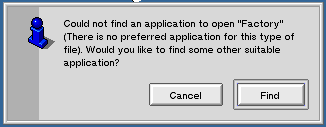
If you click the Find button, you'll get an Open With window that shows all the applications the system thinks can be used to open the file, with the preferred application highlighted.
The Open With window lists applications in four levels of preference, sorted from more specific to less, in terms of how the application relates to the file you want to open:
- The first level is the preferred application, which is highlighted.
- The second level shows all applications that handle the same MIME type (MIME is the Internet standard for file type transferability).
- The third level shows applications that are MIME super-type capable, meaning they can open any file of a certain broad type. Examples would be video applications that open any MPEG file, or applications that open any type of text file, whether the text is in a word processing file or source code file.
- The fourth level is generic applications that handle any file type. The only current example on BeOS is the FileTypes app.
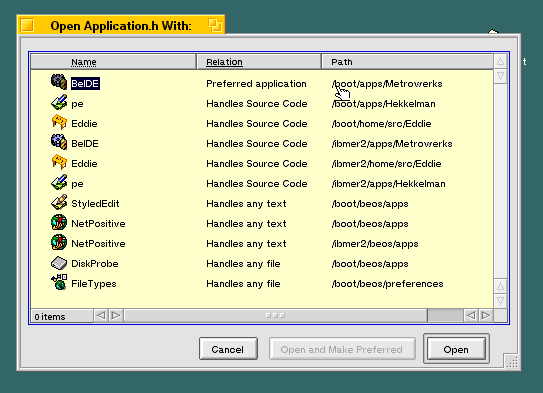
If you select a different application from the preferred one, the grayed out Open and Make Preferred button becomes live. You can use this button to make the application you choose the preferred app to open the file--and other files of the same type. An instance in which you might use Open and Make Preferred is if you have Version A and Version B of the same app, with A preferred. If you delete Version A, you can make Version B preferred via the Open With window.
Using the "Open With" Command via the Context Menu
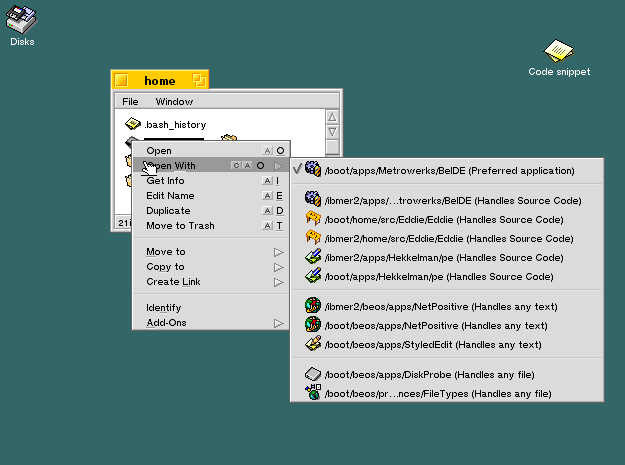
Another way to open a file and change the preferred app is through the context menu you get by clicking and holding on the file's icon. Click and hold Open With and choose the application to open the file with from the pop-up list that appears. The preferred app is checked; you can change the preferred app for this file only, by choosing a different one from the list (which appears only if there are multiple copies or versions of the application). If you release the mouse button without making a selection, the Open With window opens.
 |
You can change the preferred application for opening all files of a certain type only with the "Open and Make Preferred" button in the "Open With" window, or by using the FileTypes add-on. |
Opening a File by Dragging and Dropping
You can drag a file onto an application icon to open it in that application. This is a good way to open a file in a now preferred application. For example, you can use this technique to open a script file you want to read or edit in the StyledEdit application; if you just double-click the file, the script runs, instead of opening in a document window.
However, if you try to open a file by dropping it onto an application icon that doesn't know how to open it, the application icon is not highlighted and the file doesn't open. Instead, the files drops into the window, next to the application icon. In other words, if you drag an ImageViewer file onto the PlaySound icon, you've simply moved the file.
You can try to override this behavior by holding down the Right Control key when you drag and drop. Continue to hold the Control key when you release the mouse button. If the application can recognize the file and open it, it will; if not, a copy of the file drops next to the application icon.
Text and Printing
The sections that follow briefly summarize working with text and printing on the BeOS.
Selecting Text
You select text to change it or to edit it in some arrangement of the Cut, Copy, and Paste commands. There are a number of ways to select text with the mouse.
| Do This | To |
|---|---|
| Click | Select an insertion point. |
| Double-click | Select a word. |
| Triple-click | Select a paragraph. |
| Drag across text | Select a character at a time. |
| Double-click and drag | Select whole words at a time. |
| Triple-click and drag | Select whole paragraphs at a time. |
| Hold down the Shift key | Extend or reduce a range of selected text. |
You can choose the Select All command (usually in the Edit menu) to select all the text in a window or document.
Special Keyboard Features
This sections that follow describe how to use a few special keyboard features.
Typing Special Characters
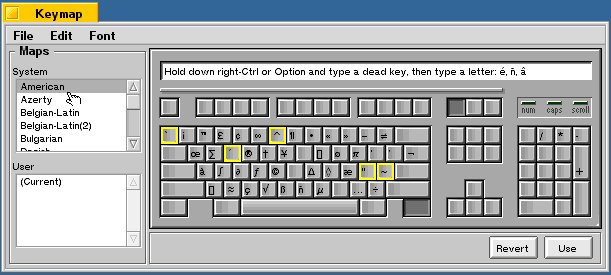
Type accented characters, symbols, and other special characters by holding down the Right Control key while you type one or more other keys. You type most accented characters by typing a dead key with the accent you want, followed by the letter you want accented. A dead key doesn't place a character on the screen until you type another character. For example, to type "é\," you press Right Control+e and then type "e."
The Keymap application indicates dead keys with a solid color border. This is the application to use to find the accents and other special characters. It is located in the /boot/home/config/preferences folder.
For more information, and an explanation of the rest of the window, see "Using the Keymap Application" in Chapter 6, "Customizing the BeOS ."
Deleting Text
The simplest way to delete text is to press the Delete key (located at the right end of the number row on the keyboard), which erases text to the left of the insertion point, letter by letter. (Depending on the keyboard you're using, the Delete key may be labeled "Delete," "Backspace," or may have a left-pointing arrow.) A second Delete key, which in the extended keyboard is located between the letter section and the number keypad, above the directional arrows, erases text to the right.
Clippings
Clippings is a BeOS feature that lets you make a persistent file of text that would otherwise be like text that is saved only temporarily to the Clipboard. To work with clippings, select text, and, using the hand cursor, click on the selected text and drag it to the Desktop. An "Untitled clipping" file appears. You can drag this file into any text editor application that accepts drag and drop. What happens when you do is up to the application you drop the clipping file into. If you drop it into a StyledEdit window, it appears as the original selected text; if you drop it into a Terminal window you'll see the directory path to the clipping file.
Printing
The BeOS currently supports two types of printers:
- Postscript LaserWriter-compatible printers connected via EtherTalk (AppleTalk protocol on Ethernet).
- HP LaserJet (PCL3)-compatible printers via the parallel port on a BeBox.
Selecting a printer is a two-step process on the BeOS:
- Add the printers you would like to use to your system with AddPrinter, located in the /preferences directory.
- Select a current printer from that list with SelectPrinter, also in /preferences.
Adding a Printer
To add a printer open the AddPrinter preferences panel, located in the Preferences folder, and also accessible from the Deskbar's Be menu. The two types of printers that the BeOS currently supports are listed.
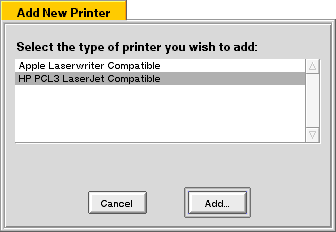
The HP LaserJet driver supports LaserJet-compatible (PCL3) printers connected via the parallel port.
|
Because Power Macintosh-compatible computers do not have a parallel port, users should not try to add an HP LaserJet-compatible printer to their system. |
Adding an HP LaserJet to Your System
To add an HP LaserJet printer to your system:
1. Launch AddPrinter.
2. Select HP PCL3 LaserJet-compatible and click Add.
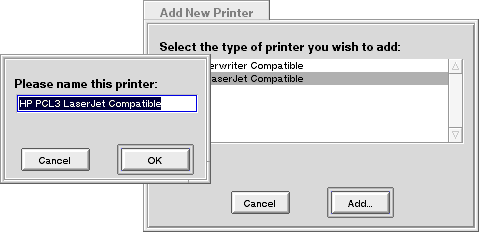
3. A dialog appears that lets you type in a new name for the printer.
4. When you click OK a dialog asks if you want this printer as your default printer. Click Yes if you do.
Adding an Apple LaserWriter-Compatible Printer
The BeOS Preview Release supports Apple LaserWriter-compatible printers that are connected via the Ethernet. Make sure that AppleTalk is turned on in the Network preferences panel before adding an Apple LaserWriter to the system. Then
1. Launch AddPrinter.
2. Select LaserWriter Compatible and click Add.
3. Select which LaserWriter-compatible printer to add to your system from the top list.
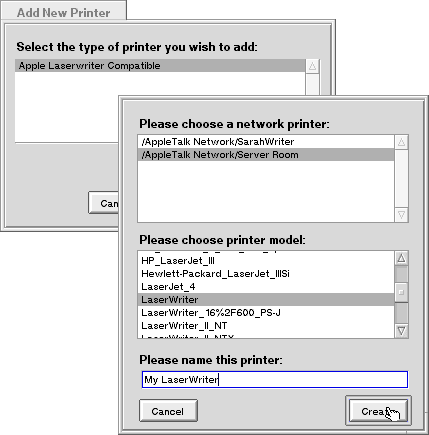
You can see and select only the printers that are in the same AppleTalk zone as your computer.
4. Select the description file for the selected printer.
5. Choose a name for the printer on your system.
6. Click OK.
7. When you click OK a dialog asks if you want this printer as your default, or current, printer. Click Yes if you do.
Repeat these steps to add other printers to your selection.
Selecting a Printer
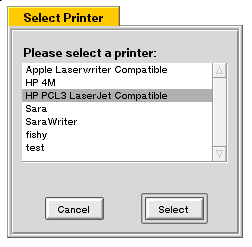
Use SelectPrinter to designate the printer to use if you have more than one printer on your system and want to switch between them:
1. Launch SelectPrinter
2. Select the printer you want to print to from the scrolling list available on your system and click Select.
Page Setup and Print Dialogs
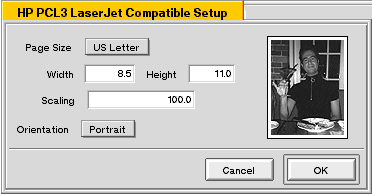
Applications have two dialogs that control printing: Page Setup and Print.
The Page Setup dialog controls the orientation, scale, and paper size of the document.
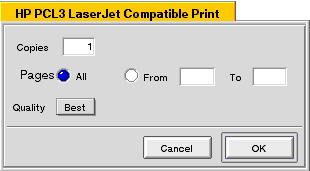
The Print dialog controls the number of copies, page range to print, and print quality.
- The Page Size pop-up includes the sizes of paper you can print on.
- Width and Height indicate the dimensions of the page.
- The Scaling box enables you to expand or contract the actual document when printed.
- Orientation indicates how the document is laid out on the page.
The Page Setup and Print dialogs are slightly different when printing to a LaserWriter-compatible printer.
- Copies indicates the number of copies of a document to print.
- Pages: All means print all pages; to print only part of a document type the desired page range in the From and To boxes.
- The Quality pop-up determines the quality/resolution of the printout.
While the Print dialog is virtually identical, the Page Setup dialogs for LaserWriter compatible printers is somewhat different than for LaserJet compatibles.
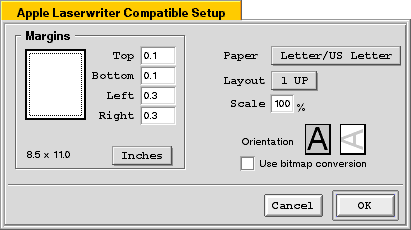
On the left side of the dialog you can set the margins for the page and choose the scale (inches, centimeters, or points). On the right side of the dialog:
- The Paper pop-up lets you choose the page size to print on.
- Layout determines the print order of the job: whether the first page prints out first or last.
- Scale lets you shrink or expand the entire document.
- Orientation makes the direction of the document either vertical or horizontal.
- The Bitmap conversion option converts everything to a large bitmap on your machine using the native graphics routines in the BeOS rather than converting to PostScript and converting on the printer. This is useful with BeOS capabilities, such as drawing transparency or Japanese fonts, that are not in the printer. The bitmap approach ensures that what you see is what you get, but files print more slowly since the entire bitmap must be downloaded to the printer.
The Be User's Guide, in lovely HTML, for BeOS Release 3.
Copyright © 1998 Be, Inc. All rights reserved.
Last modified February 19, 1998.